Select Fast networking→enter the WiFi password then tap <Next>→ Tap<Hearing
the sound of “Du Du”>iOS APP will tap“Connect the AP hot spot” →select hotpost
GW_AP_XXX that no password→return Yoosee APP, Wait less than 10 seconds
then Name the device, Enter the name then tap<Confirmed, Check my device>.
Connect the LAN cable into the RJ45 port and into your router port.
Tap <Wired connection>, Mobile phone of User and device in the same LAN,
Tap <Next>, user will find one device display the list. tap + to add,wait for
1~2 minutes until finish the <Bind device>
2 Wired connection
The first user to add a doorbell is the administrator. tap Share icon to enter
3 share modes
1 Enter the account(email or mobile phone) of share user then tap <Share>
2 Face-to-face sharing will make a QR code. Other user scan the QR
code to add the device. User tap <Scan it>
3 Shaing on social media will make a link. administrator can send the link by
Message,Mail or other social tools such as Wechat, whatsapp.
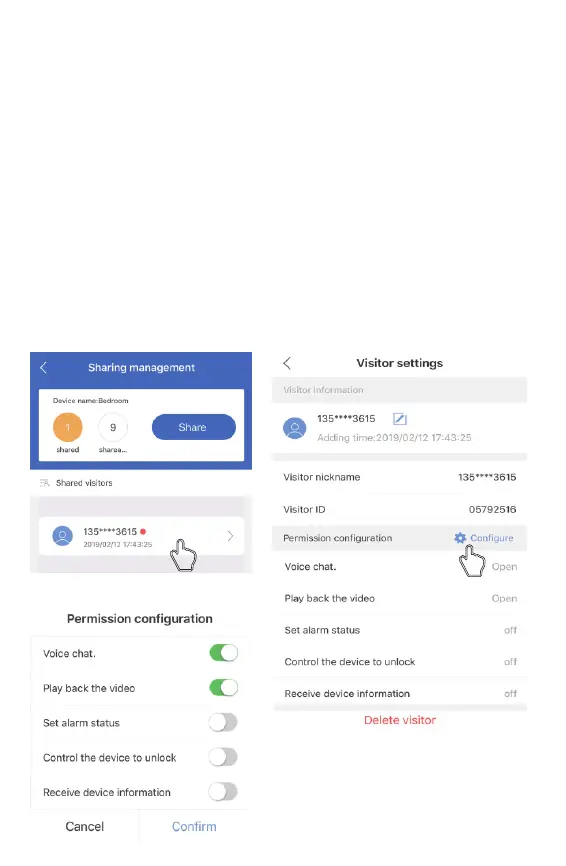
Note: After the shared user connect the doorbell, Administrator tap <Share>
to setting the Permission configuration for the shared user.
3 Share user and Sharing management
8
1 Tap the shared user
2 Tap <Configure> to setting the
Permission configuration, Tap
<Delete visitor> to delete the user.
3 Set permissions for shared users,
including five options in the left table


 To Next Page