
 Need help?
Do you have a question about the ZapperBox M1 and is the answer not in the manual?
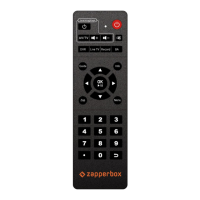
Program keys to control TV or AV receiver. Includes programming instructions and error indication.
Future use keys for DVR functionality and Broadcaster Apps.
Brings up and dismisses the program guide.
Brings up info bar with detailed program info and dismisses the info screen.
Brings up the quick access (context sensitive) menu while watching TV.
Brings up and cancels the main menu.
Used for navigating menus. Up/down for channel surfing, left/right for fast forward/rewind.
Functions include backspace during channel entry and previous channel.
The ZapperBox M1 is a device primarily controlled by a remote, offering a range of functionalities for media consumption and management. The remote control is designed for intuitive interaction with the device, featuring programmable keys, navigation controls, and dedicated buttons for various functions.
The remote includes "Learning Keys" which are programmable to control your TV or AV receiver. This feature allows users to consolidate control of multiple devices into a single remote. The programming process involves entering a learning mode by holding the black Power Key until a red LED illuminates solid. Users then select one of the three programmable keys, which causes the LED to blink. By positioning a "teaching remote" (the original remote for the TV or AV receiver) 3-5mm away and pointing it at the ZapperBox remote, users can press and hold the desired button on the teaching remote. The ZapperBox remote's red LED will blink quickly three times to confirm successful programming. This process can be repeated for the other two programmable keys. If programming fails, the LED will blink five times, indicating a need to retry. To exit the learning mode, any button outside the learning key area can be pressed, and the red indicator light will turn off.
Beyond the learning keys, the remote features dedicated buttons for core functionalities. "DVR, Live TV, Record, BA" are future-use keys intended for DVR functionality and Broadcaster Apps, indicating upcoming enhancements to the device's capabilities. The "Guide" button allows users to bring up and dismiss the program guide, providing an overview of available content. The "Info" button displays an info bar with detailed program information and dismisses the info screen, offering quick access to contextual details about the currently viewed content.
For quick access to context-sensitive options while watching TV, the "Zap" button brings up a quick access menu. The "Menu" button is used to bring up and cancel the main menu, serving as the primary gateway to the device's settings and features. Navigation within menus is handled by the "Arrow Keys & OK" cluster. The up and down arrow keys also facilitate channel surfing, allowing users to browse through channels efficiently. When DVR functionality is introduced, the left and right arrow keys will be used for fast forward and rewind controls, enhancing media playback control.
The "Reverse arrow key" serves multiple functions, making it a versatile control. It acts as a backspace during channel entry, simplifying the input of channel numbers. While watching TV, it functions as a "previous channel" button, allowing users to quickly switch back to the last viewed channel.
The ZapperBox M1 is designed to provide a comprehensive media experience. Its core function revolves around receiving and managing broadcast content, with future expansions planned for DVR capabilities and integration with broadcaster applications. The device's software architecture supports these functionalities, with various version numbers tracked for different components, including the overall release version, UI version, ATSC3pak version, AOSP release, and OS date. These version numbers are crucial for tracking updates and diagnosing potential issues.
The ZapperBox M1 offers flexible network connectivity options. For users requiring a static IP address with a wired Ethernet connection, the device allows configuration through the "Wi-Fi Setup" menu, found under "Settings." Within the "Network & Internet" menu, users can navigate to "IP settings" to either enter a static IP address manually or choose to use DHCP for automatic IP assignment.
The device incorporates robust diagnostic and privacy features. During normal operation, the ZapperBox stores diagnostic logs in its memory. These logs are kept internal to the device and are continuously overwritten with new logs, ensuring that no sensitive data is automatically uploaded to remote servers.
For support purposes, if users report an issue via the "My Account" section of the ZapperBox website, support personnel may request that diagnostic logs be uploaded from the device. This can be done by selecting the "Upload Diagnostics" option within the "Settings" Menu. This feature allows for efficient troubleshooting by providing support staff with relevant system information.
Furthermore, the "Remote Access" feature can be enabled via the settings menu for more in-depth support. When support personnel access the diagnostic utility on the ZapperBox via the internet, a "Remote Access Active" advisory will be displayed on the screen, informing the user of the remote access. The device maintains a strict privacy policy, stating that no information uploaded to its servers for diagnostic purposes is shared or sold. The policy regarding the retention period for historical diagnostics is still under development, acknowledging their utility in debugging ongoing issues.
The ZapperBox M1 is built upon the ATSC3pak software developed by BitRouter, indicating a foundation in advanced broadcast technology. It also incorporates Dolby Laboratories' technologies, including Dolby®, Dolby Atmos®, Dolby Audio™, and Dolby Digital Plus™, with the device manufactured under license from Dolby Laboratories. All other trademarks mentioned remain the property of their respective owners, highlighting the collaborative effort in bringing this device to market.
 General
| Device Type | Remote Control |
|---|---|
| Compatibility | ZapperBox M1 |
| Remote Control | Yes |
| Power Source | 2 x AAA batteries |
| Connectivity | Infrared (IR) |

 To Next Page