ZMCBR-H65
12
4. Play mode
ØLoop
Set the Loop state on Normal, Reverse, Random, Single or Off.
ØSlideshow Interval
Set the Slide Show Interval from 2S-10S.
ØPhoto View Mode
Set the Photo View Mode state on Full Screen, 2x2 Thumbnail or 2x3 Thumbnail.
5. Play Files
1. Go to Main Menu ->Expansion->USB to enter the USB menu.
2. Press the t/u key to select the file type.
3. Press the p/q key to change the folder or file and press the OK key to open the
folder or play the file.
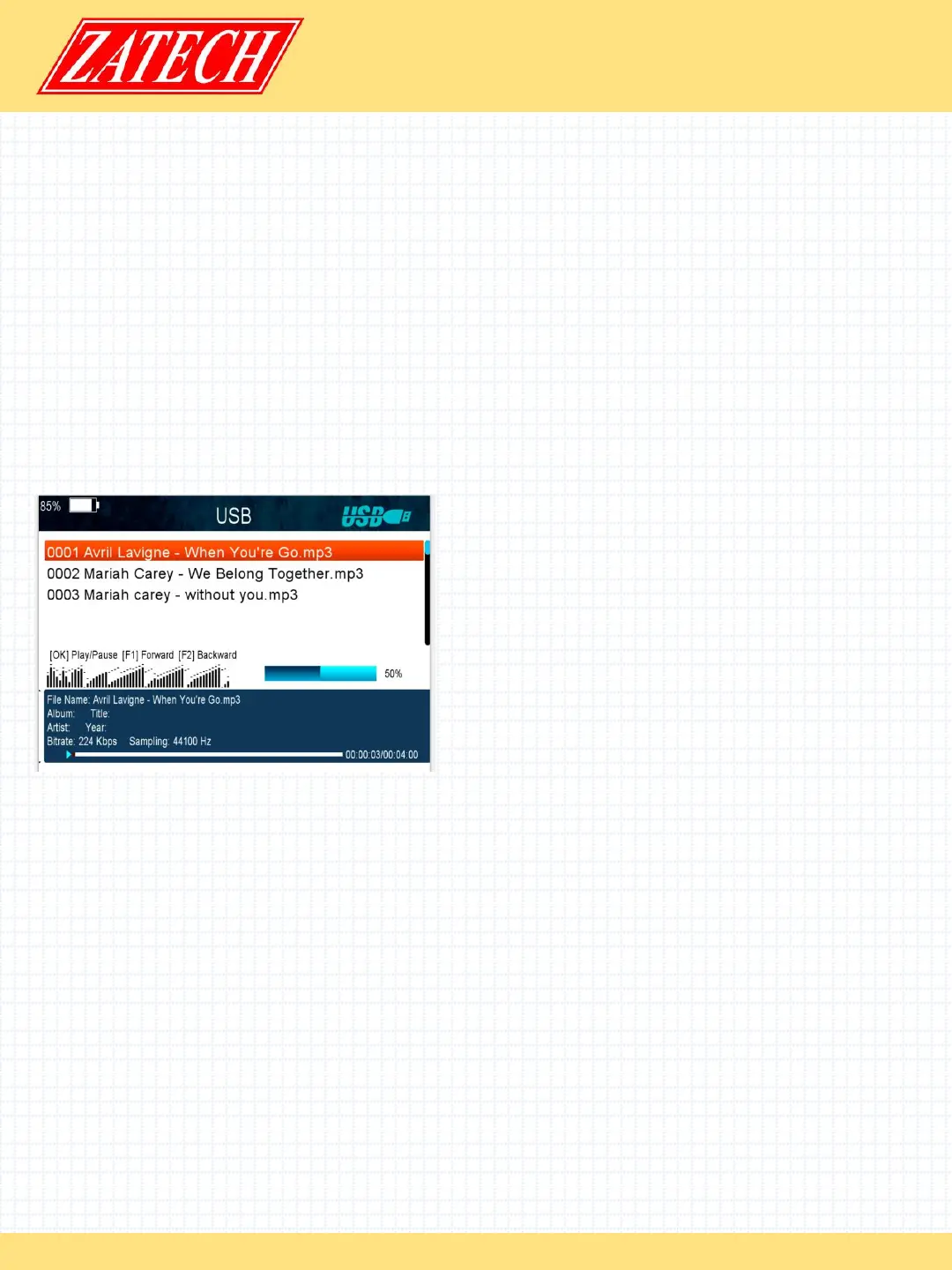
6. Music
It supports *.mp3,*.flac,*.mp2,*.wav,*.ogg format music files.
OK: Play the selected file.
p/q: Change the highlighted item.
t/u: Adjust volume.
EXIT: Exit the current menu.
ØPlay/ Pause
Pause or play the selected file in play list.
ØForward
Fast forward.
ØBackward
Fast backward.
7. Picture
It supports *.bmp, *.jpg ,*.gif format photos.
8. Movie
It supports *.3GP,*.AVI,*.DAT,*.DIVX,*.FLV,*.MKV,*.MOV,*.MP4,*.MPG,*.TS,*.VOB format
movie files.
9. Software Upgrade
Ø.Insert USB to your PC, copy the update file to the USB.
Ø.Restart the STB, when it is starting up, insert the USB.
Ø.In main Menu>Expansion>USB, find and select the update file, then press ok button
, it will upgrade the file.
Ø.After upgrade, the STB will restart automatically. After restart you can search
channel and test it.
Note: During the process of upgrading the S/W, please don’t power off.


 To Next Page
 Loading...