Page 6 of 8 www.zeevee.com
Front Panel Conguration
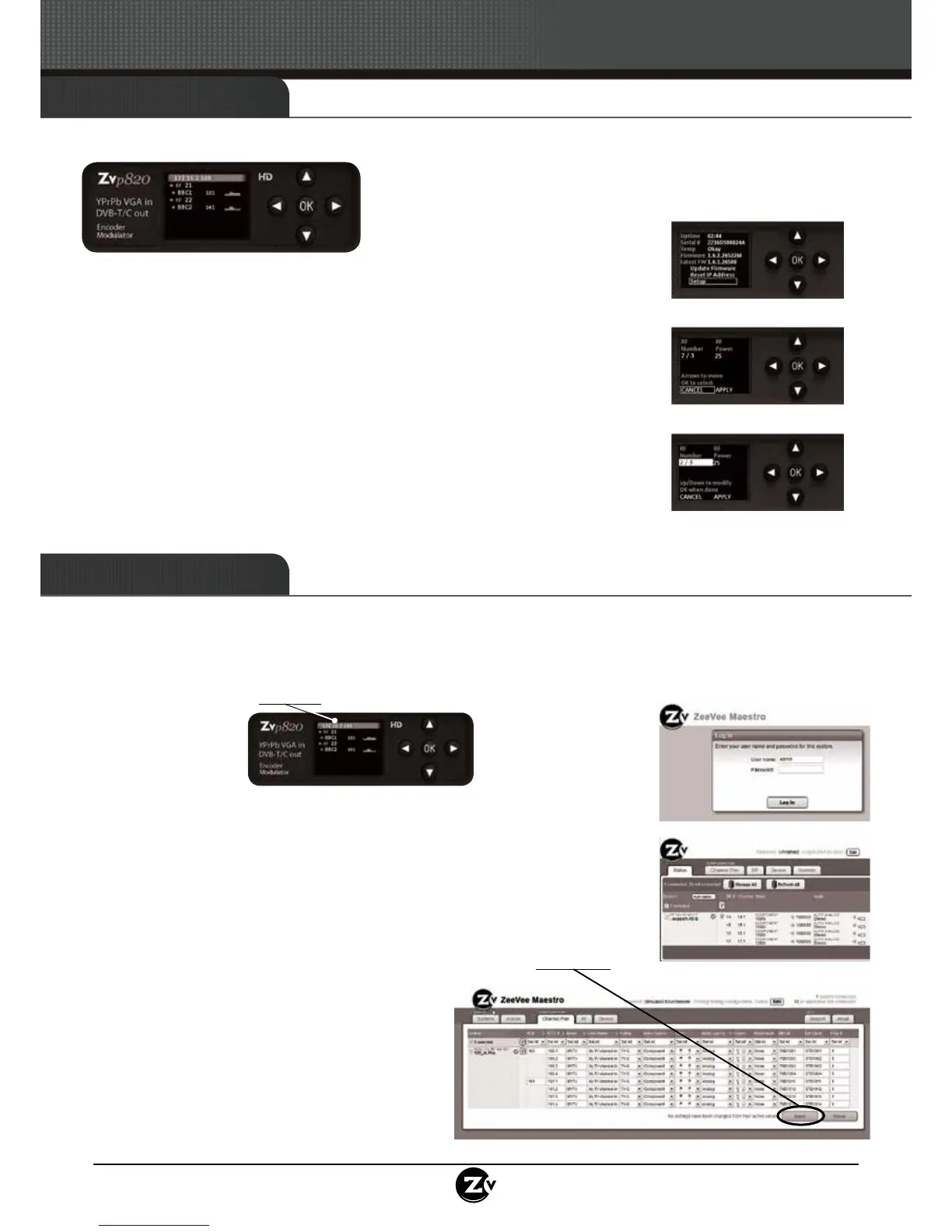
ZeeVee modulators typically only require setting the RF channels. This can be done using the Front Panel controls.
1. Unlock the panel by pressing / holding together the arrow buttons
until “Setup” lights up. Press “OK” to enter the Conguration screen.
2. Use the the arrow buttons ( ) to go to each item you want to congure
(such as RF Number or RF Power), then press “OK” to edit the highlighted eld.
Use the arrow buttons to scroll through the options for that eld.
3. Once you’ve made changes, press “OK” to accept them. You can then select
the next item for conguration.
4. When nished making changes, use the arrow buttons ( ) to scroll
down to select “Apply,” then click “OK” to save your changes.
Note: The front panel locks automatically after a few seconds. To make more
changes, press/hold the buttons again to re-enter the setup screen.
5. Optional: If using the delay matched audio output, select audio delay and use
to increase or decrease latency of audio to match video at the TV. The
delay will change in real time, but you must click Apply to save the changes.
Go to the Advanced Conguration section for more complex settings.
Setup Screen
Conguration Screen
Active Conguration Screen
When other changes are required, the web-based interface (Maestro) should be used.
1. Connect your computer directly to the ZeeVee modulator using a standard Ethernet cable (cross-over cable not required),
or connect the unit to any LAN that has a DHCP server.
NOTE: Macs will require connection via Switch or LAN, they will not support direct-connect to the Ethernet port.
2. After a few moments, an IP address will appear at the top of the front panel display.
3. Using any web browser (Chrome or Firefox preferred), go to
the IP address to launch Maestro, the conguration tool.
4. You will be directed to a login page:
User Name: admin
Default Password: admin
The User Name will always be “admin.” The default password
is “admin” but it can be changed in the conguration tool.
NOTE: Login is case-sensitive.
5. Tabs across the top allow for different conguration actions.
Click on “Channel Plan” to set the RF number, channel
names, video source, etc.
NOTE: RF numbers are entered in pairs based on
frequency.
6. Click “Apply” to save your changes. Settings are
stored in the unit and not lost on power-down.
Visit www.zeevee.com/support for additional help and
troubleshooting.
Maestro Login Screen
Maestro Channel Plan Screen
Advanced Conguration
Click Apply
to save
your changes.
Maestro Status Screen
Conguration
For additional help and troubleshooting, visit our website:
http://www.zeevee.com/support/conguration


 To Next Page
 Loading...