EN
4. The back
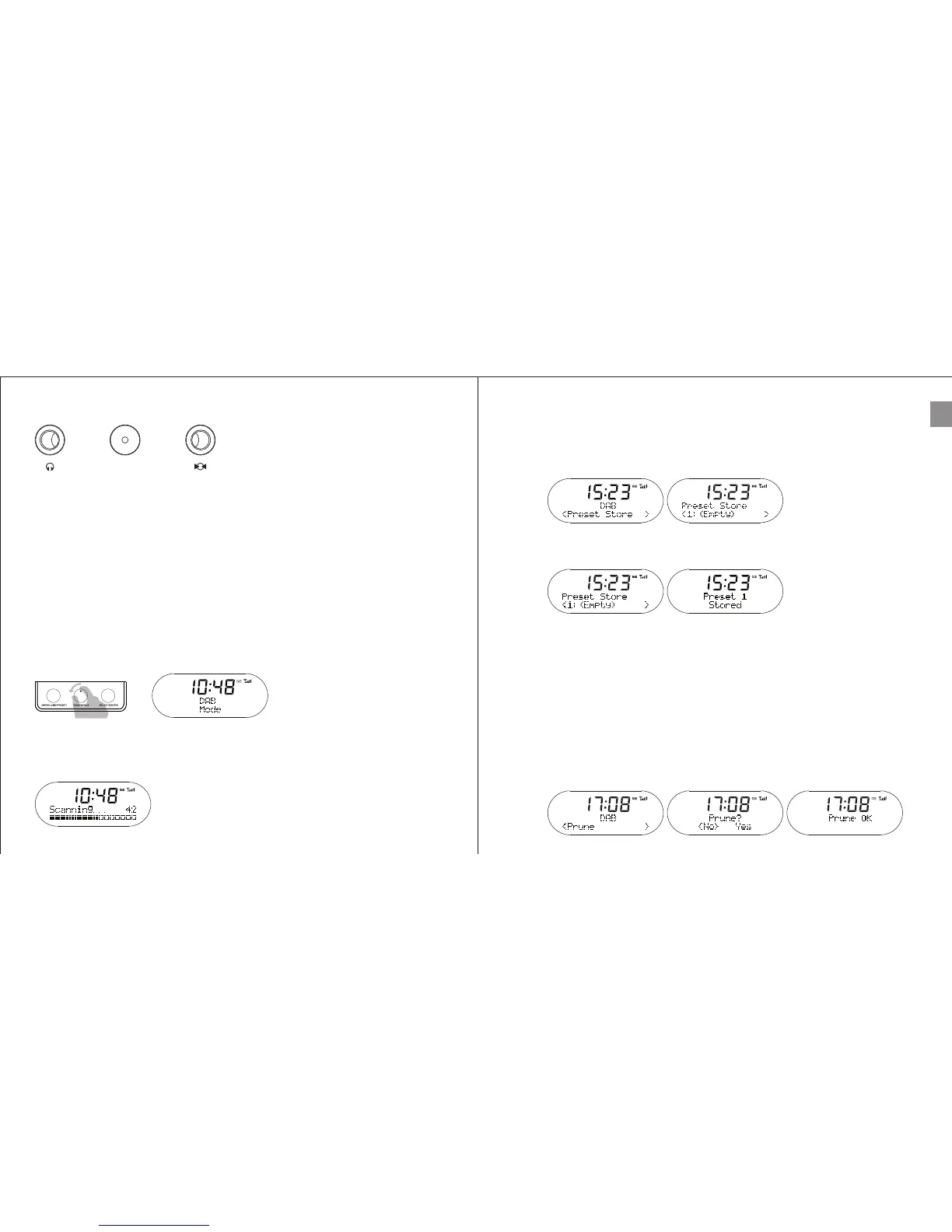
(1) Left Jack
- Headphones Output
(2) Middle Jack
- DC (Power in)
(3) Right Jack
- AUX in or Wireless receiver
DC
5. DAB mode
If this is the first time you turn on Robio, the unit will automatically perform a
full scan of all DAB stations.
You can perform a full scan at any time.
5-1 Store station
Robio can store up to 10 of your favorite stations.
Press the right knob for 2 seconds in order to store desired station. Unit
shows “Preset Store” and short press the right knob.
You can now choose preset location from 1-10. Confirm location with a
short press on the right knob.
Note: You can listen to the newly added stations by pressing the right
knob for 2 seconds, then turn the right knob, select the desired station
and press to confirm.
5-2 Prune
Robio’s prune function will remove any stations that are not used or
outdated from the broadcaster.
You can prune your station list by pressing the right knob for 2 seconds.
Turn the knob to “Prune” position and short press the right knob to enter
menu. You can now choose Prune YES/NO. Choose YES or NO by
again turning the right knob and confirm selection with a short press.
6 7
Turn the middle knob to its left position


 To Next Page