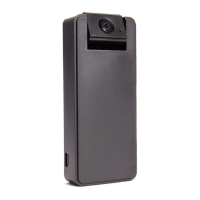
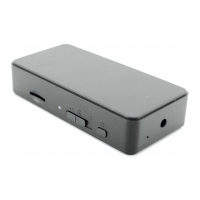
Zetta ZIR32 Infrared HD Security Camcorder Quick Start Guide
www.zetta.com.hk
Standby
The recorder keeps in standby state if there is no any triggers*. The trigger
output is shorted.
Triggered
Whenever ZIR32 is recording or detects any triggers*, the trigger outputs will be opened.
* Triggers include voice trigger, motion trigger, vibration trigger, PIR trigger and
external trigger-in.
Firmware upgrades
Zetta will from time to time release new rmware for enhancements or adding new features.
Visit www.zetta.com.hk to check on the latest rmware for your ZIR32.
Technical Support
Before contacting us, please visit the “Support” section in http://www.zetta.com.hk. For
further questions on feature and usage, please contact us at (852) 31884492.
Environmental Requirements
Storage temperature: 32˚ to 113˚F (0˚ to 45˚C)
Operating temperature: 32˚ to 113˚F (0˚ to 45˚C)
Connecting to computer
To connect the camcorder to your computer, follow these instructions:
1.Connect the larger end of USB cable into an available USB port on the computer.
2.Connect the smaller end of the cable into the USB port of the camcorder.
3.The camcorder will appear in My Computer as a drive.
PC Software Widget
To synchronize the time and customize settings, download the PC software “Widget” from
www.zetta.com.hk and follow the instructions in the software guide.
Note: 1. If the time shown is year 2026 or beyond due to a loss of Real Time Clock,
recording time will not be shown on the video, even if timestamp is
enabled. Please use the widget to sync the time to DVR again and remove
les created in 2026 or beyond!
2. When using Zetta Widget for the rst time, express mode is set as default.
It has several typical scenarios to choose.
FCC Regulation
This device complies with part 15 of the FCC Rules. Operation is subject to the following two
conditions:
1.This device may not cause harmful interference, and
2.This device must accept any interference received, including interference that may cause
undesired operation.
This equipment has been tested and found to comply with the limits for a Class B digital
device, pursuant to Part 15 of the FCC Rules. These limits are designed to provide
reasonable protection against harmful interference in a residential installation. This
equipment generates, uses, and can radiate radio frequency energy and, if not installed and
used in accordance with the instructions, may cause harmful interference to radio
communications. However, there is no guarantee that interference will not occur in a
particular installation. If this equipment does cause interference to radio or television
reception, which can be determined by turning the equipment off and then on, the user is
encouraged to try to correct the interference by one or more of the following measures:
1.Increase the separation between the equipment and camcorder.
2.Connect the equipment to a different outlet so that the equipment and camcorder are
on different branch circuits.
3.Consult the dealer or an experienced radio / TV technician for help.
version: 1.4
11 12


 To Next Page