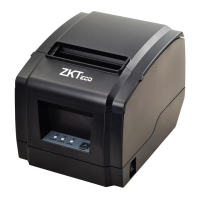
The ZKP8012 is a thermal receipt printer designed for various commercial retail POS systems. It offers high-speed printing, a compact design, and multiple connectivity options, making it suitable for a wide range of applications.
Function Description:
The ZKP8012 is primarily used for printing receipts and other documents in environments such as cash registers, POS systems, takeaway ticket systems, shopping malls, hospitals, sports lotteries, and banks. It utilizes direct thermal printing technology, which means it does not require ink ribbons or cartridges, simplifying operation and reducing maintenance. The printer supports various character sets and barcode types, enhancing its versatility for different business needs. It also features an auto-cutter for partial cuts, ensuring clean and efficient receipt handling.
Important Technical Specifications:
- Printing Method: Direct thermal
- Paper Width: 79.5 ± 0.5 mm
- Print Width: 72 mm
- Paper Roll Diameter: Max 80 mm
- Column Capacity: 512 dots/line (Adjustable by command)
- Printing Speed: 230 mm/s
- Interface: USB + LAN (USB + RS232 optional)
- Line Spacing: 3.75 mm (Adjusted by command)
- Column Number: Font A: 42 columns or 48 columns
- Character Size:
- Font A: 1.5 * 3.0 mm (12 * 24 dots)
- Font B: 1.1 * 2.1 mm (9 * 17 dots)
- Auto Cutter: Partial
- Extension Character Sheet: Supports a wide range of character sets including PC437 (Std. Europe), Katakana, PC850 (Multilingual), PC860 (Portugal), PC863 (Canadian), PC865 (Nordic), West Europe, Greek, Hebrew, East Europe, Iran, WPC1252, PC866 (Cyrillic#2), PC852 (Latin2), PC858, Iranll, Latvian, Arabic, and PT1511251.
- Barcode Types: UPC-A, UPC-E, JAN13 (EAN13), JAN8 (EAN8), CODABAR, ITF, CODE39, CODE93, CODE128, QR CODE, PDF417
- Power Adapter:
- Input: AC 100-240V / 50-60 Hz
- Output: DC24V / 2.5A
- Cash Drawer: DC 24V / 1A
- Cutter Life: 1.0 million cuts
- Printer Head Life: 100 KM
Usage Features:
- Unique Appearance and Design: Features an acrylic panel design, contributing to a modern aesthetic.
- Lightweight and Compact: Its design makes it easy to integrate into various setups.
- High Speed and High-Quality Printing: Capable of printing at 230 mm/s, ensuring fast transaction processing.
- Wall-Mounted and Desktop Mode Support: Offers flexibility in placement.
- UV Effect Paint Coating: Adopts a scratch-resistant and waterproof coating (optional) for enhanced durability.
- Cash Drawer Driver Support: Can connect to and drive a cash drawer.
- Built-in Data Buffers: Capable of receiving print data while printing, improving efficiency.
- Density Bitmap and NV Picture Printing: Supports different density bitmap and NV picture printing (BMP format).
- ESC/POS Printing Commands Compatibility: Compatible with standard ESC/POS commands, ensuring broad software compatibility.
- Easy Paper Loading Structure: Features an easy paper loading mechanism for quick and simple paper roll replacement.
- Indicator Lights: Two LED indicators for power and error status. The power indicator illuminates when the printer is on, and the error light illuminates for issues like out of paper, overheated print head, or hardware malfunctions.
- Basic Operations:
- Turn On/Off: Simple switch operation.
- Paper Feeding: Pressing the [FEED] button continuously feeds paper.
- Self-Test Page Printing: Hold the [FEED] button, then press and hold [POWER] until the "Error" indicator illuminates to print a self-test page.
- Hexadecimal Mode Printing: Hold the [FEED] button, then press [Power] and the "PAPER OUT" light simultaneously. Release [FEED] after the "PAPER OUT" sign turns off (approx. 3 seconds) to enter hexadecimal printing mode. Restarting the printer exits this mode.
- Driver Installation: The printer comes with a CD driver for easy installation. The installation process involves selecting the language, accepting the license agreement, choosing an installation folder, and then installing the driver. After installation, users can select their operating system and printer model, and use the "USB Port Check" feature to automatically detect the USB port if connected.
Maintenance Features:
- Print Head Cleaning: The print head should be cleaned if printing content is unclear, some columns are unclear, or the paper feed noise is too loud.
- Cleaning Procedure:
- Turn off the printer and remove the paper roll.
- Allow the print head to cool down if printing has just finished.
- Use a soft brush or cotton cloth soaked in ethanol to clean the print head.
- Close the cover and test the printer after cleaning.
- Cautions for Maintenance:
- Always ensure the printer is turned off during maintenance.
- Avoid touching the print head surface with hands or metal tools. Do not use tweezers to scratch the print head or other sensitive parts.
- Do not use gasoline, acetone, or other organic solvents to clean the print head.
- Environmental Considerations:
- Install the printer on a stable surface to prevent vibration and impact.
- Avoid using or storing the printer in areas with high temperatures, humidity, or pollution.
- Connect the power adapter to a grounded outlet and avoid sharing the socket with large electrical motors to prevent voltage fluctuations.
- Prevent water or conductive materials from entering the printer interface. Disconnect the AC power cable immediately if this occurs.
- Do not print without paper, as this can damage the rubber roller and thermal print head.
- Unplug the printer if it will be unused for an extended period.
- Never disassemble or modify the printer for repair or reconstruction.
- Use the original specified power source.
- Quality paper rolls are recommended for premium printing and product maintenance.
- Ensure the product is turned "OFF" when plugging and unplugging cables.
- This product is designed for use in non-tropical climate conditions below 5000 meters above sea level.

 Need help?

 To Next Page
 General