51
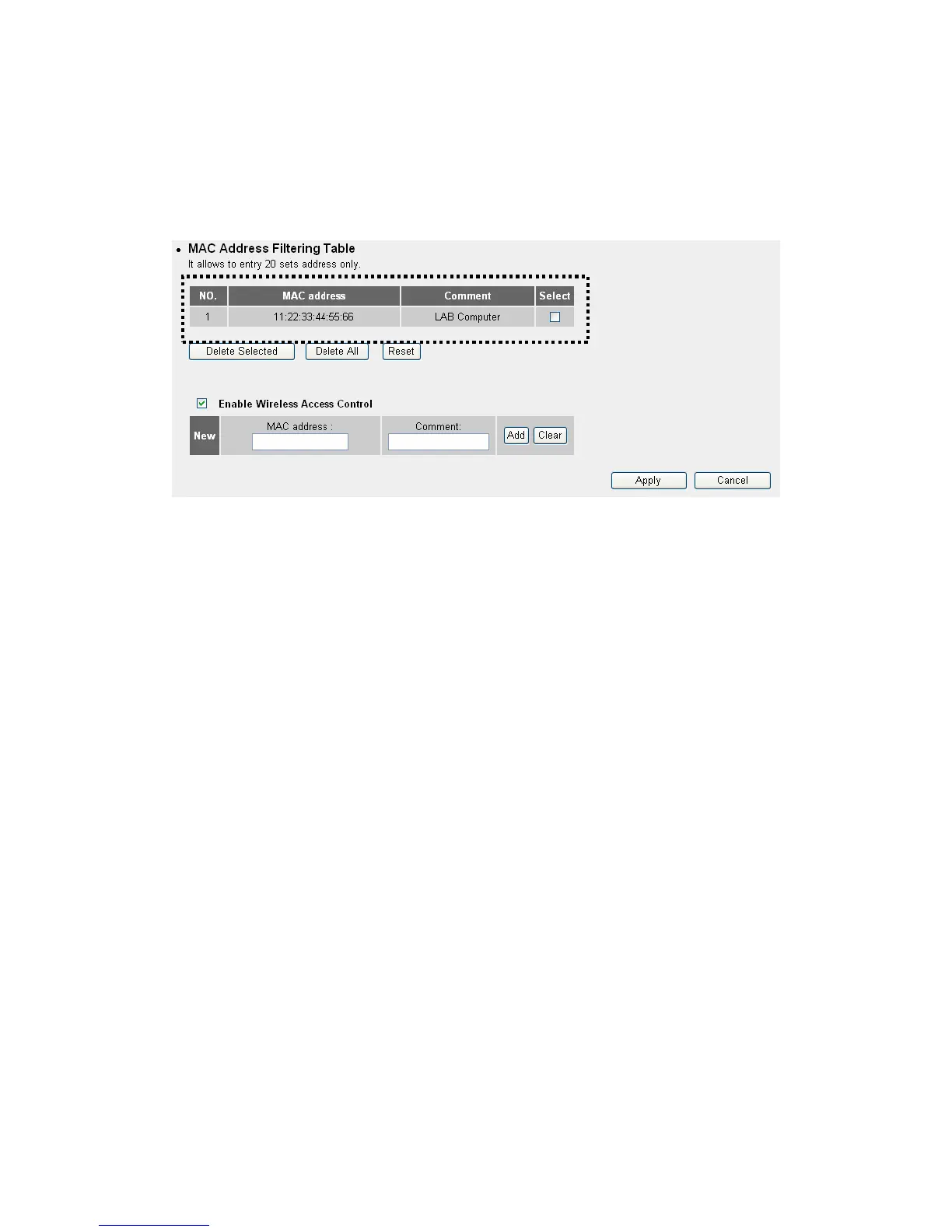
Up to 20 MAC addresses can be assigned by using this function. Please click
“Wireless” menu on the left of web management interface, then click
“Access Control”, and the following message will be displayed on your web
browser:
Delete Selected: If you want to delete a specific MAC address entry,
check the “select” box of the MAC address you want to delete, then click
“Delete Selected” button. (You can select more than one MAC
addresses).
Delete All: If you want to delete all MAC addresses listed here, please
click “Delete All” button.
Reset: You can also click “Reset” button to unselect all MAC addresses.
Enable Wireless Access Control: To enforce MAC address filtering, you
have to check “Enable Wireless Access Control”. When this item is
unchecked, wireless router will not enforce MAC address filtering of
wireless clients.
MAC Address: Input the MAC address of your wireless devices here,
dash ( - ) or colon (: ) are not required. (i.e. If the MAC address label of
your wireless device indicates “aa-bb-cc-dd-ee-ff” or
“aa:bb:cc:dd:ee:ff”, just input “aabbccddeeff”.
Comment: You can input any text here as the comment of this
MAC address, like “ROOM 2A Computer” or anything. You can
input up to 16 alphanumerical characters here. This is optional and you
can leave it blank, however, it’s recommended to use this field to write
a comment for every MAC addresses as a memory aid.
Add: Click “Add” button to add the MAC address and associated
comment to the MAC address filtering table.
Clear: Click “Clear” to remove the value you inputted in MAC address


 To Next Page