
 Need help?
Do you have a question about the Zoom Yes Wimax and is the answer not in the manual?
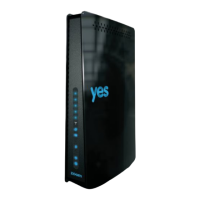
Describes the WPS button function for establishing wireless connection without device setup.
Explains how to use the Reset button for rebooting or resetting device settings to factory default.
Describes the LAN port for connecting to PCs or network equipment with an Ethernet cable.
Explains the DC-12V port for connecting the power adapter.
Explains the meaning of various LED indicators on the device for status monitoring.
Guides users on how to open a web browser and enter the default IP address to access the device.
Guides users to enter the Yes ID and Password provided on the Yes Card for initial setup.
Guides users to configure the network name (SSID) and broadcast settings for the Wi-Fi interface.
Explains how to enable Wi-Fi Protected Access (WPA) and set a key passphrase for wireless security.
Allows users to double confirm the input data from the previous setup steps before finishing.
Indicates that the setup wizard is complete and provides a link to the status page.

 To Next Page
 General