This document serves as a Quick User Guide for the ZOSI Smart IP Camera with Battery, providing instructions for setup, operation, and maintenance.
Function Description:
The ZOSI Smart IP Camera is a battery-powered security camera designed for smart home surveillance. It features motion detection capabilities, allowing it to record videos and send alarm notifications to a connected smartphone app (CloudEdge) when human body motion events are detected. The camera is equipped with an IR LED for night vision, a microphone and speaker for two-way audio (intercom), and a TF card slot for local storage of recorded videos. It operates on a 2.4G Wi-Fi network and is not compatible with 5G Wi-Fi. The camera is designed for event-based recording rather than continuous 24/7 recording, focusing on motion-triggered events to conserve battery life.
Important Technical Specifications:
- Power: DC5V 1A/2A (power adapter not included).
- Storage: Supports micro SD card up to 128GB (card not included).
- Connectivity: 2.4G Wi-Fi only (not compatible with 5G Wi-Fi).
- Motion Detection: PIR (Passive Infrared) sensor for human body detection.
- PIR Detecting Distance:
- Low Sensitivity: Up to 4 meters (13ft)
- Medium Sensitivity: Up to 6 meters (20ft)
- High Sensitivity: Up to 8 meters (26ft)
- Ideal Viewing Distance: 2-10 meters (7-33ft).
- Indicator Lights:
- Slow blinking Red: Awaiting WiFi Connection
- Fast blinking Red: WiFi Connecting
- Solid on Red: Network is abnormal
- Solid on Blue: WiFi Connected
- Ports: DC5V USB Port, TF Card Slot.
- Buttons: Power Key, Reset Key.
- Components: Lens, IR Leds, PIR, Microphone, Speaker, Iron Ball Wall Mount.
Usage Features:
- Easy Setup: The camera connects to a smartphone app called "CloudEdge." Users need to download the app, register an account, and then add the camera by scanning a QR code displayed on the phone screen with the camera lens.
- Power On/Off: Press and hold the Power Key for 5 seconds to power on or off.
- Wake Up from Standby: Quick press the Power Key for 1 second to wake the camera from standby mode.
- Wi-Fi Connection: The camera needs to be placed within 1 to 3 feet (30 to 100 cm) of the router during Wi-Fi setup.
- Motion Detection and Alarms: The PIR sensor detects human body motion. When triggered, the camera records video to the SD card, sends alarm sound notifications via the app (if enabled), and pushes message notifications to the phone. The sensitivity of the PIR detection is adjustable (Low, Medium, High) to optimize performance and reduce false alarms.
- Live View: Users can access a live video feed from the camera through the CloudEdge app.
- Two-Way Audio (Intercom): The intercom option in the app allows users to long-press and talk through the camera's speaker.
- Video Playback: Recorded motion videos stored on the SD card can be played back via the CloudEdge app. Alarm information icons with red dots indicate when alarms occurred, allowing users to view corresponding screenshots or videos.
- Screenshot and Record: Buttons are available in the app for taking screenshots and manually recording video during live view.
- Camera Settings: The app provides options to adjust camera settings, including alarm settings and SD card management.
- Battery Capacity Display: The app shows the camera's battery capacity.
- SD/HD Options: Users can switch between standard definition (SD) and high definition (HD) video quality.
- Full Screen Option: Live view can be expanded to full screen.
- Network Signal Strength: The app displays the Wi-Fi signal strength.
- Reset Function: Press and hold the Reset Key for 5 seconds to reset the camera to factory default settings and restart it. This is also used for re-connection if changing to a new network.
Maintenance Features:
- SD Card Insertion: A micro SD card (up to 128GB) should be inserted before powering on the camera for video recording. If inserted after power on, the SD card may not be read.
- Charging: If the camera cannot power on, it should be charged for at least 15 minutes using a DC5V 1A/2A phone adapter.
- Troubleshooting: The guide includes a troubleshooting sheet for common issues like inability to connect (checking Wi-Fi name/password, ensuring 2.4G Wi-Fi, proximity to router), reset procedures, and enabling app permissions for cellular data and notifications.
- Reducing False Alarms:
- Avoid installing the camera facing bright lights (sunshine, lamps).
- Do not place the camera too close to frequently moving vehicles; a recommended distance is 15 meters (55ft).
- Keep the camera away from outlets, air conditioner vents, humidifier outlets, and projector heat transfer vents.
- Do not install the camera facing a mirror.
- Maintain at least 1 meter distance from other wireless devices (Wi-Fi routers, phones) to prevent interference.
- When installing, ensure the PIR sensor does not vertically face the moving object. The angular between the PIR sensor and the detected object should be greater than 10 degrees for optimal detection.
- Installation: The camera can be placed on any flat surface or installed using the provided iron ball wall mount. The magnetic connection to the iron ball bracket allows for easy adjustment of the camera angle.

 Need help?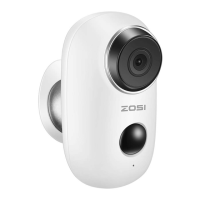

 To Next Page
 General