This document provides a comprehensive guide for the MF79U device, outlining its functions, usage, and maintenance. The MF79U is a mobile hotspot designed to provide internet access using a micro-SIM card, allowing multiple clients to connect simultaneously via Wi-Fi or a USB connector.
Device Appearance and Components
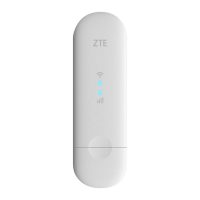
The device features a compact design with several key components:
- Device cap: Protects the USB connector.
- Front cover: Provides access to the card slots.
- Indicator light: Displays the device's status, including network registration, data transfer, Wi-Fi activity, and error conditions.
- Reset hole: Allows the user to restore the device to its factory settings by pressing and holding for approximately 3 seconds.
- micro-SIM card slot: For inserting the micro-SIM card to enable mobile network access.
- microSDHC™ card slot: For inserting a microSDHC™ card, likely for storage expansion.
- USB connector: Used for connecting the device to a computer for power and data transfer.
Indicator Light Statuses
The indicator light provides visual feedback on the device's operational status:
- Red (solid): Indicates an error status, such as the device not being registered to the mobile network, no micro-SIM card inserted, or no network service available.
- Green (solid): Shows that the device is registered to the 2G/3G mobile network.
- Green (blinking): Signifies that the device is connected to the 2G/3G mobile network and data is being transferred.
- Blue (solid): Indicates that the device is registered to the 4G/LTE network.
- Blue (blinking): Shows that the device is connected to the 4G/LTE network and data is being transferred.
- Blue (blinking, specific pattern): Indicates that WPS (Wi-Fi Protected Setup) is active.
- Blue (solid, specific pattern): Shows that Wi-Fi is active.
- LED off: Indicates that Wi-Fi is off.
Connection Scenarios
The MF79U device primarily functions as a mobile hotspot, enabling internet access through its micro-SIM card. It supports multiple clients connecting to the internet simultaneously. The device can be connected to a computer via its USB connector or used as a standalone Wi-Fi hotspot, powered by a computer or other accessories.
Installing Your Device
To set up the device:
- Open the front cover: This provides access to the card slots.
- Install a micro-SIM card: Carefully insert the micro-SIM card into the designated slot. It is crucial to note that the modem does not support standard SIM cards or nano-SIM cards. Using incorrect card types or card holders can damage the modem.
- Install a microSDHC™ card (optional): Insert the microSDHC™ card into its slot if storage expansion is desired.
- Close the front cover: Secure the cover after installing the cards.
Connecting to Your Device
The device offers two primary methods for connection:
Using USB Connector
- Insert the device: Plug the device securely into your computer's USB port.
- Automatic installation: The operating system should automatically detect the device and launch an installation wizard.
- Manual installation (if needed): If the installation does not start automatically, navigate to "My Computer > ZTEMODEM" and click the device installation icon to install the software.
- Configuration page: Once installed, the 4G Mobile Hotspot configuration page will open automatically, and your computer will connect to the device.
Using Wi-Fi
- Supply power: Connect the device to your computer or use other accessories to provide power.
- Enable Wi-Fi: Ensure that your computer or other client devices have Wi-Fi enabled and search for available wireless networks.
- Select Wi-Fi network: Choose your device's Wi-Fi name (SSID) from the list and click "Connect."
- Enter password: If prompted, enter the Wi-Fi password and click "OK." The default Wi-Fi SSID and password can be found on the device's label.
- Connection confirmation: Wait for the client device to successfully connect to your device.
Logging in to the 4G Mobile Hotspot Configuration Page
To manage your device settings:
- Ensure connection: Verify that your device is correctly connected to the client device.
- Launch browser: Open an internet browser.
- Enter address: In the address bar, type
http://192.168.0.1 or http://ufi.ztedevice.com.
- Enter password: Input the password to log in to the 4G Mobile Hotspot configuration page. The default password is on the device's label.
Changing the Wi-Fi SSID or Password
To customize your Wi-Fi settings:
- Log in: Access the 4G Mobile Hotspot configuration page.
- Navigate to settings: Select "Wi-Fi Settings > Main SSID."
- Modify details: Change the "Network Name (SSID)" or the "Password" as desired.
- Apply changes: Click "Apply" to save your new settings.
Accessing the Internet
After a successful connection, you can access the internet in either Automatic or Manual mode. The default mode is Automatic.
Automatic Mode
- Your device automatically connects to the internet, allowing you to surf the web through the client device.
Manual Mode
- Log in: Access the 4G Mobile Hotspot configuration page.
- Navigate to settings: Select "Network Settings > Connection Mode > Manual," then click "Apply."
- Return to home page: Click the home icon to return to the home page.
- Connect/Disconnect: Use the "ON" or "OFF" buttons to manually connect or disconnect from the internet.
Important Notes for Internet Access:
- To change the current connection setting, you must first disconnect from the internet.
- To modify device parameters, log in to the 4G Mobile Hotspot configuration page.
Configuring Your PC
To ensure proper Wi-Fi connection on your Windows PC:
- Network properties: Right-click "Network" and select "Properties."
- Adapter settings: Select "Change adapter settings."
- Wireless network properties: Right-click "Wireless Network Connection" and select "Properties."
- Internet Protocol Version 4 (TCP/IPv4): Select this option and click "Properties."
- Automatic IP/DNS: Select "Obtain an IP address automatically" and "Obtain DNS server address automatically," then click "OK."
Warning and Notice (Maintenance and Safety)
To ensure safe and optimal use of the device, observe the following:
General Precautions
- Electromagnetic Interference: If inadequately shielded, the device's electromagnetic interference may affect electronic systems in vehicles or other devices. Consult manufacturers if necessary.
- Medical Instruments: Operating the device may interfere with medical instruments like hearing aids and pacemakers. Maintain a distance of at least 20 centimeters from such instruments when the device is powered on. Power off the device if necessary and consult a physician or instrument manufacturers.
- Hazardous Environments: Be aware of usage limitations in places with explosive gases or products, such as oil warehouses or chemical factories. Power off the device in such conditions.
- Restricted Areas: Do not use electronic transmission devices in aircrafts, petrol stations, or hospitals. Obey all warning signs and power off the device when required.
- Antenna Area: Avoid touching the inner antenna area unless necessary, as it may affect device performance.
- Heat Dissipation: Do not use the device in enclosed environments or areas with poor heat dissipation. Prolonged use in such conditions can lead to excessive heat and automatic shutdown for safety. If this occurs, cool the device in a well-ventilated place before normal use.
- Children's Safety: Keep the device out of reach of small children, as it may cause injury if used as a toy.
- Metallic Parts: Do not touch metallic parts while the device is operating to prevent burns.
- Accessories: Use only original or authorized accessories. Unauthorized accessories may affect performance and violate telecom regulations.
- Water Resistance: The device is not waterproof. Keep it dry and store it in a shady, cool place.
- Temperature Changes: Do not use the device immediately after sudden temperature changes, as dew may form inside and outside. Wait until it dries.
- Handling: Handle the device carefully. Avoid dropping, bending, or striking it to prevent damage.
- Repair: Only qualified personnel should dismantle and repair the device.
- Operating Conditions: Recommended operating temperature is between -10°C and +55°C, with humidity between 5% and 95%.
Limited Warranty
The warranty does not cover defects or errors caused by:
- Reasonable wear and tear.
- Failure to follow ZTE's installation, operation, or maintenance instructions.
- Mishandling, misuse, negligence, or improper installation, disassembly, storage, servicing, or operation by end users.
- Modifications or repairs not provided by ZTE or a ZTE-certified individual.
- Power failures, surges, fire, flood, accidents, and actions of third parties or other events outside ZTE's reasonable control.
- Usage of third-party products or usage in conjunction with third-party products if defects result from combined usage.
- Any other cause beyond the range of normal intended usage.
End users cannot reject or return the product or receive a refund for the product from ZTE under these circumstances. This warranty is the sole remedy for defective or nonconforming items, and it replaces all other warranties, expressed, implied, or statutory, including merchantability and fitness for a particular purpose, unless mandated by law.
Limitation of Liability
ZTE is not liable for any loss of profits or indirect, special, incidental, or consequential damages resulting from or related to the use of this product, regardless of whether ZTE was aware of the possibility of such damages. This includes, but is not limited to, lost profits, business interruption, cost of capital, cost of substitute facilities or product, or any downtime cost.
Troubleshooting
This section provides solutions to common issues:
System Cannot Install Software Automatically
- Install manually: Run the installation program from "My Computer > ZTEMODEM."
- Reinstall driver: If the device driver is abnormal, uninstall the software first, then reinstall it.
Wi-Fi Connection Cannot Be Established
- Enable Wi-Fi: Ensure the Wi-Fi function is enabled on your device.
- Refresh network list: Refresh the network list on your client device and select the correct SSID.
- Check IP address: Verify that your client can automatically obtain an IP address.
- Enter correct network key: Input the correct Wi-Fi password when connecting the client to your device.
Client Cannot Access the Internet
- Micro-SIM card availability: Ensure your micro-SIM card is available and properly inserted.
- Signal strength: Change location to find a place with good signal.
- WAN connection mode: Check the settings of the WAN connection mode.
- APN settings: Contact your service provider and confirm your APN settings.
4G Mobile Hotspot Configuration Page Cannot Be Visited
- Correct address: Enter the correct address:
http://192.168.0.1 or http://ufi.ztedevice.com.
- Network adapter: Use only one network adapter in your PC.
- Proxy server: Do not use any proxy server.
Getting More Help
For additional assistance, you can:
- Send an email to
mobile@zte.com.cn.
- Visit
www.ztedevices.com.
FCC Regulations
The device complies with part 15 of the FCC Rules, ensuring it does not cause harmful interference and accepts any interference received. It has been tested and found to comply with Class B digital device limits, providing reasonable protection against harmful interference in residential installations. If interference occurs, try the following:
- Reorient or relocate the receiving antenna.
- Increase the separation between the equipment and receiver.
- Connect the equipment to an outlet on a different circuit.
- Consult the dealer or an experienced radio/TV technician.
Changes or modifications not expressly approved by the responsible party could void the user's authority to operate the equipment.
This device is designed to meet emission limits for radio frequency (RF) energy set by the Federal Communications Commission (FCC). During SAR testing, the device transmits at its highest certified power level in all tested frequency bands. The actual SAR level during operation is typically below the maximum value because the device adjusts its power output to the minimum required to reach the network.
The SAR limit set by the FCC is 1.6 W/kg. For this device, the highest reported SAR value for near the body is 0.95 W/kg. SAR compliance for body operation is based on a separation distance of 5 mm between the unit and the human body. To ensure RF exposure compliance, carry the device at least 10 mm away from your body. When using belt clips or holsters, ensure they do not contain metallic components to maintain a 10 mm separation.


 To Next Page
 General