
 Need help?
Do you have a question about the ZyXEL Communications ATP Series and is the answer not in the manual?
This document outlines the Standard Operating Procedure (SOP) for onboarding Zyxel ATP, USG FLEX, and USG20-VPN series firewalls to the Nebula Cloud platform, focusing on a DHCP WAN type setup. The "Nebula Together" strategy aims to unify an entire network into a single management platform, simplifying operations and enhancing security.
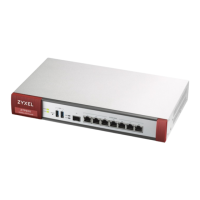
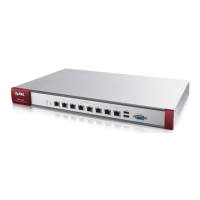
The Zyxel ATP/USG FLEX/USG20-VPN series firewalls are security appliances designed to protect networks. When integrated with the Zyxel Nebula Cloud platform, they provide centralized management and advanced security features, allowing users to monitor and configure their entire network from a single interface. This integration enables "Zero Touch Provisioning" (ZTP), streamlining the deployment and configuration process for new devices. The firewalls act as a gateway, managing internet access and providing robust protection against various cyber threats.
The onboarding process begins with the physical installation of the hardware. Users connect the power adapter to the power socket on the rear panel and plug it into a power outlet. It is recommended to configure the security appliance before connecting it to the network for protection. An Ethernet cable is used to connect a computer to the LAN port (P4) of the security appliance for initial setup. Another Ethernet cable connects the WAN port (or P2, if no WAN label) to an Ethernet jack with internet access. The PWR light on the front panel should turn on, and the SYS light will blink during system testing and initialization, eventually staying solid when the system is ready.
Once the hardware is installed, the initial wizard and firmware upgrade process commences. Users access the device's Graphical User Interface (GUI) via a web browser using the default IP address (https://192.168.1.1) and login credentials (username: admin, password: 1234). The first step is to set up a new, strong password for security. After changing the password, users log in again with the new credentials.
The initial wizard guides users through connecting the device to the internet. For DHCP WAN type, "Ethernet" is selected as the encapsulation and "Auto" (DHCP) for IP Address Assignment. If using PPPoE, that option is chosen instead. A "Connection Test" is performed to ensure internet connectivity, and upon success, users proceed to the "Date and Time Settings," where they can click "Sync. Now" to synchronize the device's system time. The wizard then automatically initiates a firmware upgrade, downloading and installing the latest firmware version. The device will reboot automatically after the upgrade is complete.
The next phase involves onboarding the device to the Nebula Cloud. Users navigate to the Nebula Control Center page (https://nebula.zyxel.com) and click "Get Started." If they don't already have one, they create a Zyxel account, confirming it via an email link. After setting a password and optionally enabling Two-Factor Authentication (2FA), they click "Let's Start" to begin the Nebula initial wizard. This wizard prompts users to create an "Organization" and "Site" within Nebula, which helps in structuring and managing multiple devices.
A crucial step is adding the device's MAC address and Serial Number to Nebula. These details are typically found on a sticker on the device or its packaging. After inputting these, users click "Add" and then "Next." The wizard then presents "WiFi Settings," which can be skipped if not immediately needed. Users confirm the WAN type (DHCP or PPPoE) and click "Next." The system then sends an installation email with further instructions.
Upon completion of the initial setup, users click "Go to Nebula dashboard." A notification will appear, offering a free one-month trial period for Nebula Pro Pack and Nebula Security Services, which users can choose to activate or skip.
The onboarding process includes several maintenance-related steps to ensure optimal device performance and security. The initial firmware upgrade ensures the device runs on the latest software, providing new feature enhancements, bug fixes, and solutions for security vulnerabilities. This proactive approach to firmware management is crucial for maintaining a secure and efficient network.
If the "Zero Touch Provisioning" (ZTP) process fails, often due to the device not being in its factory default state, users are instructed to perform a factory reset. This involves pressing and holding the reset button on the device for five seconds until the port connection LEDs turn off. The device will then reboot to its factory defaults, erasing all previous configurations. This step is essential for ensuring a clean slate for Nebula integration.
After the factory reset, users check their email inbox for a message with the subject "Register your Zyxel Firewall device_device model." This email contains instructions and a link to "Allow Nebula to Manage My Device." Clicking this link initiates the ZTP process, where Nebula takes over the management of the firewall. The email also provides an alternative procedure using a USB disk drive, which can be useful if a direct computer connection is not preferred. This involves saving a JSON file from the email to the root folder of a USB drive and then connecting the USB drive to the firewall after the SYS LED turns solid green.
Once ZTP is successfully completed, users log into the Nebula Control Center (NCC) to verify the online status of their appliance. The Nebula dashboard provides a centralized view of the network, including appliance status, CPU usage, WAN throughput, and client information. This allows for easy monitoring and configuration of the security appliance, ensuring ongoing protection and efficient network management. The "Nebula Together" platform simplifies the realization of advanced protection and easy management by unifying the entire network into a single platform.
 General
| Manufacturer | ZyXEL Communications |
|---|---|
| Operating Temperature | 0°C to 40°C (32°F to 104°F) |
| Type | Firewall |
| Interfaces | Varies by model. Includes Gigabit Ethernet ports, SFP ports, and console ports. |
| Security Features | Firewall, IPS, Antivirus, VPN |
| Management | Web GUI, CLI, Zyxel Nebula Cloud Management |
| Dimensions | Varies by model |
| Weight | Varies by model |
| Humidity | 10% to 90% (non-condensing) |




 To Next Page