FTP Overview 303
6 Use the quit command to release FTP connection and return to User View.
[ftp]quit
<SW5500>
7 Use the boot boot-loader command to specify the downloaded program as the
application at the next login and reboot the Switch.
<SW5500> boot boot-loader switch.app
<SW5500> reboot
FTP Server Configuration
Example
Networking Requirement
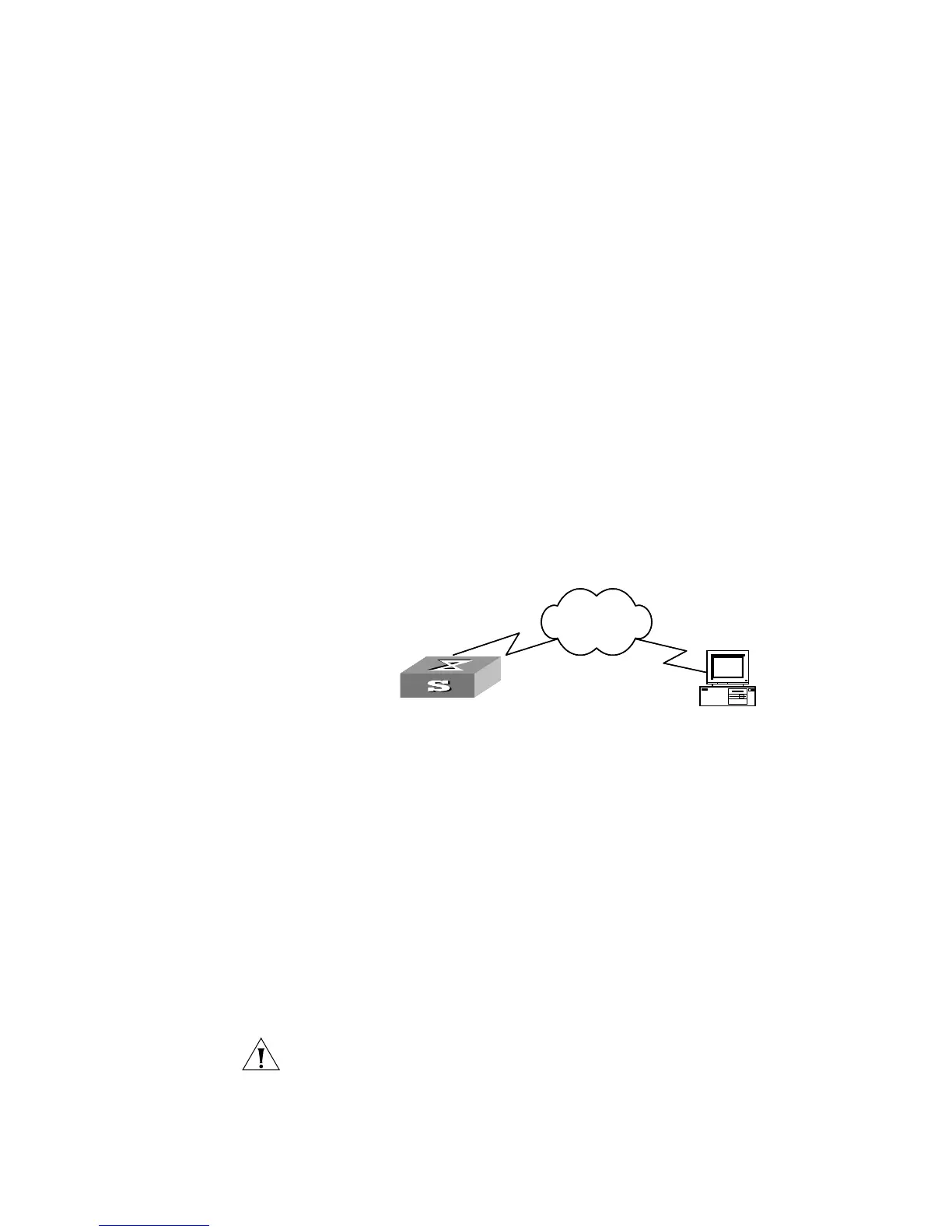
The Switch serves as FTP server and the remote PC as FTP client. The configuration
on FTP server: Configure a FTP user named as Switch, with password hello and
with read and write authority over the flash root directory on the PC. The IP
address of a VLAN interface on the Switch is 1.1.1.1, and that of the PC is 2.2.2.2.
The Switch and PC are reachable.
The Switch application
switch.app
is stored on the PC. Using FTP, the PC can
upload the
switch.app
from the remote FTP server and download the
config.cfg
from the FTP server for backup purpose.
Networking Diagram
Figure 73 Networking for FTP Configuration
1 Configure the Switch
Log into the Switch (locally through the Console port or remotely using Telnet).
<SW5500>
2 Start FTP function and set username, password and file directory.
[SW5500]ftp server enable
[SW5500]local-user switch
[SW5500-luser-switch]service-type ftp ftp-directory flash:
[SW5500-luser-switch]password simple hello
3 Run FTP client on the PC and establish FTP connection. Upload the
switch.app
to
the Switch under the Flash directory and download the
config.cfg
from the
Switch. FTP client is not shipped with the Switch, so you need to buy it separately.
CAUTION: If the flash memory of the Switch is not enough, you need to first
delete the existing programs in the flash memory and then upload the new ones.
4 When the uploading is completed, initiate the file upgrade on the Switch.
<SW5500>
Switch
PC
Network
SwitchSwitch
PC
Network



 To Next Page