TFTP Overview 305
Tab le 350 Download Files by means of TFTP
Uploading Files by
means of TFTP
To upload a file, the client sends a request to the TFTP server and then transmits
data to it and receives the acknowledgement from it. You can use the following
commands to upload files.
Perform the following configuration in User View.
Tab le 351 Upload Files by means of TFTP
TFTP Client
Configuration Example
Networking Requirement
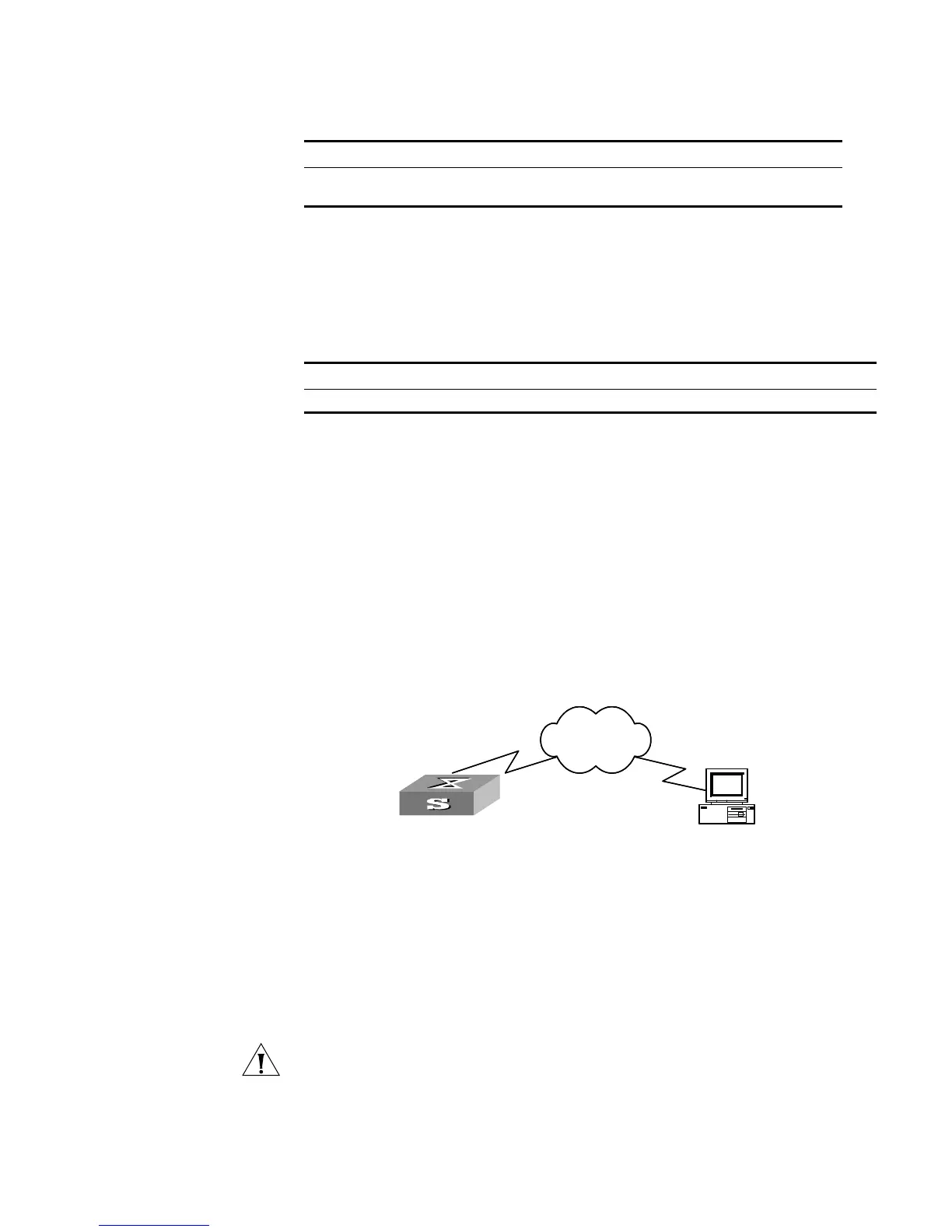
The Switch serves as TFTP client and the remote PC as TFTP server. Authorized TFTP
directory is set on the TFTP server. The IP address of a VLAN interface on the Switch
is 1.1.1.1, and that of the PC is 2.2.2.2. The interface on the Switch connecting
the PC belong to the same VLAN.
The Switch application
switch.app
is stored on the PC. Using TFTP, the Switch can
download the
switch.app
from the remote TFTP server and upload the
config.cfg
to the TFTP server under the Switch directory for backup purpose.
Networking Diagram
Figure 75 Networking for TFTP Configuration
Configuration Procedure
1 Start TFTP server on the PC and set authorized TFTP directory.
2 Configure the Switch
Log into the Switch (locally through the Console port or remotely using Telnet).
<SW5500>
CAUTION: If the flash memory of the Switch is not enough, you need to first
delete the existing programs in the flash memory and then upload the new ones.
3 Enter System View and download the switch.app from the TFTP server to the flash
memory of the Switch.
<SW5500> system-view
Operation Command
Download files by means of TFTP tftp
tftp-server
get
source-file
[
dest-file
]
Operation Command
Upload files by means of TFTP tftp
tftp-server
put
source-file
[
dest-file
]
Switch
PC
Network
SwitchSwitch
PC
Network



 To Next Page