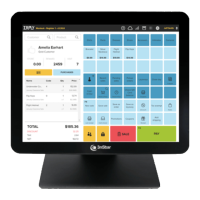
The 3nStar TCM008 is a 15-inch Capacitive Touch Screen Monitor designed for various applications, likely in retail or hospitality environments, given the example image showing a point-of-sale interface. This user manual provides essential information for installation, operation, and troubleshooting of the device.
Function Description:
The TCM008 serves as a display unit with integrated touch screen functionality. It is intended to be connected to a PC via VGA for video output and USB for touch input, enabling interactive control of software applications. The capacitive touch technology suggests a responsive and accurate touch experience, suitable for frequent use. The monitor is designed to be user-friendly, with a manual handle that allows for adjustment of the screen angle from 0 to 90 degrees, enhancing ergonomic flexibility for different users and setups.
Important Technical Specifications:
- Screen Size: 15 inches
- Touch Technology: Capacitive Touch Screen
- Power Requirements: 100V ~ 240V & 50Hz/60Hz. It requires a 12V DC input for power.
- Video Input: VGA IN (connects to PC's VGA output port). The manual also mentions HDMI/DVI in the troubleshooting section, suggesting potential compatibility or alternative connection options, though VGA is explicitly listed on the rear panel diagram.
- Touch Input: TOUCH USB IN (connects to PC's USB Ports for touch function).
- Operating Temperature (recommended): 10-35°C. The device should be allowed to acclimate to room temperature for at least two hours if stored below 10°C to prevent condensation and electrical damage.
- Electromagnetic Compatibility: Fully compliant with national standards GB/9254-1998 (limits and measurement methods of radio disturbance characteristics for Class B products) and GB/17625.1-2003 (Electromagnetic Compatibility Limits for harmonic current emission for Class B products).
- Safety Compliance: Fully compliant with national standard GB/4943-2001 IT equipment security.
Usage Features:
- Plug and Play Touch (Windows 7 and Linux): For Windows 7 (and above) and Linux 2.6.30 (and above), the touch screen driver installation is not required, indicating a plug-and-play experience for these operating systems.
- Driver Installation (Older OS): For other operating systems, a specific driver (
iUniTouch_Tool_Setup_V1.2.5.2.exe) is provided on the accompanying CD, along with installation instructions.
- Multitouch Support: Windows XP or 2000 does not support multitouch with this device.
- OSD Menu: The monitor features an On-Screen Display (OSD) menu for adjusting settings.
- MENU button: Accesses the OSD menu and enters highlighted functions.
- UP/DOWN buttons: Navigate through OSD functions and adjust values.
- AUTO/EXIT button: Applies automatic monitor settings and exits the OSD menu.
- Power Control: An ON/OFF button controls the LCD power. A green light indicates standby, and a red light indicates the monitor is off.
- Adjustable Angle: The monitor's manual handle allows for angle adjustment from 0 to 90 degrees, providing flexibility for user comfort and different installation scenarios.
- Touch Screen Test Utility: The "ILITek c-tp utility.exe" tool is provided on the CD for testing the touch screen functionality, including canvas settings (Full Screen, 1/2 Screen, 1/4 Screen, User Defined) and drawing tests.
- Firmware Update Utility: The "ilitekusbupgradetools.exe" tool is available on the CD for updating the touch screen's firmware, allowing users to search for the device, select it, load new firmware files, and initiate the upgrade process.
Maintenance Features:
- Safety Precautions:
- Ensure proper grounding of the power outlet.
- Unplug power and network cables during lightning storms.
- Do not unplug components (except USB) when power is on.
- Do not open the cabinet without professional assistance.
- Keep liquids and foreign objects out of the device and ventilation holes to prevent short-circuits, fire, or electric shock.
- Avoid rapid temperature changes, especially when moving from cold storage, to prevent condensation.
- Keep the device clean, dry, and away from dust, moisture, and direct sunlight.
- Avoid sharing power outlets with high-power consumption devices and keep distance from high magnetic interference.
- Power off the monitor after use to prolong its lifespan.
- Do not use sharp objects on the touch screen.
- Switch off the power supply before connecting/disconnecting cables or external devices.
- Troubleshooting Guide:
- No display: Check for power-saving mode (press any key/move mouse) or damaged VGA/HDMI/DVI cables.
- Characters too dark/light: Adjust brightness using the OSD Menu.
- Unclear resolution/frequency: Ensure the resolution and refresh rate match the display mode.
- Touch panel unresponsive: Verify the USB interface is correctly connected to the PC.
- Professional Service: In case of liquid penetration, accidental damage, burning smell, or sudden abnormalities, disconnect power immediately and contact a qualified service technician. Non-professional personnel are advised not to open the machine.

 Need help?

 To Next Page
 General