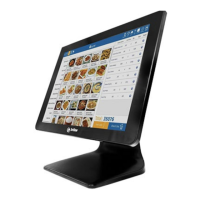
The 3nStar TCM005 is a 15-inch capacitive touch screen monitor designed for various applications, offering a user-friendly interface and robust performance. This user manual provides comprehensive instructions for installation, operation, and troubleshooting, ensuring users can maximize the device's capabilities.
Function Description:
The TCM005 serves as an external display with integrated touch functionality, allowing for interactive control of a connected PC system. Its primary function is to provide a visual output and touch input interface, making it suitable for point-of-sale (POS) systems, information kiosks, industrial control, and other interactive applications where direct screen interaction is desired. The capacitive touch technology ensures a responsive and accurate touch experience.
Important Technical Specifications:
- Display Size: 15 inches
- Touch Technology: Capacitive
- Power Requirements: 100V ~ 240V & 50Hz/60Hz. The DC In port requires 12V DC for power supply to the touch monitor.
- Connectivity:
- VGA In: Connects to the PC's VGA output port for video signal.
- Touch USB In: Connects to the PC's USB ports to enable touch functionality.
- Line In: An external device connection interface.
- Operating Temperature (Recommended): 10-35 °C. The manual advises against operating the device below 10 °C and recommends allowing the machine to restore to natural room temperature for at least two hours if it has been exposed to temperatures below 10 °C, without removing the casing, to prevent frost and condensation damage.
- Compliance:
- GB/4943-2001 IT equipment security.
- GB/9254-1998 for "The limits and measurement methods of radio disturbance characteristics of information technology equipment" (Class B products).
- GB/17625.1-2003 for "Electromagnetic Compatibility Limits for harmonic current emission limits" (Class B products).
Usage Features:
The TCM005 offers a range of features to enhance usability and customization:
- Adjustable Display Angle: The monitor features a manual handle design that allows for adjustment within a range of 0 to 90 degrees, providing comfortable viewing and operation angles.
- On-Screen Display (OSD) Menu: Accessible via the "MENU" button, the OSD menu allows users to configure various display settings.
- Key Functions:
- ON/OFF: Powers the LCD on or off. The indicator light is green when on and red when in standby.
- MENU: Activates the OSD menu and selects highlighted menu items.
- UP: Increases the value of a selected function or moves to the previous function in the OSD menu.
- DOWN: Decreases the value of a selected function or moves to the next function in the OSD menu.
- AUTO/EXIT: Automatically applies monitor settings and exits the OSD menu.
- Software Options (iUniTouch Tool): The monitor comes with a dedicated software tool (iunitouch_tool_setup_v1.2.1.0.exe) for advanced touch and display configurations.
- TP List: Displays identified monitors, including Model Name and Monitor ID.
- Mode Switch:
- Touch ON/OFF: Enables or disables the touch function.
- Industrial Function ON/OFF: Factory debugging function.
- Industrial Function with AP: Allows factory debugging settings to be turned off with the software. When "ON," parameters are valid only when the software is running; when "OFF," parameters are saved and valid even when the software is off.
- Multi-Monitor Mapping: Enables multi-screen settings.
- Support Display Orientation: Controls screen rotation.
- Touch Behavior: Customizes touch input response.
- Right Key ON/OFF: Enables/disables right-click functionality and adjusts response time (default: 500ms).
- Double Click ON/OFF: Configures double-click functionality, including first and second point lock distances and times (e.g., First Point Lock Distance: 300 pixel, First Point Lock Time: 500 ms, Second Point Lock Distance: 300 pixel, Second Point Lock Time: 600 ms). Users must turn off double-click, set parameters, then turn it back on for changes to take effect.
- Drag Setting: Enables/disables the drag function (default: ON, 50 ms).
- Lock Point: Default setting (50 pixel).
- Sound: Configures touch feedback sounds.
- Beep Sound: Enables/disables the beep sound.
- Beep Occasion: Default is "Beep On Touch."
- Beep Frequency: Adjustable (default: 1000 Hz).
- Beep Duration: Adjustable (default: 50 ms).
- Beep Device Selection: Default is "Beep Sound From Buzzer," with an option to use external speakers if available.
- Edge Compensation: Allows for fine-tuning of touch accuracy near the display edges, with adjustable Range and Ratio for Top, Bottom, Left, and Right edges.
- Mapping Area/Multi Touch Setting: Configures the active touch area, including Full Screen, Top Screen, Bottom Screen, Left Screen, Right Screen, and Customized Area (with adjustable Left, Right, Top, and Bottom coordinates). It also supports multi-touch settings for 1st, 2nd, 3rd, and 4th Quadrants.
- FW Upgrade: Provides functionality for firmware upgrades.
- Saving Settings: After modifying parameters in the software, users must click "SET" to save them.
Maintenance Features:
The manual outlines several safety and maintenance guidelines to ensure the longevity and proper functioning of the TCM005:
- General Care: Keep the device clean, dry, away from dust, moisture, and direct sunlight.
- Power Management:
- Ensure the power outlet is properly grounded and meets voltage/frequency requirements.
- Unplug network and power cables during lightning storms to prevent damage.
- Do not unplug components (except USB) while the power is on.
- Turn off the monitor after use to extend its useful life.
- Avoid sharing the same power outlet with high-power consumption devices.
- Physical Handling:
- Do not use sharp objects on the touch screen to prevent damage and ensure a normal life cycle.
- Do not open the cabinet by non-professional technicians. Unauthorized opening voids warranties and may cause damage.
- Avoid placing items or liquids inside the product or blocking ventilation holes, as this can cause short-circuits, fire, or electric shock.
- Keep distance from high-level magnetic interference.
- Troubleshooting (Common Faults and Exclusion):
- No display: Check if power saving mode is active (press any key/move mouse). Inspect the VGA cable for bent pins or loose connections; replace if necessary. If the problem persists, contact an authorized service provider.
- Characters too dark/light: Adjust brightness using the OSD Menu.
- Monitor display needs adjustment: Change the resolution frequency.
- Unclear/blurred text: Ensure resolution and refresh rate are compatible with the display mode.
- Touch panel unresponsive: Verify that the touch screen driver is properly installed and calibrated in the PC system.
- Emergency Situations: If liquid penetrates the monitor, the monitor is accidentally damaged, produces a burning smell, or the display is suddenly abnormal/distorted, immediately disconnect the power supply, unplug the power cord, and contact a qualified service technician.

 Need help?

 To Next Page
 General