5, APPLE FIND MY
Setting up you power meter in the Apple Find My app
5.1
The Apple Find My network provides an easy, secure way to locate your power meter on a
map using the Find My app on your iPhone, iPad, iPod touch, or Mac. Simply pair your
compatible product with the Apple Find My app to view it right alongside your Apple
devices. The Find My network is encrypted and anonymous, so no one else, not even
Apple or the maker of your personal item, can view its location.
Please note that your PRECISION 3+ Powermeter pod will not start sending its location
until it has been out of use for 4 minutes. Any rotation of the pod will trigger the
gyroscope and switch the pod back from Find My mode to power meter mode.
To use the Apple Find My app to locate this item, the latest version of iOS, iPadOS, or
macOS is recommended.
10
2.
3.
Enter PRECISION3+ Non-DriveSide Pod Into Find My Pairing Mode
Do this by removing and replacing the battery three times (x3). (Refer to section 6.2
Non-Drive-Side Power Meter battery installation) The pod will then start flashing
blue. The pod will remain in this mode for 10 minutes or until the setup is complete.
Tip: If it does not start blinking, the pod is already set up in Find My.
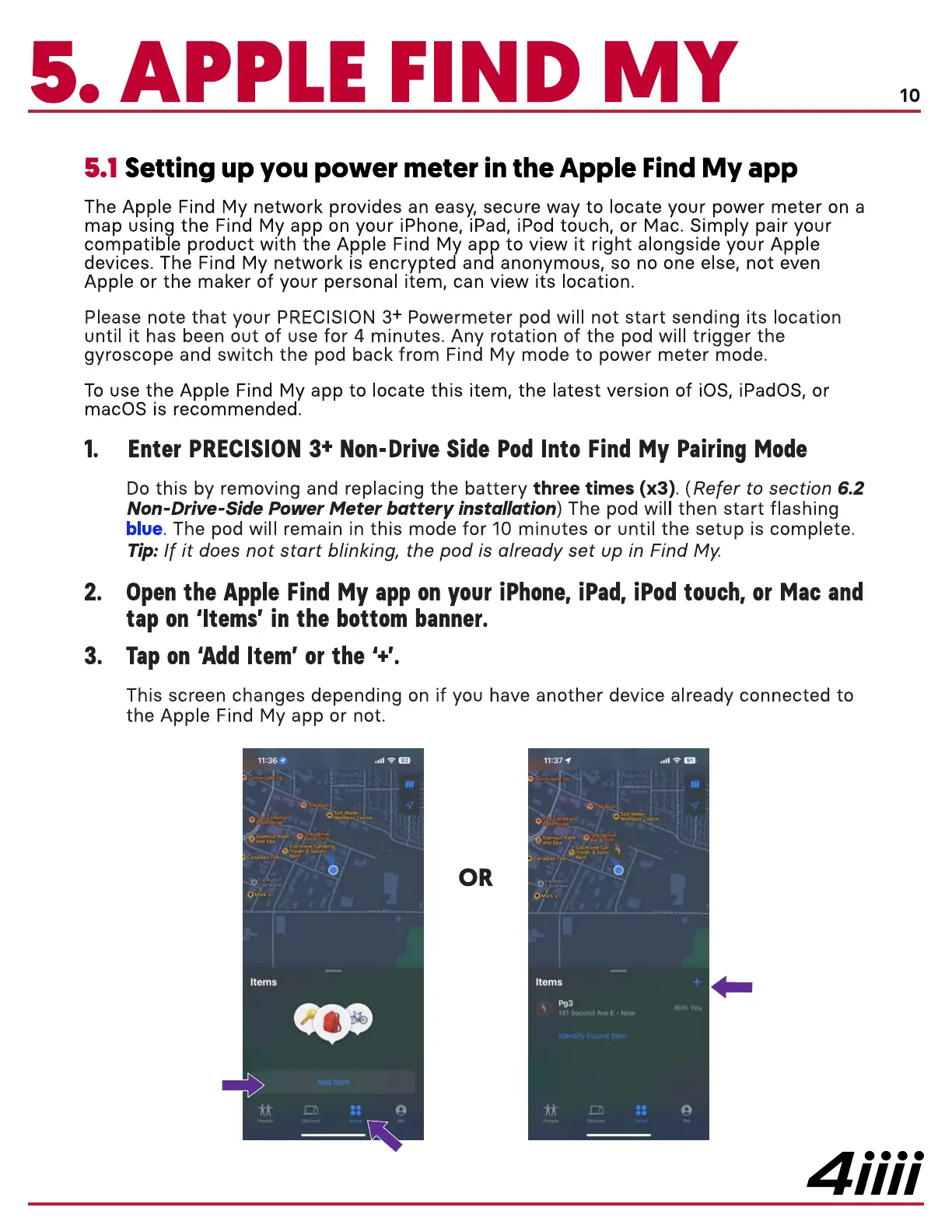
Open the Apple Find My app on your iPhone, iPad, iPod touch, or Mac and
tap on Iltems' in the bottom banner.
Tap on IAdd Item' or the '+1.
This screen changes depending on if you have another device already connected to
the Apple Find My app or not.
11:36.
TIT
Items
Add IterT
11:37
Items
With You
141 Second Ave E • NCFK
Identify Found Item
4iiii


 To Next Page
 Loading...