Need help?
Do you have a question about the 70mai A800S and is the answer not in the manual?
Details video resolution, field of view, aperture, display size, battery, and storage for the main dashcam.
Details video resolution, field of view, and aperture for the rear camera.
Provides a visual guide and labels for the main dashcam components.
Provides a visual guide and labels for the rear camera and its cables.
Step-by-step instructions for mounting the dashcam and routing the power cord.
Explains the operation, power, and storage of the rear camera footage.
Guides on connecting, using the app for preview/photos, and updating firmware.
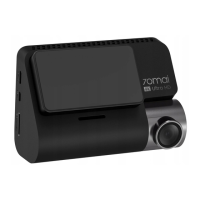
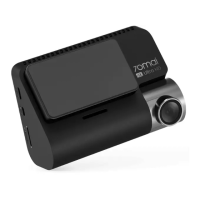
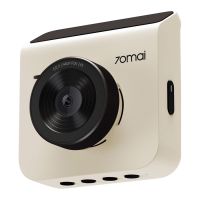
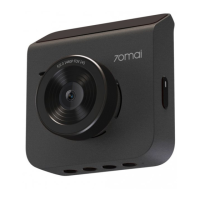
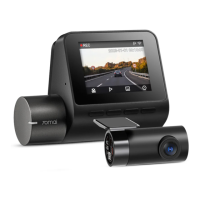
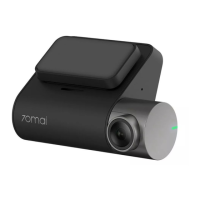
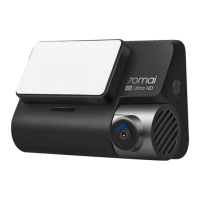
The 70mai A800S 4K Dashcam & Rear Car Camera Set is a comprehensive vehicle recording system designed to capture high-quality video footage from both the front and rear of your car. This dual-camera setup provides enhanced surveillance and peace of mind while driving, offering a wide field of view to cover critical areas around your vehicle. The main dashcam, the 70mai A800S, is equipped with a display for easy viewing and interaction, while the accompanying 70mai RC06 rear camera seamlessly integrates to provide a complete recording solution.
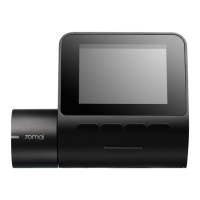
The primary function of this device is to record video footage from the front and rear of your vehicle. The 70mai A800S dashcam serves as the main recording unit, capturing detailed video of the road ahead. It features a camera lens on the front, allowing it to record the forward view. The dashcam also includes a display, which is crucial for viewing live footage, reviewing recorded videos, and navigating through the device's settings. Functions buttons are provided for interacting with the menu and controls on the display. For audio capture, a microphone is integrated into the dashcam, allowing for the recording of in-car sounds or external audio. A speaker is also present, likely for audio playback or system alerts.
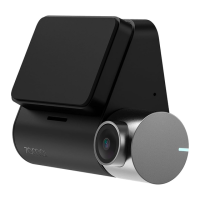
The 70mai RC06 rear camera is an accessory designed to work in conjunction with the main dashcam. Its sole purpose is to record video from the rear of the vehicle, providing a crucial second perspective. This rear camera is powered by the main dashcam, simplifying its installation and operation. When the main dashcam is active and recording, the rear camera automatically turns on and begins recording as well. Conversely, when the main dashcam is turned off or enters a sleep mode, the rear camera also ceases operation. The video footage captured by the rear camera is automatically stored on the microSD card inserted into the main dashcam, ensuring all recordings are centrally managed.
The dashcam system supports continuous recording, meaning it will record over older footage once the storage limit on the microSD card is reached. This ensures that the device is always recording the most recent events. Both front and rear recorded images are subject to this overwriting process.
Installation of the 70mai A800S dashcam involves a few key steps to ensure proper functionality and optimal recording angles. First, the windshield needs to be cleaned thoroughly. An electrostatic sticker is then applied to a flat and smooth area on the windshield, avoiding the edges. This sticker provides a secure base for the dashcam mount. The mount itself attaches to the dashcam and then slides onto the electrostatic sticker, clicking into place to ensure a secure fit. It's important to remove any air bubbles between the sticker and the glass for a firm attachment.
Powering the dashcam involves running a power cord from the device, along the top of the windshield, down the A-pillar, and around the glove compartment to a cigarette lighter socket. The power connector plugs into the car charger, which then plugs into the cigarette lighter socket. This setup ensures the dashcam receives continuous power while the vehicle is in operation.
Operating the dashcam is straightforward. The device is turned on by pressing the Power button. To turn it off, the Power button needs to be pressed and held for 3 seconds. In case of a need for a forced shutdown, the Power button can be held for 15 seconds. Once the dashcam is on, the camera angle should be adjusted to ensure it is facing the front of the vehicle correctly.
The rear camera connects to the main dashcam via a lead wire, which plugs into the rear camera port on the dashcam. This connection enables the rear camera to transmit its video feed to the main unit for recording and storage.
The 70mai app is a central feature for managing and interacting with the dashcam system. Users can download the app from the Google Play Store or App Store. To connect the dashcam to the app, users open the app, tap "Add Device," find "70mai Dash Cam A800S Series" in the device list, and follow the connection process, which involves turning on the Dash Cam's Wi-Fi hotspot.
Through the app, users can preview what the dashcam is recording in real-time. There's a full-screen icon for an expanded view. It's important to note that the dashcam cannot be operated directly when it is connected to a mobile phone via the app. The app also allows users to take photos by tapping a dedicated camera button, with the dashcam providing feedback when a photo is snapped. These photos are stored both in the app's album and on the microSD card.
The app provides access to an album where all recorded videos and photos stored on the microSD card can be viewed. Users have the option to download these videos and photos to their mobile phone's local album for easy sharing or backup. Furthermore, the app includes a settings page, accessible via a 3 dots icon, where various functions of the dashcam can be customized to suit user preferences.
Regular maintenance of the 70mai A800S dashcam system primarily revolves around storage management and firmware updates. The device uses a microSD card for storing all recorded footage. It is crucial to insert the memory card correctly into the card slot, with its contacts facing up, until a click is heard, indicating it is securely in place. As the storage limit on the microSD card is reached, the dashcam automatically overwrites the earliest recorded front and rear images with the latest ones. This continuous loop recording ensures that the device always has space for new footage, but it also means that important older footage should be backed up if needed.
Firmware updates are managed through the 70mai app. To update the firmware, users open the 70mai app, navigate to "My devices," and select "70mai Dash Cam A800S Series." If an update is available, a small red dot will appear next to the device name. Users can then tap on the device name, go to the detailed device page, and select "Firmware Update" to "Download New Firmware Version."
Once the download is complete, users need to return to the app's homepage and reconnect to the dashcam. Upon entering the preview screen, a prompt will appear asking to push the update package to the Dash Cam. After confirming, the dashcam's Wi-Fi needs to be connected to complete the transfer. The dashcam screen will then guide the user through the final steps of the update process. After the update is successfully completed, users have the option to delete the local firmware package from their phone by tapping the trash can icon on the firmware update page within the app. This process ensures the dashcam's software is kept up-to-date, potentially improving performance, adding new features, or fixing bugs.
 General
| Field of View | 140° |
|---|---|
| GPS | Yes |
| Storage | MicroSD card, up to 128GB |
| Aperture | F1.8 |
| Sensor | Sony IMX415 |
| ADAS | Yes |
| Parking Mode | Yes |
| Loop Recording | Yes |
| G-Sensor | Yes |
| Resolution | 3840 x 2160 (4K UHD) |
| Wi-Fi | Yes |
| Operating Temperature | -10°C to 60°C |
| Battery | 500mAh |
| Voice Control | Yes |
| Night Vision | Yes |

 To Next Page