65 66
1
6
9
11
8
3
4
5
2
7
10
12
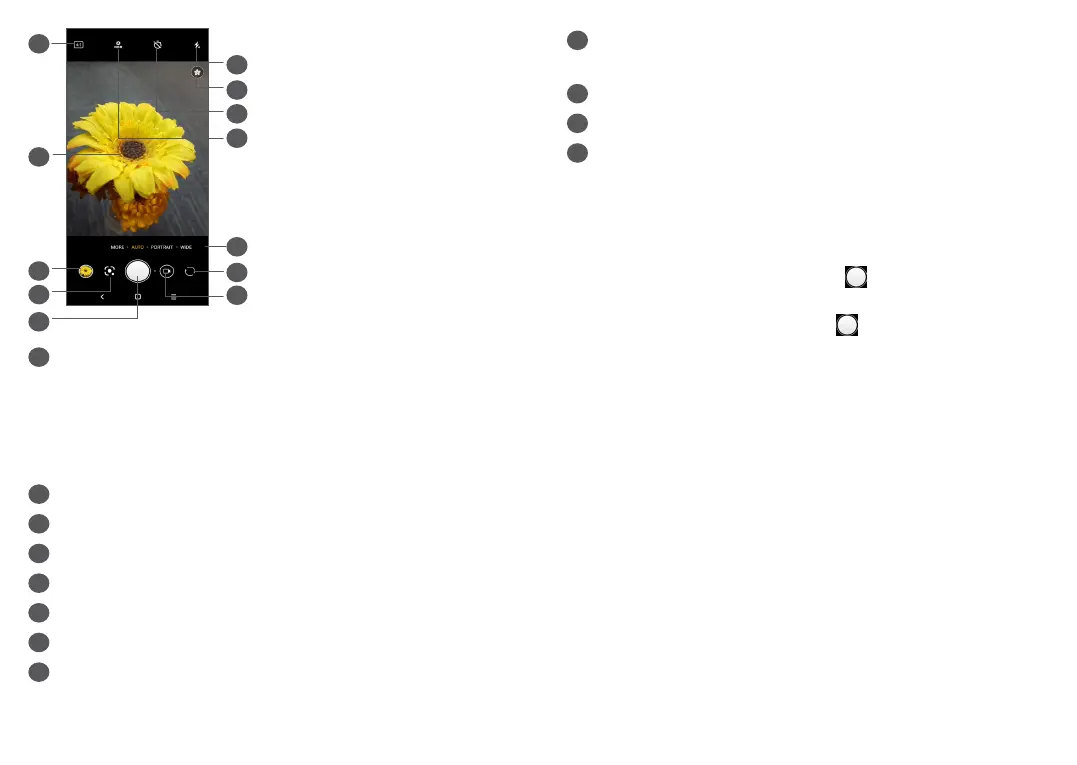
1
Flash mode
Touch to turn on/off the camera flash
WARNING: Keep a safe distance when using the
flash. Do not point the flash toward people’s or
animals’ eyes.
2
Scene detection
3
Take a timed photo
4
Take HDR photos
5
Select a camera mode
6
Switch between front and rear camera
7
Switch between video and camera mode
8
Picture size
9
Pinch fingers together to zoom out, or spread
fingers apart to zoom in
10
View the photos or videos you have taken
11
Google Lens
(1)
12
Take a photo
To take a photo
The screen acts as the viewfinder. First, position the
object or landscape in the viewfinder, touch the screen
to focus if necessary and touch
or press the Volume
key to take a photo. The photo will be automatically
saved. You can also long press to take burst shots.
Google Lens:
Google Lens is a free tool that can help you to:
• Copy text
• Search for similar products
• Identity plants and animals
• Discover books & media
• Scan codes
…and more.
(1)
Note that Google Lens only works when you are logged
in to your Google account. Your phone must also be
connected to a network.



 To Next Page