67 68
Tap the Google Lens icon and it will start to try to
identify what is in the photo. While it is trying to figure
out what is in the image, dots will appear across the
image. After it has completed its work, Google Lens will
show you the results at the bottom of the screen.
To take a video
Touch the right part of this icon
to change the
camera mode to video, then touch the left part of this
icon to start video recording. You can also touch
the left part of this icon to take a picture during
video recording.
to pause video recording and touch
Touch to
continue. Touch
to stop recording. The video will be
automatically saved.
5.1.1 Modes and settings
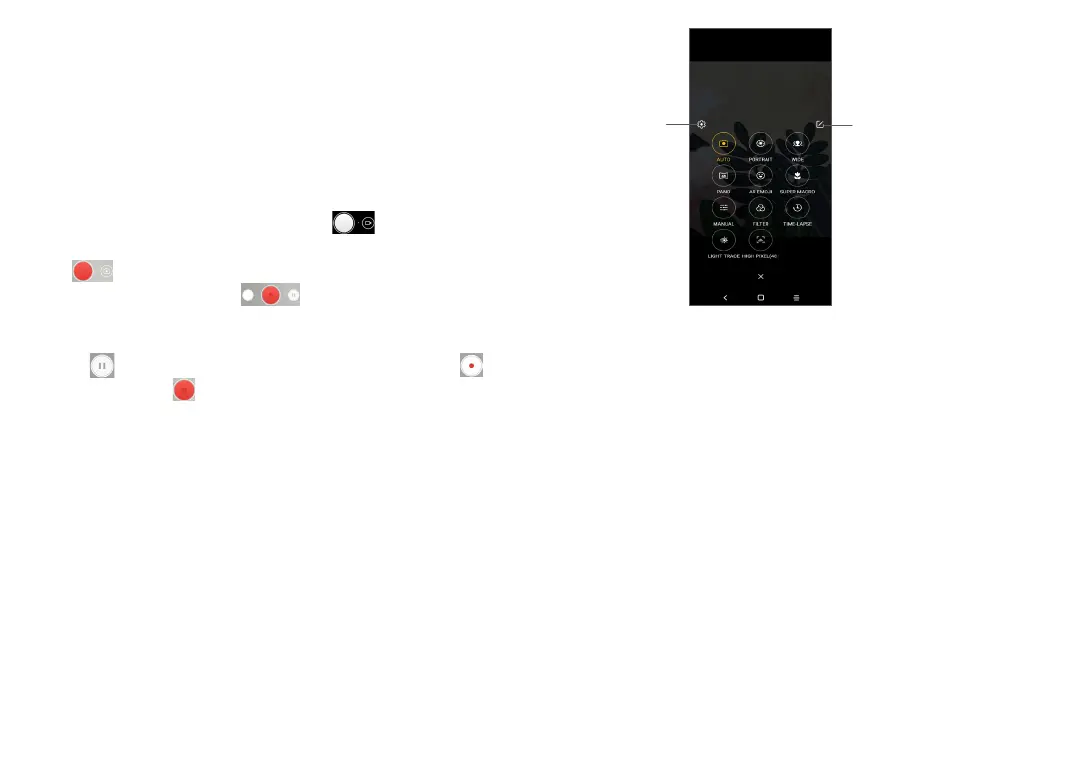
Slide left or right on the camera screen to switch
between modes, touch MORE for more options.
Touch and then
move the bouncing
icon to your
favourite position
Touch
to view
Settings
• AUTO
Auto is the default mode for Camera.
• PORTRAIT
Touch to create a depth of field effect. You can
create an image that highlights your subject while
producing a gorgeously blurred background.



 To Next Page