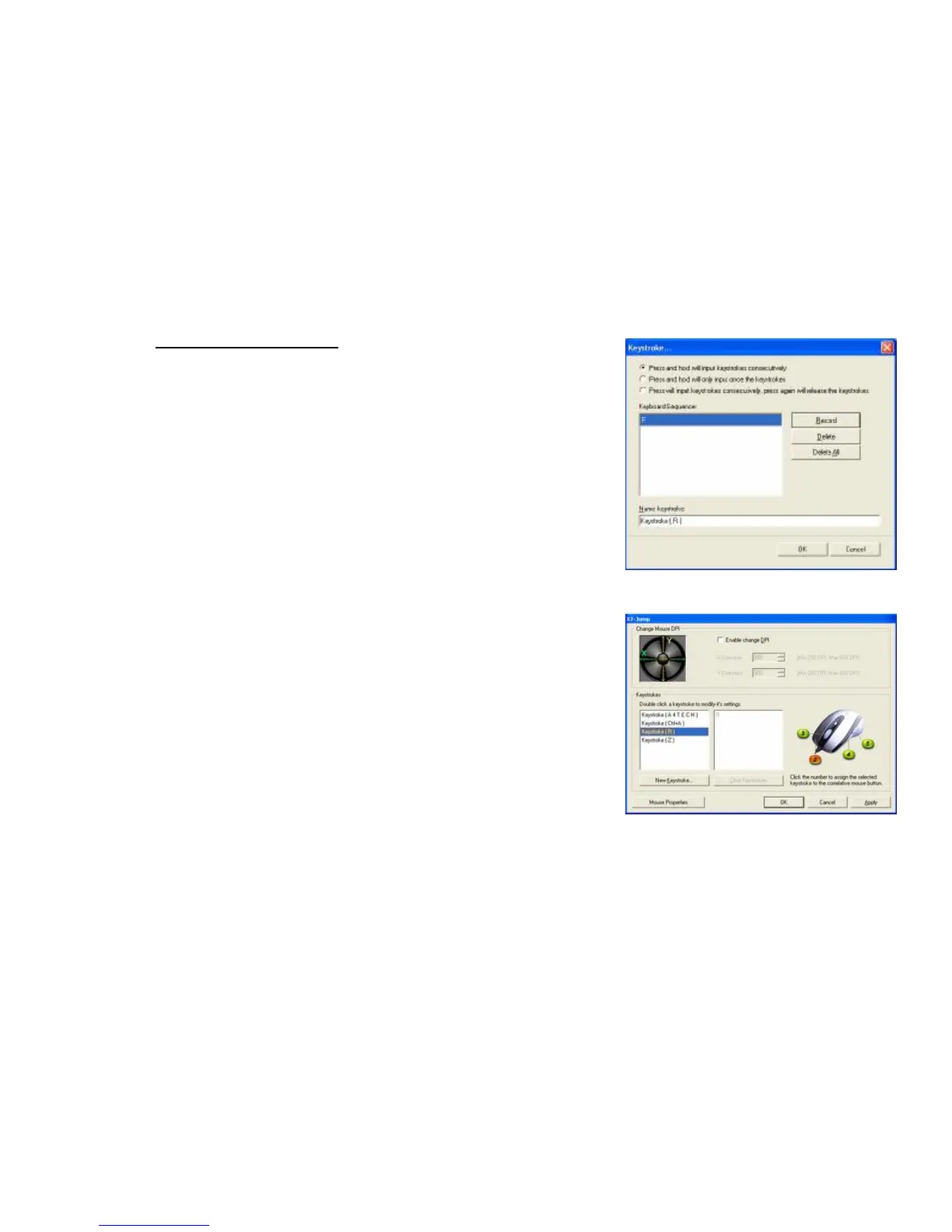
Example 1: Select 1
st
Radio Button
1. Click on “Record” (Reference: Image A)
2. Press “R” on the Keyboard
3. Click “OK”
4. It will bring you back to previous page
5. Now click on “Keystroke (R)”, the one you just created
6. Select the Mouse Button (green icon) on the Mouse Image to your right
to store the “Keystroke (R)”.
7. Green icon will turn red once it’s been selected. (Image B)
8. Click “Apply” >> “OK”
We have stored it in Mouse Button # 2.
Let’s try it on regular word document or on game application (Counter
Strikes).
l Try it on Word Document. Press and hold your mouse button #3
Did you see the character “RRRRRRR” inputted consecutively?
l Try it on Game Application. Press and hold your mouse button #
3. In Counter Strike, “Keystroke (R)” means to add bullets. Did
you see it adding bullets? If yes, you have successfully created a
command.


 To Next Page