Section II: Keystrokes
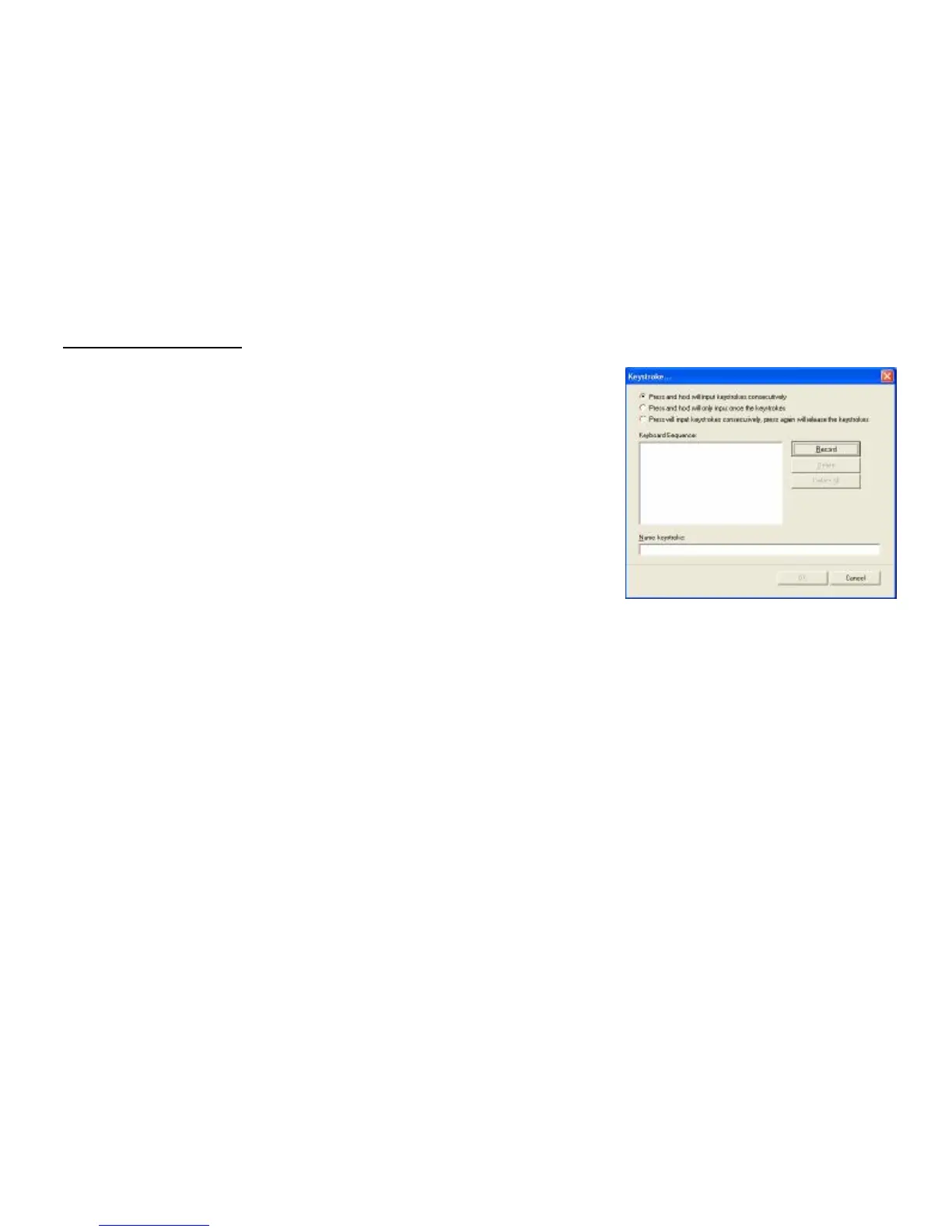
To ADD keystrokes: Click on the button “New Keystroke” and you’ll see
a “Keystroke” Window pops up (Image: left, bottom)
Here you will see 3 radio buttons:
l Press and hold will input keystrokes consecutively
l Press and hold will only input once the keystrokes
l Press will input keystrokes consecutively, press again will release the
keystrokes
If you select the 1
st
radio button, it means you would like to have the mouse
completely simulate the keyboard’s keystroke – when you press and hold a
key on the keyboard, it will input a character consecutively.
If you select the 2
nd
radio button, it means you would like to have the mouse
partially simulate keyboard’s keystroke – when you press and hold a key on
the keyboard, it will only input once unless you lift it and press it again.
If you choose the 3
rd
radio button, it means that you should have the mouse
button automatically simulate the keyboard’s keystroke – when you press and
hold a key on the keyboard , it will automatically keep inputting a character
unless you type the mouse button assigned again.
Let’s do some example together…


 To Next Page