Need help?
Do you have a question about the A4Tech G9-730FX and is the answer not in the manual?
Customize mouse button functions via the software interface for personalized control.
Assign multiple functions to a single mouse button for quick switching between tasks.
Detailed steps for capturing screenshots and using the associated editing tools.
Draw lines on screen for presentations, with options for line width and automatic erasure.
Assign buttons to launch specific files, programs, or shortcuts for quick access.
Define up to 16 user-friendly functions or commands triggered by mouse gestures.
Configure the mouse's report rate (Hz) to optimize performance and responsiveness for different tasks.
Set up the mouse wheel for both vertical and horizontal scrolling based on cursor position.
Understand and select different power-saving modes to manage battery life effectively.
Execute complex commands like Cut, Copy, Paste, and Undo with single button presses.
Assign shortcuts for common office tasks like Zoom In/Out and text manipulation.
Assign buttons for controlling web browsing, media playback, and other internet functions.
Configure the Screen Capture Tool to automatically start with the Windows operating system.
Prevent wireless interference by managing channel hopping for a stable connection.
Secure a private channel to prevent interference and improve wireless connection quality.
Monitor wireless signal strength and adjust placement for optimal performance.
Use extension cables and adjust receiver placement to mitigate wireless conflicts and interference.
Steps to resolve common problems like the mouse being unresponsive or not powering on.
Information on how to obtain technical support and find additional product resources.
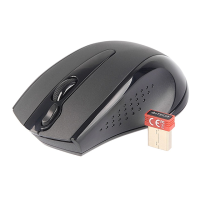
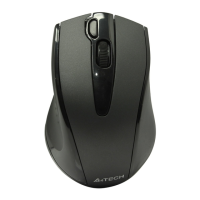
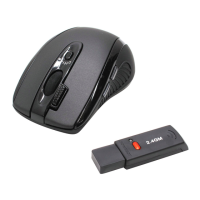
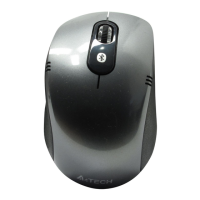
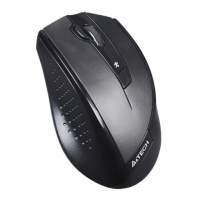
This document describes the A4TECH 2.4G RF Mouse, model G9-730FX, a wireless mouse designed for various computing tasks, including presentations and general use. It features V-Track technology, which allows the mouse to track on virtually any surface, and comes bundled with a "Screen Capture Tool" software that enhances its functionality.
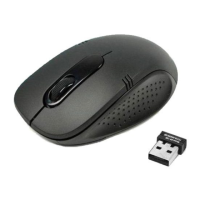
The A4TECH 2.4G RF Mouse is a wireless input device that connects to a computer via a 2.4G RF signal. Its primary function is to provide precise cursor control and enable interaction with a computer's graphical user interface. The mouse is equipped with V-Track technology, which utilizes vertical light to track movement across a wide range of surfaces, eliminating the need for a mouse pad in many scenarios.
The accompanying "Screen Capture Tool" software significantly expands the mouse's capabilities beyond basic navigation. This software offers a suite of value-added functions, including:
The mouse is designed for ease of use and extensive customization through its software.
Defining Mouse Buttons: Users can customize the functions of the mouse buttons through the "Screen Capture Tool" software. By clicking the icon in the system tray, the "Main Menu" opens, allowing users to select preferred functions for each button from a pull-down list. Settings are applied by clicking "Apply" and saved by clicking "Exit." A "Function/Key Reminder" can be set by clicking the icon in the system tray.
Set 5 Functions in ONE Button: A unique feature allows users to define five different functions for a single mouse button. To shift between these functions, users press and hold the left button while clicking the right button. A pop-up will display the current function. Once a function is selected, pressing the defined mouse button will perform that chosen function.
Capture Screen: To capture a screen, users select "Screen Capture" from the function list. Then, by pressing and holding the mouse button and dragging the cursor to form a box around the desired object, a screenshot is taken. The captured image can be edited using the "Edit Tool" and then pasted (Ctrl+V) into documents or during online chats.
TutorPen for Presentations: For presentations, the TutorPen function allows users to draw lines on the screen to highlight content. The line width can be adjusted in the "TutorPen Setting" menu, offering options for bold, normal, or fine lines. Lines can be automatically erased when the button is released or manually erased by double-clicking the button while drawing.
Gesture 16-in-1: This feature is activated by selecting "Gesture 16-in-1" from the function list. A setup box appears, allowing users to assign up to 16 commands. To use a gesture, the user presses and holds the designated gesture button and draws a line in a specific direction corresponding to a preset command. For example, drawing a line in a particular direction can trigger "Zoom In," immediately zooming into a picture or document upon releasing the button.
Adjust Mouse Report Rate: The mouse report rate (MRR) can be adjusted by clicking the icon in the system tray and selecting "Report Rate." This setting determines how frequently mouse data is transmitted to the computer per second, with options like 125Hz (Office), 250Hz (Photo design), and 500Hz (Gaming). Higher report rates generally offer more responsive performance.
Change Mouse Wheel to 4-way Wheel: The mouse wheel can be configured for 4-way scrolling. By clicking the icon in the system tray and selecting "4-way Wheel," users can enable this mode. The screen is divided into two areas (A and B). When the cursor is in area A, the wheel scrolls vertically; in area B, it scrolls horizontally. The red split icon can be moved to adjust the ratio of areas A and B. If "Normal Wheel" is selected, the wheel functions as a standard mouse wheel.
Power-saving Management: The mouse includes intelligent power-saving management with "Slight, Little, Middle, Deep" working modes. Users can select their preferred mode to optimize battery life. The system also provides a "Battery Indicator" to check the current battery power status. A "Low Battery Inform" feature will display a pop-up warning at the bottom right corner of the screen when the battery level is low.
Auto Launch on Boot: The "Screen Capture Tool" software can be configured to auto-execute when the system boots up, ensuring that all customized functions are immediately available.
Mouse-Control Panel: Users can access the standard "Mouse Properties" of their Windows system through the software, allowing for further customization of mouse pointers and other settings.
To ensure optimal performance and longevity of the A4TECH 2.4G RF Mouse, several maintenance and troubleshooting features are provided.
Troubleshooting & FAQ: If the mouse is not working, the following steps are recommended:
Avoiding Channel Confliction: To maintain a good wireless connection, users can manage RF channel settings. By clicking the icon in the system tray and selecting "RF Channel Setting," users can choose between "Auto Channel Hopping" or "Channel-lock." "Channel-lock" allows defining a private channel to secure better wireless connection quality, especially in environments with multiple wireless devices. The "Detect Receiving Signal level" feature helps users find the best channel by displaying the current signal level; lower values indicate better signal quality.
Avoiding Interference from Iron Panel of PC: To prevent interference from the computer's iron panel, users can click the icon in the system tray and select "Best Wireless Signal Monitoring." If the wireless mouse is not working smoothly due to wireless conflicts, the following improvements are suggested: A) Plug the Multi-link receiver into one of the USB ports (specifically, ports 3 or 4 as indicated in the diagram) to avoid shielding wireless signals, instead of ports 1 or 2. B) Use a USB extension cable for the receiver and keep it away from the computer or any interfering sources. This is highly recommended for long-range use or in areas with strong wireless conflicts. C) Plug the receiver on the same side as the mouse to potentially avoid wireless conflicts from notebook computers.
Battery Management: The mouse's power-saving management helps extend battery life. Users should regularly check the "Battery Indicator" for battery status. When the "Low Battery Inform" warning appears, it's an indication to replace or recharge the batteries. The system also notes that the laser pointer requires high power, and if the supplied voltage drops below 1.1 volts or remaining power is less than 25%, it may not function properly, necessitating battery replacement.
Product Support: For further technical support, users can visit http://support.a4tech.com/. The support team aims to respond within 72 hours.
This comprehensive set of features and guidelines ensures that users can effectively utilize, customize, and maintain their A4TECH 2.4G RF Mouse for a seamless computing experience.
 General
| Connection | Wired |
|---|---|
| Interface | USB |
| Technology | Optical |
| Sensor Type | Optical |
| Scroll Wheel | Yes |
| Compatibility | Windows |

 To Next Page