Instructions for Use – Blue2 FT
Page 7 of 10
for approximately one minute indicating that Blue2 FT is in pairing mode. To restart pairing mode
touch either switch top.
Control Visual or Auditory Feedback
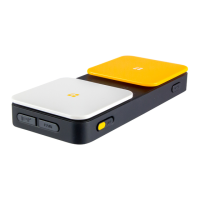
By default, when a FeatherTouch switch top on Blue2 FT is activated, auditory and visual feedback are
also activated. Auditory and visual feedback can be turned off or on by using the Visual Feedback
Switch or Auditory Feedback Switch on Blue2 FT. The background of the switch will turn green when on
and turn red when off.
Use a Wired Accessibility Switch With Blue2 FT
One or two wired accessibility switches can be used with Blue2 FT by plugging them into the S1 or S2
jack on Blue2 FT. When a wired accessibility switch is plugged into Blue2 FT, the FeatherTouch Switch
Tops and Visual Feedback Lights are deactivated. The Auditory Feedback will remain active when a
wired accessibility switch is used with Blue2 FT.
Wired accessibility switches must use a 3.5-mm / 1/8-in TS plug.
Keyboard Eject
To force an onscreen keyboard to display on your device, press the Keyboard Eject Button on Blue2 FT.
To hide the onscreen keyboard on your device, press the Keyboard Eject Button on Blue2 FT again.
Charge Blue2 FT
When Blue2 FT’s battery is low (approximately 5% remaining), the Status Indicator Light will double
flash red every second.
To charge your Blue2 FT, plug a USB C cable into the USB C Charging Jack. Connect the other end of
the USB C charging cable to an appropriate AC adapter.
When charging, the Status Indicator Light will flash red on and off. When fully charged, the Status
Indicator Light will remain solid red as long as Blue2 FT is plugged into an AC adapter.
Mounting
Connect with 6-32 screws. Do not place threaded screw more than .5-in / 12-mm into housing. For
screw length – Take thickness of material you are attaching Blue2 FT and add 0.25-in / 6.4-mm.
PREPARATORY TREATMENT
Cleaning and disinfecting your AbleNet assistive technology devices between uses is essential to the
health and safety of the user. To help fight against the spread of germs, here are some helpful steps to
cleaning and disinfecting your AbleNet device.
Always be sure to wear the appropriate personal protective equipment such as protective gloves and
safety glasses.


 To Next Page
 Loading...