EasyManua.ls Logo

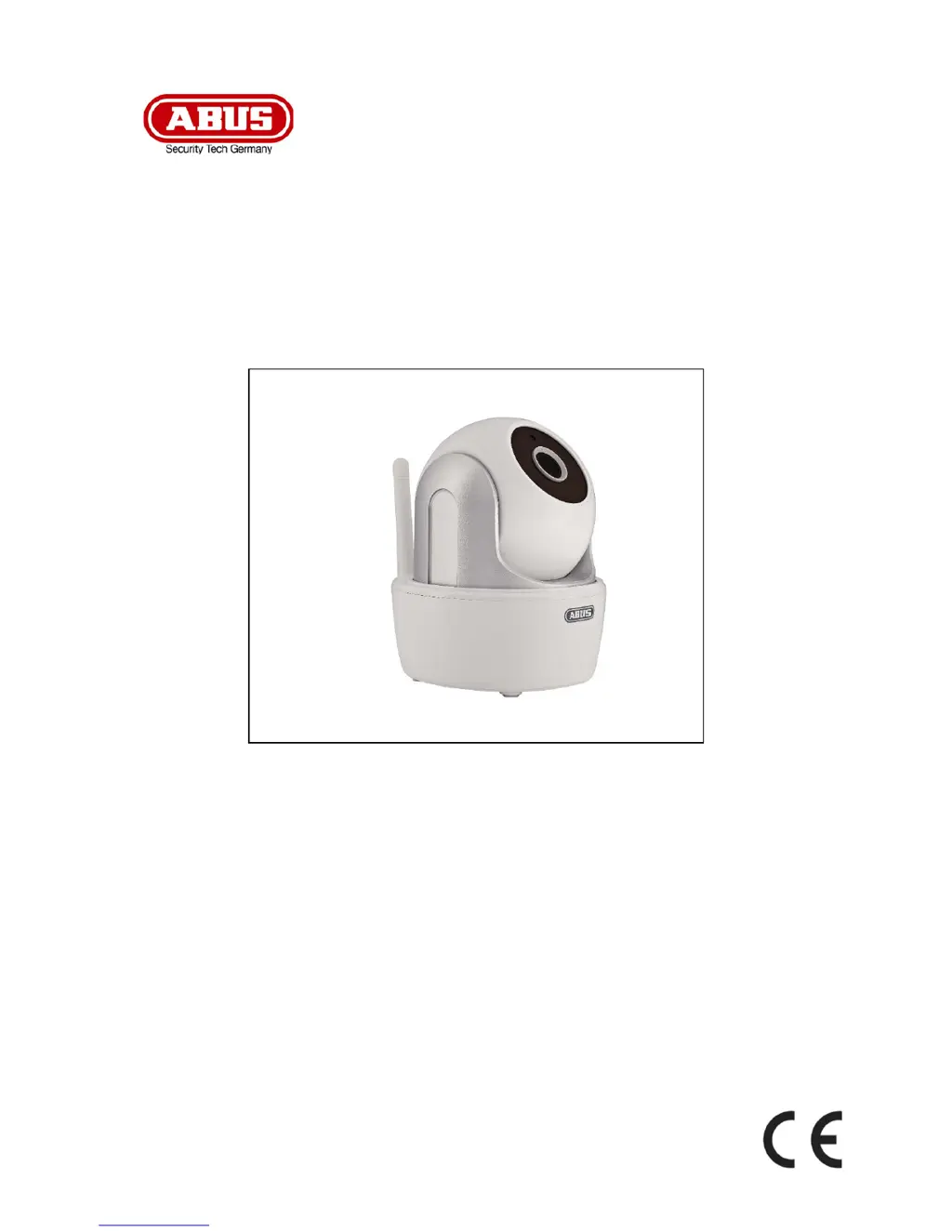
Abus TVAC19000A - User Manual

Abus TVAC19000A
128 pages
Go to English
Print Icon
To Next Page IconTo Next Page
Loading...
TVAC19000A
D
Bedienungsanleitung
User guide
F
Notice d’utilisation
Gebruikershandleiding
I
Istruzioni per l’uso
Version 03/2015

Table of Contents

Questions and Answers

  • J
    Jose LittleAug 12, 2025
    What to do if my Abus IP Camera doesn't record movement?
    • A
      Amanda ButlerAug 12, 2025
      If your Abus IP Camera isn't recording motion, here are a few things to check: 1. Confirm the SD card is properly inserted. 2. Ensure motion detection is activated in the settings. 3. Format the SD card before its first use. 4. Verify you are using a Class 10 SD card.
  • J
    Jessica GarciaAug 16, 2025
    How to improve Abus TVAC19000A network signal and picture quality?
    • J
      Jessica PierceAug 16, 2025
      If you're experiencing a low network signal or poor picture quality with your Abus IP Camera, consider the following: 1. Wi-Fi network devices can interfere with the signal. Ensure there's enough distance between the camera and other Wi-Fi devices. 2. Remove any dirt from the camera lens, as this can negatively affect the picture quality.
  • S
    Steven DawsonAug 20, 2025
    What to do if Abus TVAC19000A has no picture?
    • A
      April MooreAug 20, 2025
      If your Abus IP Camera isn't displaying a picture, please check these points: 1. Ensure the camera is properly plugged in and switched on, verifying that the power supply unit is functional and connected. 2. Confirm the camera is installed within the network's coverage area. 3. Make sure the camera is correctly configured. 4. Check that your mobile device is connected to the network or a 3G network.
  • D
    Denise EdwardsAug 25, 2025
    How to fix Abus IP Camera not found?
    • A
      Anna NewtonAug 25, 2025
      If your Abus IP Camera isn't being found, consider the following: 1. Ensure your network supports DHCP. 2. Verify that your mobile device and the camera are on the same network, especially during the initial configuration. 3. Check that the router has power. 4. Confirm the camera has power. 5. Try manually adding the camera by entering the required data.
  • H
    Hannah BartonAug 27, 2025
    Why is the time wrong on my Abus IP Camera?
    • K
      Kenneth DunnAug 27, 2025
      If the time and date are incorrect on your Abus IP Camera, here are some possible reasons: 1. Check if the date and time settings on your mobile device are correct. 2. Verify that the correct time zone is selected. 3. The system syncs the time from the internet once connected. Ensure the camera is connected to the internet.
  • M
    Matthew MossAug 31, 2025
    Why is my Wi-Fi not showing up on my Abus TVAC19000A IP Camera?
    • J
      Justin BennettAug 31, 2025
      If your Wi-Fi network isn't appearing in the selection list on the Abus IP Camera app, try these steps: 1. Ensure that the SSID of your router is visible. 2. Change the encryption type of your router to WPA/WPA2/WPA2-PSK.
  • R
    rreynoldsSep 4, 2025
    Why does my Abus IP Camera picture have white patches?
    • D
      Dylan PierceSep 4, 2025
      If the picture from your Abus IP Camera is obscured with white patches, it's likely due to the IR LEDs reflecting off surfaces. The camera uses IR LEDs for night mode, and this light can reflect off glass or other surfaces. Avoid positioning the camera in front of glass surfaces and ensure it's installed in protected outdoor areas.
  • S
    Sharon KnappSep 7, 2025
    What to check if my Abus IP Camera has SD card fault?
    • B
      Brian LaraSep 7, 2025
      To address an SD card fault with your Abus IP Camera, verify the following: 1. Ensure the SD card was inserted and formatted correctly. Remember to save important data before formatting, as it will no longer be accessible afterward. 2. Make sure you are only using a Class 10 SD card.

Summary

Safety and Symbols

Important Safety Notes

Highlights critical information that must be observed for safe operation.

Warnings and Handling

Product Overview

Features and Functions

Details the capabilities and operational features of the camera.

Installation Guide

App Operation and Setup

Initial Setup Preparation

Initial steps required before configuring the camera via the app.

iOS App Setup Process

Specific steps for setting up the camera using the iOS version of the app.

Android App Setup Process

Specific steps for setting up the camera using the Android version of the app.

Live View and Camera Control

Settings and Notifications

General Settings

Video Settings

Network and Motion Detection

Playback and Recording Management

Access and Filter Recordings

How to view, save, delete, and filter recorded video events.

Troubleshooting Guide

Abus TVAC19000A Specifications

General IconGeneral
BrandAbus
ModelTVAC19000A
CategoryIP Camera
LanguageEnglish

Related product manuals