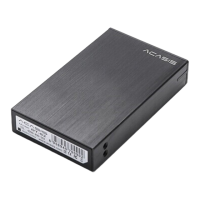
2.5 inch dual Disk Hard Disk Array Box
English Manual
Foreword
Dear user, thank you for purchasing Acasis product. In order for you to have a better
understanding of the product, please read this manual carefully before use. I wish you a
pleasant experience!
Package Contents
2.5-inch dual-bay hard disk array*1
5V/4A power cord*1
USB data cable*1
Installation screw package*1
User manual (including warranty card)*1
Install screwdriver*1
RAID settings
*After setting up RAID, the hard disk will be formatted, please
backup data in advance
1. EC-7252 has 4 RAID modes
2. The factory default is JBOD mode
3. You can use the dial on the device to adjust the RAID mode
RAID0: The identified capacity is twice the capacity of the
small hard drive in the two hard drives.
Setting: Both dial codes are dialed to the digital position
Example: 1000GB+750GB=1500GB
Note: If any hard disk fails, all data will be lost
RAID1: only recognize one hard disk to store data, and
back up to another hard disk at the same time.
Setting: Dial number 1 to a number, dial number 2 to "ON"
Example: 1000GB+750GB=750GB
Note: If any hard disk fails, the data will not be lost
JBOD: Recognized as two hard disks. (factory default
setting mode)
Setting: Both dials are dialed to "ON" and the computer
recognizes them as two independent hard drives
SPAN: recognized as a hard disk, the capacity is the sum of
two hard disks
Setting: Dial 1 to "ON", Dial 2 to a number
Example: 1000GB+750GB=1750GB
NOTE: The computer will recognize them as one large
hard drive
All data will be deleted when setting RAID modes, please backup your
data first!
When connecting the enclosure to USB 2.0 interface of the computer, please use
the DC cable in the package for power supply .
A single disk supports a maximum of 6TB.
When using a brand new hard disk,it must be initialized and formatted to be
recognizable.
After setting up RAID mode, the hard disk must be formatted to be recognizable.
The disassembled hard disk may cause path conflict, and you need to reassign the
access path to identify it.
Resetting RAID mode will cause the data to be cleared.
Connect to computer (USB3.0, USB2.0)
Connect to USB3.0 interface
1. Use the USB3.0 cable in the package to connect to the USB interface of the PC
2. When disconnecting, first eject the hard disk safely and then unplug the cable.
Connect to USB2.0 interface
1. Use the DC cable in the package to connect to the PC
2. Use the USB3.0 cable in the package to connect to the USB interface of the PC
3. When disconnecting, first eject the hard disk safely and then unplug the cable.

 Need help?
 General

 To Next Page