
 Need help?
Do you have a question about the Acer Aspire 5516 Series and is the answer not in the manual?
Explains the different user guides available for the Acer notebook, including the Quick Guide and Generic User Guide.
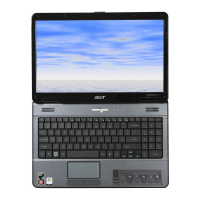
Identifies and describes components visible on the top of the Acer notebook, including the webcam.
Details the hotkeys and key combinations for controlling functions like sleep mode, display toggle, and volume.
Describes components on the closed front and left side of the notebook, including card readers and ports.
Details components located on the rear of the notebook, such as ventilation slots.
Describes components on the right side of the notebook, including the optical drive and security lock slot.
Identifies and describes components on the base of the notebook, including the battery and memory compartment.
Lists key specifications including operating system, platform, display, graphics, storage, and audio.
Provides environmental operating conditions like temperature and humidity, and notes on specifications.
The Acer Aspire 5516 Series Notebook PC is a portable computing device designed for various mobile computing needs. This quick guide provides an overview of its basic features and functions, while a more comprehensive AcerSystem User Guide, available in PDF format on the notebook, offers detailed information on system utilities, data recovery, expansion options, troubleshooting, warranty information, and safety notices.
To begin using your Acer notebook, refer to the "Just for Starters..." poster for initial setup instructions. The Quick Guide then introduces you to the physical layout and basic operations of the device. For deeper understanding, the AcerSystem User Guide is accessible by navigating to Start > All Programs > AcerSystem > AcerSystem User Guide. Viewing this guide requires Adobe Reader; if not installed, the setup program will run automatically upon clicking the guide.
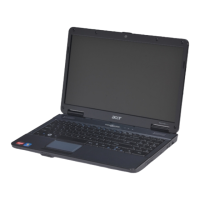
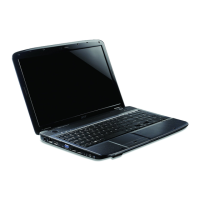
The top view of the Aspire 5516 Series notebook reveals several key components. An integrated webcam, present in certain models, facilitates video communication. The central display screen, a Liquid-Crystal Display (LCD), is responsible for showing computer output. Below the screen, a touchpad toggle allows users to turn the internal touchpad on or off. The power button is used to turn the computer on and off. A wireless LAN communication button/indicator enables or disables the wireless LAN function and shows its status. Stereo speakers, located on the left and right, deliver audio output. The keyboard is the primary input device for data entry. A touch-sensitive touchpad functions as a pointing device, similar to a mouse, with dedicated left and right click buttons below it. The palmrest provides a comfortable area for hands during use. An HDD indicator lights up when the hard disk drive is active. Additionally, there are indicators for Num Lock and Caps Lock, which light up when these functions are activated.
The notebook incorporates hotkeys, which are key combinations, to quickly access various computer controls such as screen brightness and volume. To use a hotkey, press and hold the
Even when the computer cover is closed, the front panel indicators remain visible. These include a power indicator, which shows the computer's power status, and a battery indicator. The battery indicator lights amber when the battery is charging and turns blue when fully charged and in AC mode. A 5-in-1 card reader is also located on the front, supporting Secure Digital (SD), MultiMediaCard (MMC), Memory Stick (MS), Memory Stick PRO (MS PRO), and xD-Picture Card (xD). To remove or install a card, simply push it. Note that only one card can operate at any given time.
The rear view of the notebook primarily features ventilation slots. These slots are crucial for enabling the computer to stay cool, especially during prolonged use, by allowing heat to dissipate.
The left side of the notebook offers several connectivity options. A DC-in jack is used to connect the AC adapter for power. An Ethernet (RJ-45) port allows connection to an Ethernet 10/100-based network. An external display (VGA) port enables connection to an external display device such as a monitor or LCD projector. Multiple USB 2.0 ports are available for connecting USB 2.0 devices like a USB mouse or camera. A microphone-in jack accepts input from external microphones. Finally, a headphones/speaker/line-out jack allows connection to audio line-out devices such as speakers or headphones.
On the right side, the notebook houses an internal optical drive that accepts CDs or DVDs. An optical disk access indicator lights up when the optical drive is active. An optical drive eject button is used to eject the disk. In case the computer is turned off and the disk needs to be ejected, an emergency eject hole is provided; a paper clip can be inserted into this hole to manually eject the optical drive tray. A Kensington lock slot is also present, designed to connect to a Kensington-compatible computer security lock. To secure the computer, wrap the security lock cable around an immovable object (like a table or drawer handle), insert the lock into the notch, and turn the key. Some keyless models may also be available.
The base of the notebook reveals components related to power and internal access. A battery bay houses the computer's battery pack. A battery release latch allows for easy removal of the battery. A battery lock secures the battery in position. A hard disk bay contains the computer's hard disk, which is secured with screws. A memory compartment provides access to the computer's main memory. Finally, ventilation slots and a cooling fan are located on the base. These are essential for keeping the computer cool during operation, and it is important not to cover or obstruct these openings to ensure proper airflow.
The design of the Aspire 5516 Series incorporates features that facilitate maintenance and ensure longevity. The ventilation slots and cooling fan on both the rear and base views are critical for thermal management, preventing overheating during extended use. Users are advised not to obstruct these openings. The battery release latch and battery lock allow for easy battery replacement or removal. The hard disk bay and memory compartment are accessible (secured with screws) for potential upgrades or servicing of these components. The emergency eject hole for the optical drive provides a manual override in case of power failure, ensuring that disks can always be retrieved. The Kensington lock slot offers a security measure to deter theft, allowing the notebook to be physically secured to a stationary object. The comprehensive AcerSystem User Guide, preloaded on the notebook, serves as a valuable resource for troubleshooting and understanding system utilities, which aids in maintaining the device's performance and addressing common issues.
 General
| Chipset | AMD M780G |
|---|---|
| Memory | Up to 4 GB DDR2 |
| Display | 15.6" HD (1366x768) |
| Graphics | ATI Radeon HD 3200 |
| Storage | 160 GB / 250 GB HDD |
| Optical Drive | DVD-Super Multi DL |
| Wireless | 802.11b/g Wi-Fi |
| Operating System | Windows Vista Home Premium |
| Battery | 6-cell Li-ion |
| Ports | 3 x USB 2.0, VGA |




 To Next Page