EasyManua.ls Logo

Acer Aspire 6930 Series - User Manual

Acer Aspire 6930 Series
12 pages
Print Icon
To Next Page IconTo Next Page
Loading...
Aspire 6930/6930Z Series
Quick Guide

Other manuals for Acer Aspire 6930 Series

Questions and Answers

  • R
    Rachel EspinozaJul 26, 2025
    How to fix Acer Aspire 6930 when it is not turning on?
    • B
      Brad JordanJul 26, 2025
      If your Acer Laptop isn't turning on, ensure the power cable is securely connected to both the laptop and a working electrical outlet. Try removing any extension cables or surge protectors. Plug the laptop directly into the outlet. Then, disconnect the power, open the casing, and check for obstructions in the thermal unit and fan airways. Also, disconnect any unnecessary external hardware and recently installed software.
  • R
    Rebecca RobbinsJul 31, 2025
    Why is there no sound on my Acer Laptop?
    • C
      Charles LambertJul 31, 2025
      If you're experiencing sound problems on your Acer Laptop, start by rebooting the computer. Check the Device Manager to ensure the audio device is properly installed, without any errors (red Xs or yellow exclamation marks) or device conflicts. Roll back or reinstall the audio driver. Make sure the volume controls are set to a mid-range level and not muted. Also, ensure that Speakers are selected as the default audio device in the Sound settings. Remove any recently installed hardware or software. If the problem persists, restore your system to a previous state using System Restore or reinstall the Operating System.
  • S
    Sharon ClarkAug 5, 2025
    What to do if the screen is black on Acer Aspire 6930?
    • T
      Timothy PalmerAug 5, 2025
      If your Acer Laptop display isn't working, first, make sure that the internal display is selected by pressing Fn+F5. Check that the computer has power and that fans start or status LEDs light up. Drain any stored power by removing the power cable and battery, then hold the power button for 10 seconds. Reconnect the power and reboot. Connect an external monitor and switch between displays using Fn+F5. If video appears on the external display, it may indicate an LCD failure. Disconnect power and all external devices, then restart the computer. Reseat the memory modules. Remove the drives.
  • F
    Frank GreenAug 9, 2025
    Why does my Acer Laptop external mouse not work?
    • R
      rlozanoAug 9, 2025
      If your Acer Laptop's external mouse isn't working, try using a different mouse. If it's wireless, replace the batteries and ensure a stable connection. If it's a USB mouse, try a different USB port. Test the mouse in another program. Reinstall the program where the mouse is failing. Restart your computer. Remove any recently added hardware or software. Restore your system to a previous state using System Restore. Check the Device Manager to confirm that the mouse is properly installed without errors or conflicts.
  • M
    Mark LunaAug 14, 2025
    Why does my Acer Laptop keep losing BIOS settings?
    • H
      hgarciaAug 14, 2025
      If your Acer Laptop is randomly losing BIOS settings, and it's over a year old, try replacing the CMOS battery. Run a complete virus scan with updated software. If you're losing HDD or ODD BIOS information, disconnect and reconnect the power and data cables. Replace the cables if the settings are still lost. If HDD information is missing, the drive might be defective and should be replaced. As a last resort, replace the Motherboard.
  • J
    Jeremy ThomasAug 20, 2025
    What to do if Acer Aspire 6930 HDD not operating correctly?
    • V
      vmackAug 20, 2025
      If your Acer Laptop's HDD isn't operating correctly, start by disconnecting all external devices. Run a complete virus scan using up-to-date software. Run the Windows Vista Startup Repair Utility from the operating system DVD. Check the BIOS settings and ensure the CD/DVD drive is the first boot device. Ensure all cables and jumpers on the HDD and ODD are correctly set. Remove any recently added hardware and software. Run the Windows Disk Defragmenter and Windows Check Disk. Restore system and file settings from a known good date using System Restore.

Summary

First Things First

Your Guides

Provides an overview of available guides for using the Acer notebook, including setup and detailed information.

Aspire Series Generic User Guide

Contains basic topics and information applicable to all Aspire series models.

AcerSystem User Guide

Offers detailed information on system utilities, data recovery, expansion, and troubleshooting.

Your Acer Notebook Tour

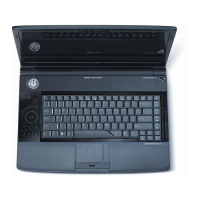
Top View Components

Details the components visible on the top surface of the Acer notebook.

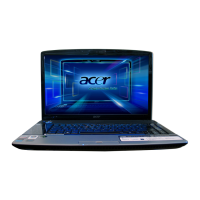
Closed Front View Components

Identifies components located on the closed front view of the notebook.

Rear View Components

Details components located on the rear view of the notebook.

Left View Components

Identifies ports and connectors on the left side of the notebook.

Right View Components

Identifies ports and features on the right side of the notebook.

Base View Components

Details components visible on the base of the notebook.

Specifications

Operating System and Platform

Details the operating system and platform processor technology.

Acer Aspire 6930 Series Specifications

General IconGeneral
MemoryUp to 4GB DDR2
StorageUp to 320GB HDD
Battery6-cell Li-ion battery
ChipsetMobile Intel PM45 Express Chipset
ProcessorIntel Core 2 Duo
Display16-inch HD Acer CineCrystal LCD
GraphicsNVIDIA GeForce 9600M GT
Optical DriveDVD Super Multi DL
Operating SystemWindows Vista
Wireless802.11a/b/g/n Wi-Fi, Bluetooth
Weight3.5 kg

Related product manuals