25Camera icons and indicators
Chapter 7: Using the Camera
Your smartphone features a 3-megapixel digital camera mounted on the rear.
This section will take you through all the steps in taking photos and videos with
your smartphone.
Note: You need to have a microSD Card inserted into the microSD Card slot before
using the camera.
To activate the camera, open the Applications tab and tap Camera.
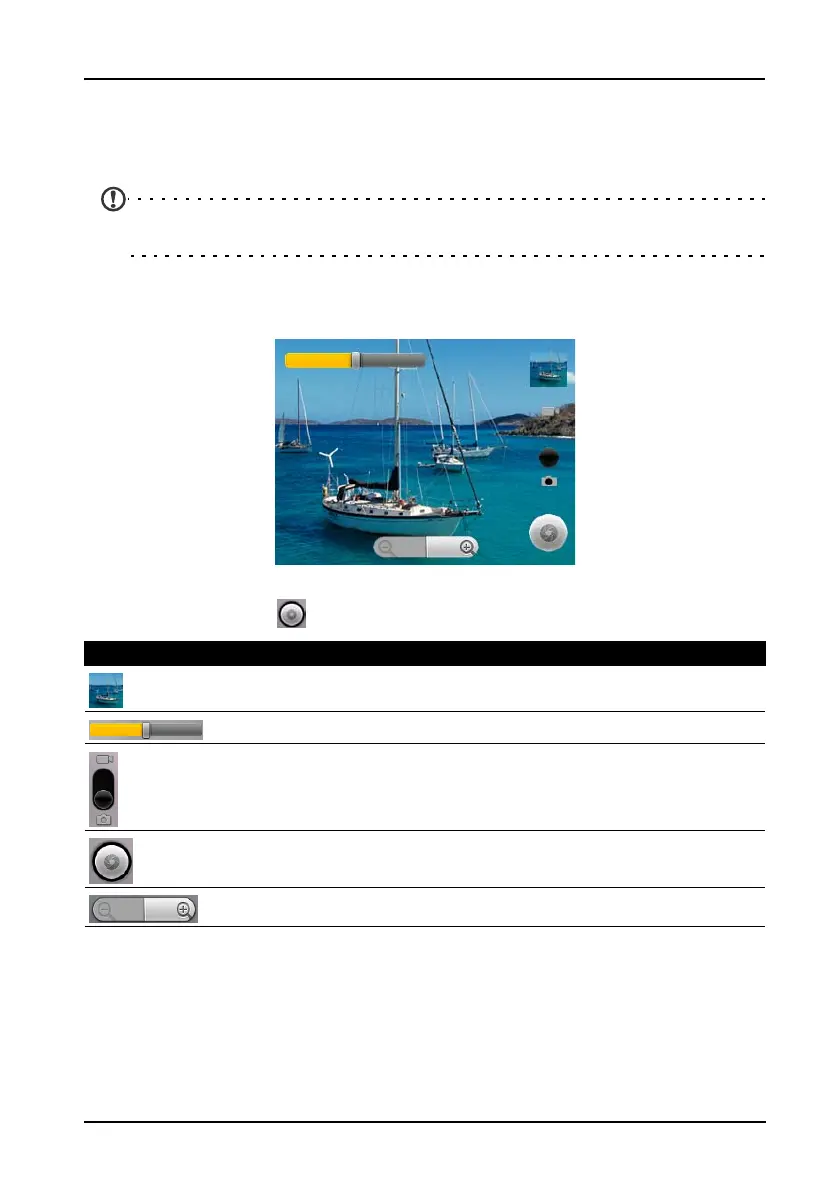
Camera icons and indicators
In the camera window, use the zoom slider at the bottom of the screen to
adjust the zoom.
Tap to take a picture.
Icon Description
Indicates the last photo taken.
Slide to adjust brightness.
Slide to switch between camcorder and photo mode.
Shutter button. Tap to take the photo. Changes to Record or Stop in
video mode.
Tap to zoom in or out.


 To Next Page