36
Setting alarms
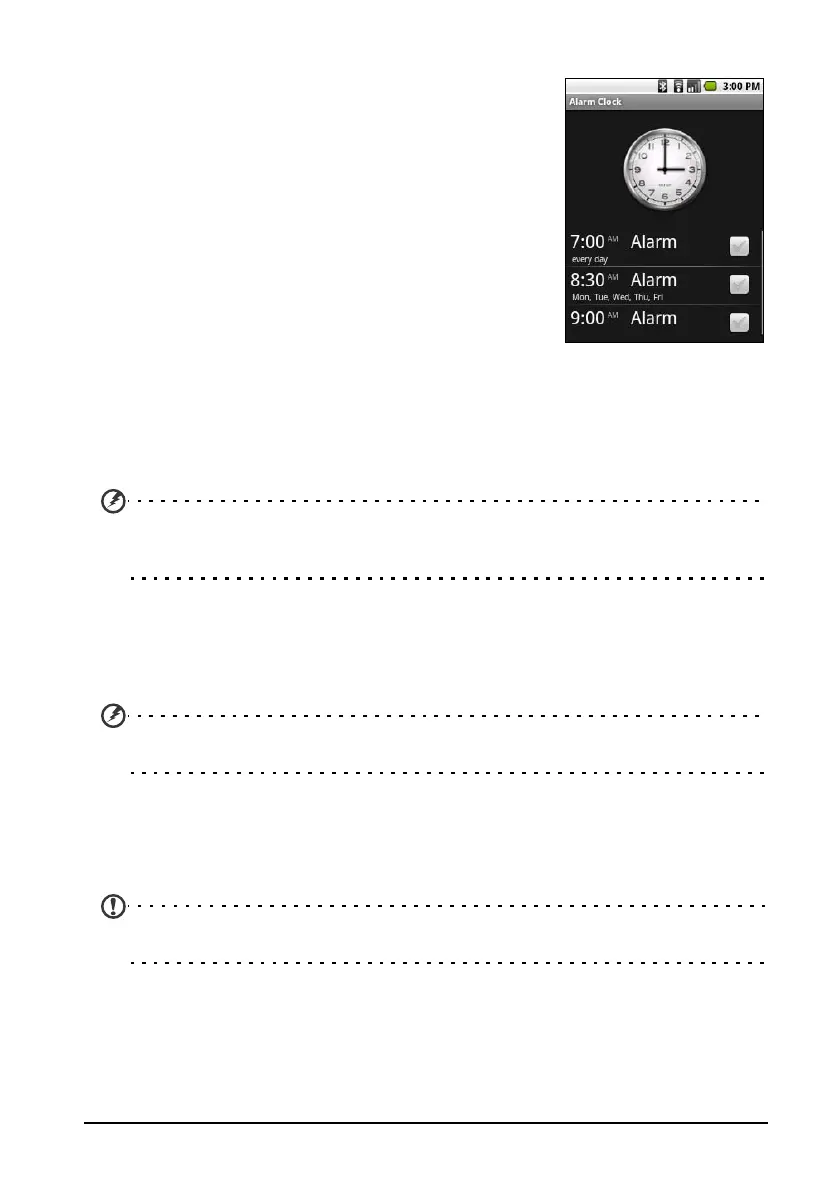
There are three predefined alarms on your phone by
default. To edit alarm settings, tap Alarm Cloc
k in the
Applications tab. You may:
• Turn the alarm on or off.
• Set the alarm time.
• Set a ringtone.
• Enable or disable vibrate.
• Set which days to repeat the alarm.
• Give it a label.
Changing location and text options
Set your location and language input preferences by opening the Applications
tab and going to Settings > Locale & text.
Managing applications
Warning! Make sure you trust the source of any program you install. If you are not
sure of the source, do not install a program. Installing programs from unknown
sources increases your risk of virus attacks and theft of personal and private data.
You can remove programs installed on your smartphone to free up extra
storage memory. Open the Applications tab and go to Settings > Applications.
Here you can allow programs from Unkno
wn sources to be installed and
Manage applications.
Warning! You should only remove programs if you are familiar with the Android
operating system.
Resetting your smartphone
You may have to perform a reset if your smartphone fails to respond when
buttons are pressed or the screen is tapped.
Note: Before performing a reset, ensure that your smartphone is not locked. Press any
key or tap the screen to see if the phone responds.


 To Next Page