CB292CU User Guide English
• In normal display condition to press the "Navi Key" in the middle of
more than 3 seconds to trigger "OSD Unlock".
• The "OSD Unlock" message will be displayed in the middle of the
screen.
• LED lights will be restored to blue light.
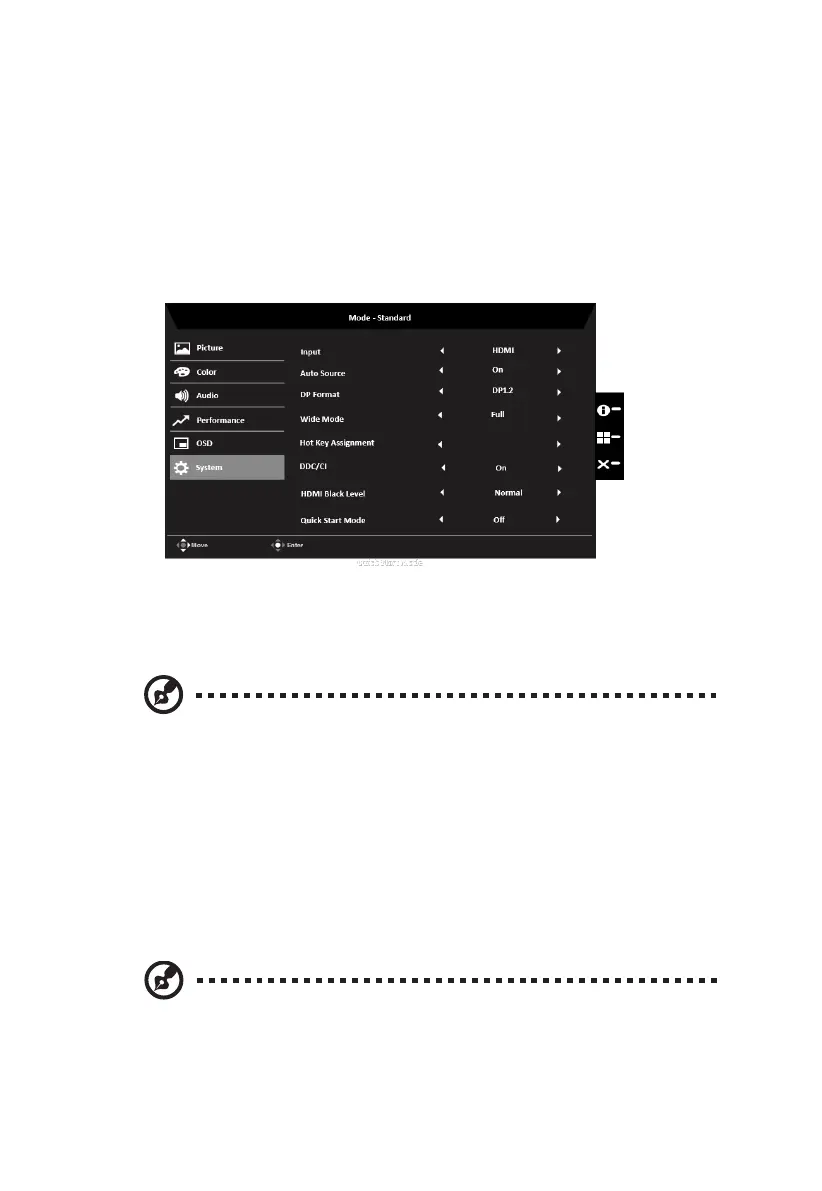
System
1. Input: Select the source from HDMI(2.0), HDMI(2.0), DP.
2. Auto Source: The default is “On”, which can support auto search for signal
source in order.
Note: Surround application must set Auto Source is “Off”.
3. DP format: Choose the DP1.1 or DP1.2 rules.
4. Wide mode: You can select which screen aspect you are using. The
options are Aspect, Full and 1:1.
5. Hot Key Assignment: Select the function of shortcut key 1(Modes,
Volume, Brightness, Gamma, Contrast, Blue Light, Over Drive) and
shortcut keys 2 (Modes, Volume, Brightness, Gamma, Contrast, Blue Light,
Over Drive).
6. DDC/CI: Allows the monitor settings to be set through the software on th e
PC.
Note: DDC/CI, short for Display Data Channel/Command Interface, which
allows monitor controls to be sent via software.
7. HDMI Black level: Select to set HDMI black level.
8. Quick Start Mode: Select Off or On. Turn on to speed up boot speed.
18
OSD Unlocked:


 To Next Page