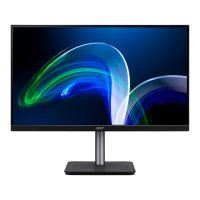
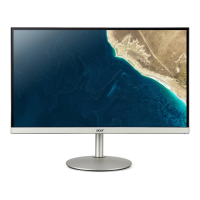
This document is a user guide for an Acer LCD Monitor, providing information on its setup, operation, and maintenance.
Function Description
The Acer LCD Monitor is designed for video and visual display of information from electronic devices. It supports various input sources, including VGA, HDMI1.4, and DisplayPort (DP), allowing for flexible connectivity with different computer systems. The monitor is plug-and-play compatible, automatically informing the host system about its capabilities, supported resolutions, and timing through the DDC (Display Data Channel) protocol. It supports the DDC2B standard.
Usage Features
The monitor offers a range of features to enhance user experience and comfort.
Screen Position Adjustment:
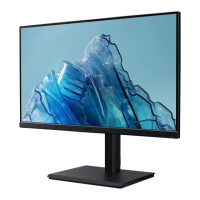
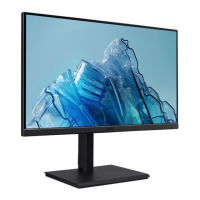
Users can adjust the monitor's height, tilt, swivel, and pivot to find an optimal viewing position.
- Height Adjustment: The monitor's height can be adjusted by pressing down on the top of the monitor.
- Tilt: The screen can be tilted from -5° to 20° to achieve a comfortable viewing angle.
- Swivel: With a built-in pedestal, the monitor can swivel 360° for flexible viewing.
- Monitor Pivot: The display can be rotated clockwise or counter-clockwise up to ±90° after lifting it to the top position and pushing it back.
Power Management:
The monitor includes power-saving features. It enters "Power Saving" mode when a control signal from the display controller is detected, indicated by an amber power LED. The monitor recovers from this state in approximately 3 seconds when a control signal is detected or the keyboard/mouse is activated.
The OSD menu allows users to adjust various settings for picture quality, OSD position, and general monitor functions. The menu is navigated using a joystick-like toggle button on the backside of the display bezel.
- Picture Settings: Adjusts Brightness, Contrast, Black Boost, Blue Light, ACM (Adaptive Contrast Management), Super Sharpness, Auto Config, H. Position, V. Position, Focus, and Clock.
- Brightness: Adjustable from 0 to 100.
- Contrast: Adjustable from 0 to 100.
- Black Boost: Enhances shadows by increasing brightness without affecting lighter shades (0 to 10).
- Blue Light: Filters blue light to protect eyes, with settings at 80%, 70%, 60%, or 50%. A 50% setting is recommended for optimal protection and meets TÜV Rheinland's "Low Blue Light Content" standard.
- ACM: Dynamic contrast adjustment, can be turned on or off.
- Super Sharpness: Enhances image clarity by boosting pixel density, can be turned on or off.
- Color Settings: Adjusts Gamma, Color Temperature, Modes (scenario modes), sRGB, Grayscale Mode, 6-axis Hue, and 6-axis Saturate.
- Gamma: Adjusts luminance tone, default is 2.2.
- Color Temperature: Options include Cool, Normal, Warm, Bluelight, or User.
- Modes: Predefined scenario modes like sRGB, Reading, Darkroom, User, Standard, ECO, Graphics, Movie.
- sRGB: Can be turned on or off for better color matching with peripheral devices.
- 6-axis Hue/Saturate: Allows fine-tuning of red, green, blue, yellow, magenta, and cyan hues and saturation.
- Audio Settings: Adjusts Volume and Mute (on/off). Audio output is available for models with audio output.
- Performance Settings (Gaming): Includes Over Drive, FreeSync, VRB (Visual Response Boost), and Refresh Rate Num.
- Over Drive: Selectable as Off, Normal, or Extreme to reduce response time. If FreeSync is ON, Over Drive is automatically set to Normal.
- FreeSync: Can be turned on or off to dynamically adjust the display refresh rate with FreeSync-supported graphics sources, providing stutter-free and low-latency updates.
- VRB: Enhances dynamic picture fine lines but reduces brightness. VRB and FreeSync cannot be enabled simultaneously. VRB is enabled when Input Timing is 75Hz; otherwise, it is grayed out. When VRB is on, Brightness, Blue Light, and ACM cannot be adjusted.
- Refresh Rate Num: Displays the panel's current refresh rate.
- OSD Settings: Configures Language, OSD Timeout, Transparency, and OSD Lock.
- Transparency: Adjustable from 0% (OFF) to 80% when using gaming mode.
- OSD Lock: Locks the OSD menu. When locked, an "OSD Locked" message appears, and the LED status changes from blue to orange. To unlock, press the "Navi Key" in the middle for more than 3 seconds.
- System Settings: Manages Input Source, Auto Source, DP Format, Wide Mode, Hot Key Assignment, DDC/CI, HDMI Black Level, and Quick Start Mode.
- Input: Selects VGA IN, HDMI1.4, or DP.
- Auto Source: Automatically searches for a signal source (default is "On"). For surround applications, it must be "Off."
- DP Format: Choose between DP1.1 or DP1.2 rules.
- Wide Mode: Selects screen aspect (Aspect or Full).
- Hot Key Assignment: Assigns functions to shortcut keys.
- DDC/CI: Allows monitor settings to be controlled via software on the PC.
- HDMI Black Level: Sets the HDMI1.4 black level.
- Quick Start Mode: Speeds up boot time (On/Off).
- Save Setting to... (User mode only): Allows users to save customized settings into three user-defined profiles for quick recall in gaming mode.
Special Notes on LCD Monitors:
- Flickering during initial use is normal and can be resolved by turning the power off and on again.
- Slightly uneven brightness may occur depending on the desktop pattern.
- LCD screens have 99.99% or more effective pixels; blemishes of 0.01% or less (missing or always-lit pixels) are normal.
- Afterimages may remain after switching images if the same image is displayed for hours. This recovers slowly by changing the image or turning off the monitor for a few hours.
- Accessibility: Ensure the power outlet is easily accessible.
- Safe Listening: Gradually increase volume, avoid high volume for extended periods, and turn down volume if unable to hear people speaking nearby.
- Warnings: Do not use near water, on unstable surfaces, or block ventilation openings. Avoid pushing objects into slots or spilling liquids. Do not place on vibrating surfaces. Use only the supplied power adapter and cord.
- Electrical Power: Operate from the specified power type. Do not overload power outlets or allow anything to rest on the power cord.
- Product Servicing: Do not attempt self-service; refer to qualified personnel for repairs.
Maintenance Features
Cleaning the Monitor:
- Always unplug the monitor before cleaning.
- Use a soft cloth to wipe the screen and cabinet front and sides.
Care for Vision:
- Rest eyes frequently and take regular breaks by looking away from the monitor.
- Blink frequently to prevent dry eyes.
- Keep the display clean.
- Position the display so eyes point downward when looking at the middle.
- Adjust brightness/contrast to a comfortable level.
- Eliminate glare and reflections by positioning the display away from light sources, minimizing room light, using a task light, changing viewing angle, using a glare-reduction filter, or a display visor.
- Avoid awkward viewing angles and looking at bright light sources for extended periods.
Developing Good Work Habits:
- Take short, regular breaks.
- Perform stretching exercises.
- Breathe fresh air.
- Exercise regularly and maintain a healthy body.
Acer is committed to environmental protection and recycling. For information on Waste from Electrical and Electronics Equipment (WEEE) regulations and recycling, visit http://www.acer-group.com/public/Sustainability/sustainability01.htm.


 To Next Page


 General
 Weight and Dimensions