
 Need help?
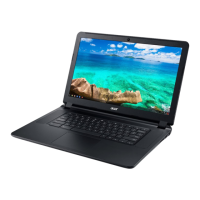
Do you have a question about the Acer Chromebook 15 Series and is the answer not in the manual?
Overview of the guide, including potential interference with Chrome OS updates and warranty voiding.
Turn the Chromebook over and unscrew the sixteen 5mm Phillips screws around the border and two in the center.
Carefully pry open the back cover using an iFixit Opening Tool and set it aside.
Using a spudger, carefully unplug the rainbow wires connected to the top of the battery.
Unscrew the 4mm Phillips #1 screw located at the top right of the battery.
Remove the battery from the Chromebook.
Remove the screw located to the left of the solid-state drive.
Gently pull the solid-state drive to the left to remove it.
 General
| Display Size | 15.6 inches |
|---|---|
| Operating System | Chrome OS |
| Weight | 4.85 lbs (2.2 kg) |
| Wireless | 802.11ac Wi-Fi |
| Bluetooth | Bluetooth 4.0 |
| Processor | Intel Core i3-5005U |
| RAM | 2GB or 4GB |
| Storage | 16GB or 32GB eMMC (depending on the model) |
| Graphics | Intel HD Graphics |
| Ports | 2 x USB 3.0, 1 x USB 2.0, HDMI, SD card reader, headphone/microphone combo jack |
| Resolution | 1920 x 1080 pixels |



 To Next Page