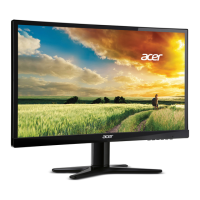
This document is a user guide for an Acer LCD Monitor, providing comprehensive instructions for its setup, operation, and maintenance, along with important safety and regulatory information.
Function Description
The Acer LCD Monitor is a display device designed to be connected to a host computer system. It functions by receiving video signals from the computer and displaying them on its screen, allowing users to interact with their computer's graphical interface. The monitor supports various input signal types, including VGA, DVI, and HDMI, offering flexibility in connectivity with different computer systems. It is equipped with an on-screen display (OSD) menu that allows users to adjust various picture quality settings, OSD timeout, and general settings to optimize their viewing experience. The monitor also features power-saving modes, automatically entering a low-power state when no control signal is detected or after a period of user inactivity, contributing to energy efficiency.
Usage Features
The monitor offers several features to enhance user experience and comfort:
- Screen Position Adjustment: Users can adjust the tilt of the monitor to optimize their viewing position, with a range of 15 degrees up and 5 degrees down. This flexibility helps in achieving an ergonomic setup and reducing strain.
- Multiple Input Options: The monitor supports D-sub (VGA), DVI, and HDMI cables, allowing connection to a wide range of devices. This versatility ensures compatibility with both older and newer computer systems.
- Audio Input (Optional): For models equipped with audio input, users can connect an audio cable to the monitor, allowing sound to be played directly through the monitor's speakers (if available) or an attached audio output device.
- Plug-and-Play (DDC): The monitor supports the Display Data Channel (DDC) protocol, enabling plug-and-play functionality. This means the monitor automatically communicates its capabilities (like supported resolutions and timing) to the host system, simplifying installation and setup.
- Panel Controls: The monitor features intuitive panel controls, including a power button/indicator, navigation buttons (< / >), a Menu/Enter button, an Auto/Exit button, and an Empowering Key. These buttons provide quick access to various functions and settings.
- Shortcut Menu: A shortcut menu can be accessed by pressing any of the function buttons (Empowering Key, Auto, or Menu). This menu provides quick access to commonly used settings such as Acer eColor Management, Auto Adjustment, OSD menu, Volume (optional), and Input selection.
- Acer eColor Management: This feature allows users to select from various scenario modes (User mode, ECO mode, Standard mode, Graphic mode, Movie mode) to optimize display settings for different types of content.
- User mode: User-defined settings that can be fine-tuned for specific situations.
- ECO mode: Adjusts settings to reduce power consumption, promoting energy efficiency.
- Standard mode: Default settings that reflect the monitor's native display capability.
- Graphic mode: Enhances colors and emphasizes fine detail, making pictures and photographs appear vibrant and sharp.
- Movie mode: Displays scenes with the clearest detail, providing great visuals even in unsuitably lit environments.
- OSD Menus: The comprehensive OSD menus allow for detailed adjustments:
- Picture Menu: Controls picture quality settings such as Acer eColor Management, Blue Light, Brightness, Contrast, H. Position, V. Position, Focus, Clock, Colour Temp, and Auto Config.
- OSD Menu: Adjusts the OSD menu's location on the screen and its timeout duration.
- Setting Menu: Manages general settings for the current input signal, including Wide Mode, DDC/CI, OD, ACM, Input selection, Language, and Reset options.
- Information Menu: Displays basic information about the LCD monitor, such as resolution, refresh rates, input type, and serial number.
- Auto Adjustment Function: When the OSD menu is inactive, pressing the Auto/Exit button for two seconds activates the Auto Adjustment function. The monitor then automatically optimizes the display position, focus, and clock for the current display.
Maintenance Features
The user guide provides essential information and tips for maintaining the monitor and ensuring user safety and comfort:
- Cleaning: Users are advised to always unplug the monitor before cleaning and to use a soft cloth to wipe the screen and cabinet front and sides. This helps prevent damage to the display and external surfaces.
- Safety Instructions: The guide emphasizes reading and following all warnings and instructions marked on the product and keeping the document for future reference.
- Special Notes on LCD Monitors: It clarifies normal characteristics of LCD monitors, such as potential flickering during initial use, slight uneven brightness, the presence of effective pixels (99.99% or more), and the possibility of afterimages. These are explained as normal behaviors, not defects.
- Accessibility: Instructions are provided to ensure the power outlet is easily accessible for quick disconnection, enhancing safety.
- Safe Listening: For models with audio, guidelines are given to protect hearing, such as gradually increasing volume, limiting high-volume listening, and turning down volume if unable to hear others speak.
- Warnings: Critical warnings include not using the product near water, on unstable surfaces, or in environments that could block ventilation. Users are cautioned against pushing objects into cabinet slots, spilling liquids, or placing the product on vibrating surfaces.
- Electrical Power Usage: The guide specifies the type of power the product should be operated from and warns against overloading power outlets or allowing anything to rest on the power cord. It also highlights the safety feature of the grounded plug and advises contacting an electrician if the power outlet is not properly grounded.
- Product Servicing: Users are strongly advised not to attempt servicing the product themselves due to potential exposure to dangerous voltages. All servicing should be referred to qualified personnel, especially if the power cord is damaged, liquid is spilled, the product is exposed to rain, dropped, or exhibits a distinct change in performance.
- Environmental Information: Acer's commitment to environmental protection is highlighted, with information on IT equipment recycling and disposal instructions. Users are encouraged to recycle the device and provided with links to Acer's sustainability website for more information on WEEE regulations.
- LCD Pixel Statement: The guide explains that while the LCD unit is produced with high-precision manufacturing techniques, some pixels may occasionally misfire or appear as black or red dots, which does not affect the recorded image and is not considered a malfunction.
- Tips for Comfortable Use: To mitigate eyestrain and physical injury from prolonged computer use, the guide offers advice on:
- Finding Your Comfort Zone: Adjusting viewing angle, using a footrest, and setting appropriate sitting height. Tips include avoiding fixed postures, slouching, and regularly standing up and walking around.
- Taking Care of Your Vision: Resting eyes frequently, taking breaks to focus on distant points, and blinking often.
- Display Adjustments: Keeping the display clean, positioning the head higher than the display's top edge, adjusting brightness/contrast, and eliminating glare and reflections using drapes, task lights, or glare-reduction filters.
- Developing Good Work Habits: Taking short, regular breaks, performing stretching exercises, breathing fresh air, and maintaining a healthy body.
- Troubleshooting: A dedicated section provides a troubleshooting list for common issues in VGA and DVI/HDMI modes, such as no picture, unstable picture, or abnormal picture. It suggests remedies like adjusting OSD settings, checking power and signal cable connections, and verifying computer system status. This empowers users to self-diagnose and resolve minor problems before seeking professional service.

 Need help?
 General
 Weight and Dimensions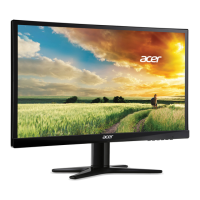

 To Next Page