The Acer MWA3 is a wireless adapter designed to enhance presentations and educational purposes through features like Split-screen display, Host control system, and Acer BYOC™ apps. It is compatible with both iOS and Android™ devices.
Hardware Installation and Connectivity:
The Acer MWA3 wireless adapter features an MHL™ interface, allowing connection to receivers and Acer projectors. A switch enables selection between HDMI® output and MHL™ output. When using HDMI® output, an external 5V/1A DC power adapter is required. The device includes an LED indicator, MHL port, HDMI port, and a DC power input.
System Requirements:
iOS:
- Operating System: iOS 7 and newer versions.
- Devices: iPhone 4 and newer models, iPad 2 and newer models, iPod touch and iPod touch 4th generation.
- Resolution Support:
- iPhone: 480 x 320 to 1136 x 640
- iPad: 1024 x 728 to 2048 x 1536
- Storage: Requires at least 40 MB of free space.
Android™:
- Operating System: Android™ 4.0 ICS model with 1 GB of RAM.
- Resolution: WVGA to 1080p.
- Storage: Requires at least 40 MB of free space.
App Setup and Usage:
The Acer eDisplayPro app is central to the MWA3's functionality. It can be downloaded from Google Play or the Apple App Store.
Download:
- Search for "eDisplayPro" in Google Play or the Apple App Store.
- Alternatively, scan the QR code displayed on the eDisplayPro adapter standby page using a QR scanner app.
Device Connection:
- Before launching the app, connect your iOS device's wireless connection to the Acer MWA3 SSID (e.g., MWA3-XXXXXXX).
Projection:
- Once connected to eDisplayPro with MWA3, users can select and project desired features.
App Startup Modes:
-
AP Mode (Direct Connection without Internet Access):
- Click the "MWA3" button in the app to view a list of linked devices.
- Select the desired device for projection if multiple are available.
- Note: "Acer MWA3 OFF LINE" mode is for demo purposes with limited functions when not linked to the adapter.
-
Infrastructure Mode (Connection with Internet Access):
- Access "Settings" within the app and select "Internet."
- Choose a WiFi network for internet access.
- Infrastructure mode allows linking the MWA3 adapter with an internet Access Point (AP).
App Features:
-
Photo Viewer:
- Requires access to the device's camera roll and enabled location services.
- Allows selection of photos for display on a TV.
- Supports gesture control for zooming in/out and editing photos.
- "Sketch" tool enables drawing and editing directly on photos.
-
Document Viewer:
- Supports MS-Office, PDF, and Apple's iWorks formats.
- Requires syncing document files to the iOS device via iTunes before casting.
- Supports "Sketch" for making notes on documents and saving screenshots to the camera roll.
- Note: Some documents may not display identically to their appearance on a PC.
-
Live Camera:
- Functions as a real camera, streaming and editing images directly from the mobile device's camera.
- Allows adjustment of image quality and switching between front and rear cameras.
- Enabling "Sketch" saves edited images to the camera roll.
-
Video Player:
- Sources: Sync videos via iTunes (iTunes File Syncing) or select from recorded videos in the camera roll.
- Compression: iOS will compress recorded videos before streaming to save bandwidth if saved in the Acer eDisplayPro app.
- Subtitles: Supports syncing subtitle files (with the same filename as the video) through iTunes.
- Supported Video Formats: MPEG1/2/4/H.264 and RMVB.
- Supported Subtitle Extensions: srt, smi, ssa, and cdg (with UTF-coding).
-
Music Player:
- Streams music via a wireless connection.
- Supported Music Formats: ape, flac, ogg, mp3, wma, wav, rm, m4a, aac, ra, aif, aiff, and mka.
- Note: The Acer eDisplayPro app cannot directly access the iTunes music library; audio files must be synced to the app via iTunes.
-
Web Browser (Infrastructure Mode Only):
- Built-in browser.
- Webpages may vary based on the region selected in device settings.
- Supports "Sketch" function.
-
Cloud Storage (Infrastructure Mode Only):
- Links to personal Dropbox and Google Drive accounts for accessing and downloading content.
- Note: iOS versions do not yet support Google Drive.
-
Cloud Media (Infrastructure Mode Only):
- Provides shortcuts to major web video websites like YouTube and Vimeo.
-
Update (Infrastructure Mode Only):
- Checks for app version, history, and updates the app.
-
Settings:
- Configures MWA3 receiver settings: Output resolution, SSID password, router connection for internet, boot-up mode priority, and OTA (Over-the-Air) firmware updates.
- A new linking mode allows connection through the router, though performance may be affected by distance or router performance.
Special Features:
-
Preferred Device:
- A special mode that remembers the device ID.
- Allows saving the current device as "preferred" for automatic linking.
-
Host Control:
- The first user to link and launch the app becomes the "host."
- The host has full control over display and features.
- Subsequent users are "guests" with limited functions, requiring host permission for disabled features.
- If the host closes the app, the next user in line automatically becomes the host.
-
Preference:
- Allows enabling/disabling or automatically allowing inquiries from guests without pop-up messages, in addition to preferred device settings.
-
Split Screen:
- Supports up to four users displaying on the screen simultaneously.
- Only the host can choose screen positions; guest screens are automatically placed.
Mirroring Display (Only for Windows and Android™):
- Compatible with Miracast™.
- Activation:
- Press the "ON" button to enable Mirroring display.
- Connect to a WiFi network.
- Launch wireless display from your device's setup.
- Note: Once turned on, there is a 60-second window to connect the mobile device with the receiver.

 Need help?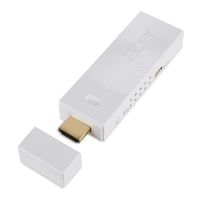

 To Next Page

 General