EasyManua.ls Logo

Acer Predator Triton 500 - User Manual

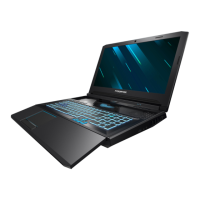
Acer Predator Triton 500
11 pages
Print Icon
To Next Page IconTo Next Page
Loading...
Predator Triton 500
Quick Guide
Register your Predator product
1. Ensure you are connected to the Internet.
2. Open the Acer Product Registration app.
3. Install any required updates.
4. Sign up for an Acer ID or sign in if you already have an Acer ID, it will
automatically register your product.
After we receive your product registration, you will be sent a confirmation
email with important data.
Manage your registered products
Once you have completed the registration process, you can log onto
account.acer.com using your Acer ID and password to see and manage all
your registered products.
Note: It may take a few days for your information to be updated to the
database.
Obtaining Predator accessories
We are happy to inform you that Acer's warranty extension program and
notebook accessories are available online. Come and visit our online shop and
find what you need at store.acer.com.
The Acer Store is being progressively rolled out, and may not yet be available
in some regions. Please check regularly to see when it will be available in
your country.
Question and Answer IconNeed help?

Do you have a question about the Acer Predator Triton 500 and is the answer not in the manual?

Summary

Register your Predator product

Manage your registered products

Obtaining Predator accessories

Your guides

Software installation

Recovery

Having trouble?

Acer support

Acer website

Visit www.acer.com for up-to-date information, help, drivers, and downloads.

Warranty and contact information

Your Predator notebook tour

Screen view

Visual overview of the screen components and their functions.

Keyboard view

Left view

Right view

Rear view

Base view

Using the keyboard

Hotkeys

Explains how to activate and lists function key combinations for special features.

Overview

The Predator Triton 500 is a high-performance notebook designed for mobile computing needs, offering a blend of powerful features and user-friendly functionalities. This quick guide provides essential information for getting started, managing your product, and understanding its various components.

Function Description:

The Predator Triton 500 serves as a versatile mobile computing device, capable of handling demanding tasks and providing a rich user experience. It is equipped with a full-sized keyboard, a numeric keypad, separate cursor keys, lock keys, Windows keys, and a range of hotkeys for quick access to various functions. The notebook features a screen for displaying computer output, a webcam for video communication, and internal stereo digital microphones for sound recording. For connectivity, it includes multiple USB ports (including USB 3.1 Gen 1 and USB Type-C/Thunderbolt 3), an HDMI port for high-definition video connections, a Mini DisplayPort for external display devices, an Ethernet (RJ-45) port for network connectivity, and dedicated jacks for microphones and headsets/speakers. The device also incorporates a robust cooling system with multiple ventilation and cooling fans to ensure optimal performance and prevent overheating.

Usage Features:

  • Product Registration: To fully utilize your Predator Triton 500, it is recommended to register your product online. This process involves connecting to the internet, opening the Acer Product Registration app, installing any necessary updates, and either signing up for an Acer ID or signing in with an existing one. Registration automatically links your product to your Acer ID, and a confirmation email with important data will be sent upon completion.
  • Product Management: Once registered, you can manage all your Predator products by logging onto account.acer.com using your Acer ID and password. Note that it may take a few days for your information to be updated in the database.
  • Accessories: Acer offers a range of warranty extension programs and notebook accessories through its online shop at store.acer.com. Availability may vary by region, so it's advisable to check regularly.
  • Initial Setup: The Setup Guide provides instructions for the initial setup of your computer. The Quick Guide, on the other hand, introduces you to the basic features and functions, such as the screen view, keyboard view, and various ports.
  • Comprehensive Manual: For more in-depth information on productivity features, system utilities, data recovery, expansion options, troubleshooting, warranty information, and safety notices, refer to the Predator Triton 500 User's Manual. This manual can be downloaded from the Acer support website at http://go.acer.com/?id=17883.
  • Software Installation: Upon the first power-on, the computer will automatically install necessary software and set up for use. This process may take some time, and it is crucial not to turn off the computer until the installation is complete.
  • Keyboard Hotkeys: The keyboard features a variety of hotkeys, activated by pressing and holding the Fn key in combination with another key. These hotkeys provide quick access to functions such as:
    • Fn + F2: Turns the built-in touchpad on and off.
    • Fn + F3: Turns on/off the computer's network devices.
    • Fn + F4: Puts the computer in Sleep mode.
    • Fn + F5: Switches display output between the computer screen, external monitor, and both.
    • Fn + F6: Turns the display screen backlight off to save power. Press any key to return.
    • Fn + F7: Decreases the intensity of the keyboard backlight.
    • Fn + F8: Increases the intensity of the keyboard backlight.
    • Fn + F9: Scrolls to the end of a document.
    • Fn + F10: Scrolls to the beginning of a document.
    • Fn + F11: Turns Numeric Lock on or off.
    • Fn + F12: Turns Scroll Lock on or off.
    • Fn + Play/Pause: Plays or pauses a selected media file.
    • Fn + Previous Track: Returns to the previous media file.
    • Fn + Next Track: Jumps to the next media file.
    • Fn + Pg Up: Scrolls the page up.
    • Fn + Pg Dn: Scrolls the page down.
    • Fn + Brightness Up: Increases the screen brightness.
    • Fn + Brightness Down: Decreases the screen brightness.
  • PredatorSense Key: A dedicated PredatorSense key launches the PredatorSense application, which likely offers advanced controls for system performance, fan speed, and other settings.
  • TURBO Key: The TURBO key allows for switches overclocking and fan speed level, providing enhanced performance when needed.
  • Power Button: The power button turns the computer on and off.
  • USB Power-off Charging: One of the USB ports supports power-off charging, allowing you to charge USB devices even when the computer is off.
  • USB Type-C/Thunderbolt 3 Port: This versatile port connects to USB devices with a Type-C connector, supports Thunderbolt™ 3, and can be used for displays. It delivers up to 3 A at 5 V DC for USB charging and offers USB 3.1 Gen 2 transfer speeds up to 10 Gbps, along with DisplayPort™ audio/video output.
  • Kensington Lock Slot: The Kensington lock slot provides a point to connect a Kensington-compatible security lock, helping to deter theft.
  • Battery Reset Pinhole: A battery reset pinhole is available to simulate removing and reinstalling the battery. To use it, insert a paperclip into the hole and press for four seconds.

Maintenance Features:

  • Cooling System: The Predator Triton 500 is equipped with multiple ventilation and cooling fans to maintain optimal operating temperatures. It is crucial not to cover or obstruct these openings to ensure proper airflow and prevent overheating.
  • Recovery Backups: It is highly recommended to create recovery backups as soon as possible using the Acer Recovery Management program. This program allows you to create backups and then restore or reinstall applications and drivers provided by Predator, ensuring system stability and data integrity.
  • Support Resources: Acer provides several support options. Before contacting technical support, it is helpful to have your computer's serial number, date and place of purchase, model name, and any error messages readily available. The Acer website (www.acer.com) offers up-to-date information, help, drivers, and downloads in its support section.
  • Warranty Information: Detailed information regarding your computer's warranty and how to contact technical support can be found in your computer's Warranty document.
  • Environmental Considerations: To prevent heat-related injuries or overheating, always place the computer on a hard, flat surface. Avoid placing it directly on your lap or on soft surfaces like pillows, rugs, or clothing, as these can obstruct airflow. Additionally, ensure the AC adapter does not come into contact with skin or soft surfaces during operation.
  • Operating and Storage Conditions: The device is designed to operate within a temperature range of 5 °C to 35 °C and a non-condensing humidity range of 20% to 80%. For storage, the recommended temperature range is -20 °C to 60 °C, with a non-condensing humidity range of 20% to 60%. Adhering to these conditions helps prolong the lifespan of the device.

Acer Predator Triton 500 Specifications

General IconGeneral
Form factorClamshell
Product typeLaptop
Product colorBlack
LED backlightYes
Display surfaceMatt
Display diagonal15.6 \
Native aspect ratio16:9
Bus typeDMI
Processor cache9 MB
Processor cores6
Processor familyIntel® Core™ i7
Processor frequency2.2 GHz
Processor cache typeSmart Cache
Configurable TDP-down35 W
Processor manufacturerIntel
Processor boost frequency4.1 GHz
Configurable TDP-down frequency1.7 GHz
Memory slots2x SO-DIMM
Internal memory16 GB
Memory form factorSO-DIMM
Internal memory typeDDR4-SDRAM
Maximum internal memory32 GB
SSD capacity512 GB
SSD interface-
Storage mediaSSD
Total storage capacity1024 GB
Number of SSDs installed2
Discrete GPU manufacturerNVIDIA
Discrete graphics card modelNVIDIA® GeForce RTX™ 2080
On-board graphics card modelIntel® UHD Graphics 630
Discrete graphics card memory8 GB
Discrete graphics memory typeGDDR6
On-board graphics card familyIntel® UHD Graphics
Front camera HD typeHD
Front camera resolution1280 x 720 pixels
Antenna type2x2
Wi-Fi standards802.11a, 802.11b, 802.11g, Wi-Fi 4 (802.11n), Wi-Fi 5 (802.11ac)
Bluetooth version5.0
Top Wi-Fi standardWi-Fi 5 (802.11ac)
WLAN controller modelKiller Wireless-AC 1550i
Ethernet LAN data rates10, 100, 1000 Mbit/s
Charging port typeDC-in jack
USB 2.0 ports quantity0
USB 3.2 Gen 1 (3.1 Gen 1) Type-A ports quantity3
USB 3.2 Gen 2 (3.1 Gen 2) Type-C ports quantity1
Pointing deviceTouchpad
Keyboard languageBulgarian, English
Operating system architecture64-bit
Battery capacity5400 mAh
Number of battery cells4
AC adapter power180 W
Cable lock slot typeKensington
Password protection typeBIOS, HDD, Supervisor, User
Intel Identity Protection Technology version1.00
Intel Stable Image Platform Program (SIPP) version0.00
Weight and Dimensions IconWeight and Dimensions
Depth255 mm
Width358.5 mm
Height17.9 mm
Weight2000 g

Related product manuals