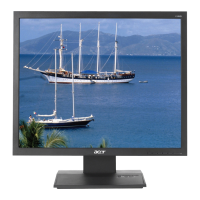
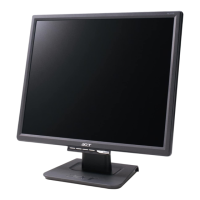
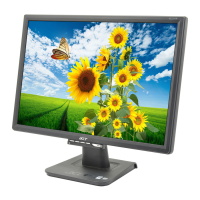
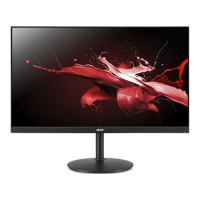
This document is a user guide for an Acer LCD Monitor, providing comprehensive instructions for setup, operation, and maintenance, along with important safety information and troubleshooting tips.
Function Description
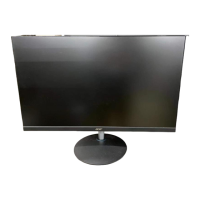
The Acer LCD Monitor is designed to display visual information from a host system. It supports various input signals, including VGA, DVI, and HDMI, allowing for flexible connectivity with different computers and devices. The monitor is equipped with an on-screen display (OSD) menu that enables users to adjust a wide range of settings to optimize picture quality, manage power consumption, and customize the display to their preferences. It supports plug-and-play functionality through the Display Data Channel (DDC) protocol, which allows the monitor to automatically communicate its capabilities to the host system. The monitor is designed for ease of use, with intuitive controls and a clear interface for navigating settings.
Usage Features
The Acer LCD Monitor offers several features to enhance the user experience and ensure comfortable viewing.
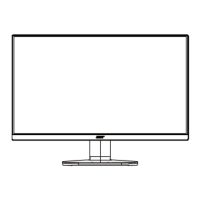
- Screen Position Adjustment: Users can adjust the monitor's tilt to optimize their viewing position. The monitor can be tilted up to 15 degrees upwards and 5 degrees downwards, allowing for ergonomic adjustments to suit individual needs.
- Power Saving Mode: The monitor includes a power-saving mode that activates when a control signal from the display controller indicates inactivity. In this mode, the LED light blinks blue, and the monitor remains in a low-power state until a control signal is detected or the keyboard/mouse is activated. The recovery time from power-saving mode to "on" is approximately 3 seconds.
- Display Data Channel (DDC) Support: The monitor supports the DDC2B standard, which facilitates plug-and-play installation. This protocol allows the monitor to automatically inform the host system about its supported resolutions and timing, simplifying setup.
- Panel Controls: The monitor features a set of panel controls for easy operation:
- Power Button/Indicator: Turns the monitor on/off. A blue light indicates power on, while a blinking blue light signifies standby or power-saving mode.
- < / > Button: Used to navigate through desired functions and change settings within the OSD menu.
- Menu/Enter Button: Activates the OSD menu and selects functions within it.
- Auto/Exit Button: Exits the OSD menu when active. When inactive, pressing this button for two seconds activates the Auto Adjustment function, which automatically optimizes the display position, focus, and clock.
- Empowering Key: Opens the Acer eColor Management OSD and provides access to various scenario modes.
- Shortcut Menu: Pressing any of the function buttons (Empowering Key, Auto button, Menu button) opens a shortcut menu, providing quick access to commonly used settings such as Empowering, Auto, Menu, Volume (optional for audio-input models), and Input.
- Input Source Selection: The monitor allows users to select from different video sources (VGA, DVI, HDMI) that may be connected. The "Auto Source" function can be set to "On" for automatic signal source search or "Off" to manually select the input source using the "Input" hotkey.
- Acer eColor Management: This feature provides various scenario modes to optimize display settings for different content types:
- User mode: Allows for fine-tuned, user-defined settings.
- ECO mode: Adjusts settings to reduce power consumption.
- Standard mode: Provides default settings reflecting native display capability.
- Graphic mode: Enhances colors and fine detail for pictures and photographs.
- Movie mode: Displays scenes with clearest detail, suitable for various lighting environments.
- OSD Menus: The monitor's OSD menus offer extensive customization options:
- Picture Menu: Adjusts picture quality settings such as Acer eColor Management, Blue Light filter (with ratios of 80%, 70%, 60%, 50% to reduce blue light exposure), Brightness, Contrast, H. Position, V. Position, Focus, Clock, Color Temp (blue light, warm, cool, and user-defined), 6-axis Saturate, 6-axis Hue, and Auto Config.
- OSD Menu: Adjusts the OSD menu's location and timeout setting (10 to 120 seconds, default 10 seconds).
- Setting Menu: Adjusts general settings for the current input signal, including Wide Mode (Full, Aspect, 1:1), DDC/CI (Display Data Channel/Command Interface for software control), OD (Off, Normal, Extreme), ACM (on/off), Input (VGA, DVI, HDMI), Language, Auto Source (on/off), and Quick Start Mode (on/off for faster boot speed).
- Information Menu: Displays basic information about the LCD monitor, such as resolution, H/V frequency, input type, and serial number.
Maintenance Features
Maintaining the Acer LCD Monitor is straightforward, with clear guidelines provided to ensure its longevity and optimal performance.
- Cleaning: The monitor should always be unplugged before cleaning. A soft cloth should be used to wipe the screen and the cabinet's front and sides.
- Electrical Power Usage: Users are advised to operate the product from the type of power indicated on the marking label. If an extension cord is used, ensure the total ampere rating of the equipment plugged into it does not exceed the extension cord's rating. Similarly, the total rating of all products plugged into the wall outlet should not exceed the fuse rating. The product's power cord is equipped with a three-wire grounded plug, which must be inserted into a properly grounded power outlet. The grounding pin is a safety feature that also provides protection from unexpected noise.
- Product Servicing: Users are advised not to attempt to service the product themselves, as opening covers may expose them to dangerous voltage points or other risks. All servicing should be referred to qualified service personnel. Specific instances requiring professional service include a damaged, cut, or frayed power cord/plug; liquid spilled into the product; exposure to rain or water; the product being dropped or the case damaged; a distinct change in performance; or the product not operating normally after following instructions.
- IT Equipment Recycling Information: Acer is committed to environmental protection and encourages recycling of used equipment. Information on recycling and Waste from Electrical and Electronics Equipment (WEEE) regulations is available on the Acer website. Users are instructed not to dispose of the electronic device in the trash.
- LCD Pixel Statement: The LCD unit is manufactured with high-precision techniques. While some pixels may occasionally misfire or appear as black or red dots (0.01% or less), this is considered normal and does not constitute a malfunction.
- Power Management: The product is shipped with power management enabled, activating the display's Sleep mode within 5 minutes of user inactivity and waking the monitor by moving the mouse or pressing any keyboard key.
- Vision Care: To reduce eyestrain, users are advised to rest their eyes frequently, take regular breaks to focus on distant points, and blink often. The display should be kept clean, and the head should be positioned so eyes point downward when looking at the middle of the display. Brightness and contrast should be adjusted to a comfortable level. Glare and reflections can be minimized by positioning the display with its side facing a window or light source, minimizing room light with drapes/blinds, using a task light, changing the viewing angle, or using a glare-reduction filter or display visor. Avoid awkward viewing angles and prolonged exposure to bright light sources.
- Work Habits: Developing good work habits, such as taking short, regular breaks, performing stretching exercises, breathing fresh air, and exercising regularly, contributes to a more relaxing and productive computer use experience.

 Need help?

 To Next Page
 General