EasyManua.ls Logo

Acer TravelMate 8472T - User Manual

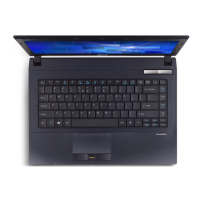
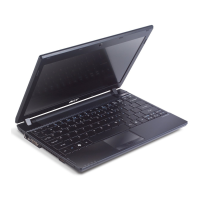
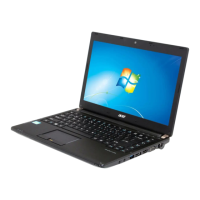
Acer TravelMate 8472T
358 pages
Print Icon
To Next Page IconTo Next Page
Loading...
Acer TravelMate 8472/8472G/8472T/8472TG
Service Guide
PRINTED IN TAIWAN
Service guide files and updates are available
on the ACER/CSD web; for more information,
please refer to http://csd.acer.com.tw

Table of Contents

Questions and Answers

  • S
    Shelly AveryAug 16, 2025
    Why won't my Acer TravelMate 8472T Laptop power on?
    • J
      Jennifer SchmidtAug 16, 2025
      If your Acer Laptop isn't powering on, start by checking that the power cable is properly connected to both the laptop and the electrical outlet. Try removing any extension cables or surge protectors between the laptop and the outlet, plugging directly into a known good outlet. Disconnect the power and open the casing to check the Thermal Unit and fan airways are free of obstructions. Also, remove any external and non-essential hardware, as well as any recently installed software.
  • J
    Jasmine WongAug 19, 2025
    How to fix sound problems on Acer Laptop?
    • R
      Randy GriffinAug 19, 2025
      To troubleshoot sound issues on your Acer Laptop: Try rebooting the computer first. Check in Device Manager (Start? Control Panel? System and Maintenance? System? Device Manager) to ensure the audio device is properly installed. If you recently updated the audio driver, roll it back to the previous version. You can also remove and reinstall the audio driver. Make sure all volume controls are set to mid-range. Verify that 'Speakers' are selected as the default audio device (Start? Control Panel? Hardware and Sound? Sound). You may also select Speakers and click Configure to start Speaker Setup. If you recently installed any hardware or software, remove it. As a last resort, restore system and file settings from a known good date using System Restore.
  • M
    michaelcollinsAug 22, 2025
    What to do if my Acer TravelMate 8472T has no display?
    • T
      Tricia JonesAug 22, 2025
      If your Acer Laptop screen is blank, ensure the internal display is selected by pressing Fn+F5. Check that the laptop has power by observing if the fans start or the status LEDs light up. You can also drain stored power by removing the power cable and battery, holding the power button for 10 seconds, then reconnecting the power. Try connecting an external monitor and switching between displays using Fn+F5. As well as, disconnect all external devices, remove memory cards and CD/DVDs, and restart the computer. Reseat the memory modules and remove the drives.
  • N
    Nicolas DavidAug 26, 2025
    How to fix abnormal video display on Acer Laptop?
    • K
      Kimberly WhiteAug 26, 2025
      To resolve video display problems on your Acer Laptop, start by rebooting the computer. Note, if permanent lines or dark spots display, the LCD is faulty. If there is extensive pixel damage, the LCD should be replaced. Adjust the brightness to the highest level and check that the display resolution is correctly configured. If you updated the video driver recently, roll it back to the previous version, or remove and reinstall the video driver. Check the Device Manager to ensure the device is properly installed, without red Xs or yellow exclamation marks, and that there are no device conflicts. You can also run the Windows Memory Diagnostic from the operating system DVD.
  • J
    James ValdezAug 28, 2025
    What to do if Acer TravelMate 8472T HDD is not operating correctly?
    • A
      Alice DanielsAug 28, 2025
      If the HDD in your Acer Laptop isn't working right, first disconnect all external devices. Run a complete virus scan to ensure the computer is virus-free. You might also try running the Windows 7 Startup Repair Utility. Restart the computer and press F2 to enter the BIOS Utility to check that the BIOS settings are correct and that the CD/DVD drive is set as the first boot device on the Boot menu. Ensure all cables and jumpers on the HDD and ODD are correctly set. Remove any recently added hardware and software. You can also run the Windows Disk Defragmenter and Windows Check Disk by entering chkdsk /r from a command prompt. If all else fails, consider replacing the HDD.
  • K
    Kayla DavisAug 31, 2025
    How to fix external mouse failure on Acer Laptop?
    • C
      Carrie GrossAug 31, 2025
      To troubleshoot an external mouse failure on your Acer Laptop, try using an alternative mouse. If it's wireless, replace the batteries and check the connection. If it's a USB mouse, try a different USB port. Test the mouse in another program; if it fails in one program, reinstall that program. Restart the computer. Remove any recently added hardware and software and reboot. Finally, run the Event Viewer to check the events log for errors.
  • L
    Laura FuentesSep 3, 2025
    Why does my Acer Laptop randomly lose BIOS settings?
    • W
      Whitney PotterSep 3, 2025
      If your Acer Laptop is losing BIOS settings, and it's over a year old, replace the CMOS battery. Run a complete virus scan with up-to-date software. If you're experiencing HDD or ODD BIOS information loss, disconnect and reconnect the power and data cables between the devices. If HDD information is missing from the BIOS, the drive may be defective and should be replaced. In some cases, replacing the motherboard may be necessary.
  • H
    Heather CollinsSep 6, 2025
    How to fix microphone problems on Acer Laptop?
    • C
      Christina StewartSep 6, 2025
      To troubleshoot microphone problems on your Acer Laptop, first check that the microphone is enabled. Right-click on the Recording tab and select 'Show Disabled Devices'. If the microphone appears, right-click on it and select 'Enable'. Then, select the microphone, click 'Properties', and go to the 'Levels' tab. Increase the volume to the maximum setting and click 'OK'. Finally, select the microphone and click 'Configure', then follow the onscreen prompts to complete the test.
  • K
    Kenneth DanielsSep 9, 2025
    What to do if Acer TravelMate 8472T ODD is not operating correctly?
    • J
      James DavisSep 9, 2025
      If your Acer Laptop's ODD (Optical Disc Drive) is not working correctly, start by rebooting the computer and retrying the operation. Try using an alternate disc. Check that the ODD device is displayed in the 'Devices with Removable Storage' panel (Start? Computer). Also, navigate to Start? Control Panel? System and Maintenance? System? Device Manager. If a device displays a down arrow, right-click on the device and click 'Enable'. If a device has an exclamation mark, right-click on the device and uninstall and reinstall the driver.
  • J
    John KempSep 12, 2025
    What to do if discs do not play on Acer TravelMate 8472T?
    • J
      jennifer85Sep 12, 2025
      If discs aren't playing on your Acer Laptop, check that the disc is correctly seated in the drive tray with the label visible. Ensure the media is clean and scratch-free. Try a different disc in the drive. Make sure AutoPlay is enabled. Lastly, verify that the Regional Code is correct for the selected media.

Summary

Service Guide

Chapter 1 System Specifications

Platform

Details the processor and chipset specifications.

Display

Lists display size, resolution, technology, and graphics card details.

Chapter 1 System Block Diagram

Chapter 1 Hardware Specifications and Configurations

Processor

Details CPU specifications, including models and cache.

Core Logic Specifications

Details chipset features and specifications.

Processor Specifications

Lists CPU models, speeds, cores, and voltages.

System Memory

Lists memory size, socket type, speed, and voltage.

Chapter 2 System Utilities

BIOS Setup Utility

Introduces the BIOS setup utility for hardware configuration.

Security

Contains parameters for safeguarding computer access.

Setting a Password

Step-by-step guide to setting BIOS passwords.

Changing a Password

Instructions for modifying or changing BIOS passwords.

Boot

Allows the user to set the order of boot devices.

Chapter 2 BIOS Flash Utility

Chapter 2 DOS Flash Utility

Chapter 2 WinFlash Utility

Chapter 2 Remove HDD;BIOS Password Utilities

Remove HDD Password

Steps to unlock the HDD password.

Removing BIOS Passwords

Procedure to reset BIOS supervisor password.

Chapter 3 Machine Disassembly and Replacement

Disassembly Requirements

Lists necessary tools for computer disassembly.

Chapter 3 External Module Disassembly Process

Removing the Battery Pack

Step-by-step guide to remove the battery pack.

Removing the Lower Cover

Steps to remove the lower cover of the notebook.

Removing the HDD Module

Step-by-step guide to remove the HDD module.

Removing the DIMM Modules

Instructions for removing the DIMM modules.

Removing the WLAN Module

Instructions for removing the WLAN module.

Removing the Optical Drive Module

Steps to remove the optical drive module.

Removing the Keyboard

Instructions for removing the keyboard.

Chapter 3 Main Unit Disassembly Process

Removing the 3 G Module

Instructions for removing the 3G module.

Removing the Upper Cover

Steps to remove the upper cover of the notebook.

Removing the Mainboard

Instructions for removing the mainboard.

Removing the CPU

Instructions for removing the CPU.

Chapter 3 LCD Module Disassembly Process

Chapter 3 Main Unit Assembly Process

Chapter 4 Troubleshooting

Power On Issue

Actions to correct system power-on problems.

No Display Issue

Troubleshooting steps for display problems.

LCD Failure

Troubleshooting steps for LCD failures.

ODD Failure

Troubleshooting steps for Optical Disc Drive failures.

Wireless Function Failure

Steps to resolve wireless function failures.

Intermittent Problems

Troubleshooting steps for intermittent system hangs.

No POST or Video

Steps to resolve POST or video display issues.

Built-In Keyboard Failure

Steps to resolve built-in keyboard failures.

Thermal Unit Failure

Troubleshooting steps for thermal unit failures.

Undetermined Problems

Procedures to isolate failing FRUs when the cause is unclear.

Chapter 5 Jumper and Connector Locations

Chapter 5 Clearing Password Check and BIOS Recovery

Chapter 5 BIOS Recovery by Crisis Disk

Chapter 6 FRU (Field Replaceable Unit) List

ZQ3 FRU List

Comprehensive list of FRU parts and their part numbers.

MAINBOARD

List of compatible mainboards with part numbers.

Appendix A Model Definition and Configuration

Appendix B Test Compatible Components

HDD

List of compatible HDDs.

LCD

List of compatible LCD panels.

CPU

List of compatible CPUs.

Appendix C Online Support Information

Acer TravelMate 8472T Specifications

General IconGeneral
GraphicsIntel HD Graphics
NetworkingGigabit Ethernet
Display14-inch, 1366x768 resolution
Operating SystemWindows 7
ChipsetIntel HM55 Express
Optical DriveDVD Super Multi DL
Battery6-cell Li-ion
Ports3 x USB 2.0, VGA, HDMI, RJ-45, audio in/out
WirelessWi-Fi 802.11a/b/g/n

Related product manuals