EasyManua.ls Logo

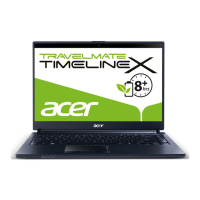
Acer TravelMate 8472 - User Manual

Acer TravelMate 8472
314 pages
Print Icon
To Next Page IconTo Next Page
Loading...
English
Français
Deutsch
Italiano
Español
Português
Nederlands
Norsk
Dansk
Svenska
Suomi
Русский
Polski
Magyar
Čeština
Slovenčina
Slovenski
Hrvatski
Română
Български
Eesti
Latviski
Lietuviškai
Ελληνικά
Türkçe
日本語
한국어
繁體中文
简体中文
Bahasa Indonesia
ä·Â
Contents

Other manuals for Acer TravelMate 8472

Questions and Answers

  • R
    Ryan LopezAug 15, 2025
    Why won't my Acer TravelMate 8472 power on?
    • S
      Steven WaltonAug 15, 2025
      If your Acer Laptop isn't powering on, start by checking that the power cable is properly connected to both the laptop and the electrical outlet. Try removing any extension cables or surge protectors between the laptop and the outlet, plugging directly into a known good outlet. Disconnect the power and open the casing to check the Thermal Unit and fan airways are free of obstructions. Also, remove any external and non-essential hardware, as well as any recently installed software.
  • S
    shahlaurenAug 18, 2025
    How to fix sound problems on Acer Laptop?
    • S
      Stephen SantanaAug 18, 2025
      To troubleshoot sound issues on your Acer Laptop: Try rebooting the computer first. Check in Device Manager (Start? Control Panel? System and Maintenance? System? Device Manager) to ensure the audio device is properly installed. If you recently updated the audio driver, roll it back to the previous version. You can also remove and reinstall the audio driver. Make sure all volume controls are set to mid-range. Verify that 'Speakers' are selected as the default audio device (Start? Control Panel? Hardware and Sound? Sound). You may also select Speakers and click Configure to start Speaker Setup. If you recently installed any hardware or software, remove it. As a last resort, restore system and file settings from a known good date using System Restore.
  • G
    gallegosdanielAug 21, 2025
    What to do if my Acer TravelMate 8472 Laptop has no display?
    • M
      Michael LaneAug 21, 2025
      If your Acer Laptop screen is blank, ensure the internal display is selected by pressing Fn+F5. Check that the laptop has power by observing if the fans start or the status LEDs light up. You can also drain stored power by removing the power cable and battery, holding the power button for 10 seconds, then reconnecting the power. Try connecting an external monitor and switching between displays using Fn+F5. As well as, disconnect all external devices, remove memory cards and CD/DVDs, and restart the computer. Reseat the memory modules and remove the drives.
  • T
    Tonya LarsonAug 25, 2025
    How to fix abnormal video display on Acer TravelMate 8472?
    • G
      gabriel83Aug 25, 2025
      To resolve video display problems on your Acer Laptop, start by rebooting the computer. Note, if permanent lines or dark spots display, the LCD is faulty. If there is extensive pixel damage, the LCD should be replaced. Adjust the brightness to the highest level and check that the display resolution is correctly configured. If you updated the video driver recently, roll it back to the previous version, or remove and reinstall the video driver. Check the Device Manager to ensure the device is properly installed, without red Xs or yellow exclamation marks, and that there are no device conflicts. You can also run the Windows Memory Diagnostic from the operating system DVD.
  • D
    David HillAug 27, 2025
    What to do if Acer TravelMate 8472 Laptop HDD is not operating correctly?
    • J
      joycerobertsonAug 28, 2025
      If the HDD in your Acer Laptop isn't working right, first disconnect all external devices. Run a complete virus scan to ensure the computer is virus-free. You might also try running the Windows 7 Startup Repair Utility. Restart the computer and press F2 to enter the BIOS Utility to check that the BIOS settings are correct and that the CD/DVD drive is set as the first boot device on the Boot menu. Ensure all cables and jumpers on the HDD and ODD are correctly set. Remove any recently added hardware and software. You can also run the Windows Disk Defragmenter and Windows Check Disk by entering chkdsk /r from a command prompt. If all else fails, consider replacing the HDD.
  • A
    Angela KirkAug 30, 2025
    How to fix external mouse failure on Acer TravelMate 8472 Laptop?
    • J
      joshuashepherdAug 30, 2025
      To troubleshoot an external mouse failure on your Acer Laptop, try using an alternative mouse. If it's wireless, replace the batteries and check the connection. If it's a USB mouse, try a different USB port. Test the mouse in another program; if it fails in one program, reinstall that program. Restart the computer. Remove any recently added hardware and software and reboot. Finally, run the Event Viewer to check the events log for errors.
  • M
    Mary BaldwinSep 2, 2025
    Why does my Acer TravelMate 8472 Laptop randomly lose BIOS settings?
    • L
      Lisa CoxSep 2, 2025
      If your Acer Laptop is losing BIOS settings, and it's over a year old, replace the CMOS battery. Run a complete virus scan with up-to-date software. If you're experiencing HDD or ODD BIOS information loss, disconnect and reconnect the power and data cables between the devices. If HDD information is missing from the BIOS, the drive may be defective and should be replaced. In some cases, replacing the motherboard may be necessary.
  • U
    upriceSep 5, 2025
    How to fix microphone problems on Acer TravelMate 8472?
    • A
      Andrew RodriguezSep 5, 2025
      To troubleshoot microphone problems on your Acer Laptop, first check that the microphone is enabled. Right-click on the Recording tab and select 'Show Disabled Devices'. If the microphone appears, right-click on it and select 'Enable'. Then, select the microphone, click 'Properties', and go to the 'Levels' tab. Increase the volume to the maximum setting and click 'OK'. Finally, select the microphone and click 'Configure', then follow the onscreen prompts to complete the test.
  • S
    Stephanie SmithSep 8, 2025
    What to do if Acer TravelMate 8472 Laptop ODD is not operating correctly?
    • D
      Dennis GardnerSep 8, 2025
      If your Acer Laptop's ODD (Optical Disc Drive) is not working correctly, start by rebooting the computer and retrying the operation. Try using an alternate disc. Check that the ODD device is displayed in the 'Devices with Removable Storage' panel (Start? Computer). Also, navigate to Start? Control Panel? System and Maintenance? System? Device Manager. If a device displays a down arrow, right-click on the device and click 'Enable'. If a device has an exclamation mark, right-click on the device and uninstall and reinstall the driver.
  • T
    Travis WilliamsSep 12, 2025
    What to do if discs do not play on Acer Laptop?
    • K
      Krystal WeberSep 12, 2025
      If discs aren't playing on your Acer Laptop, check that the disc is correctly seated in the drive tray with the label visible. Ensure the media is clean and scratch-free. Try a different disc in the drive. Make sure AutoPlay is enabled. Lastly, verify that the Regional Code is correct for the selected media.

Summary

First things first

Your guides

Overview of available guides for using the Acer notebook, including setup poster and user guides.

Your Acer notebook tour

Top view

Identifies key components visible from the top of the Acer notebook, such as webcam and screen.

Hotkeys

Closed front view

Rear view

Left view

Right view

Base view

Environment

Acer TravelMate 8472 Specifications

General IconGeneral
BrandAcer
ModelTravelMate 8472
CategoryLaptop
LanguageEnglish

Related product manuals