26
System Settings 5.
Report 5.1.
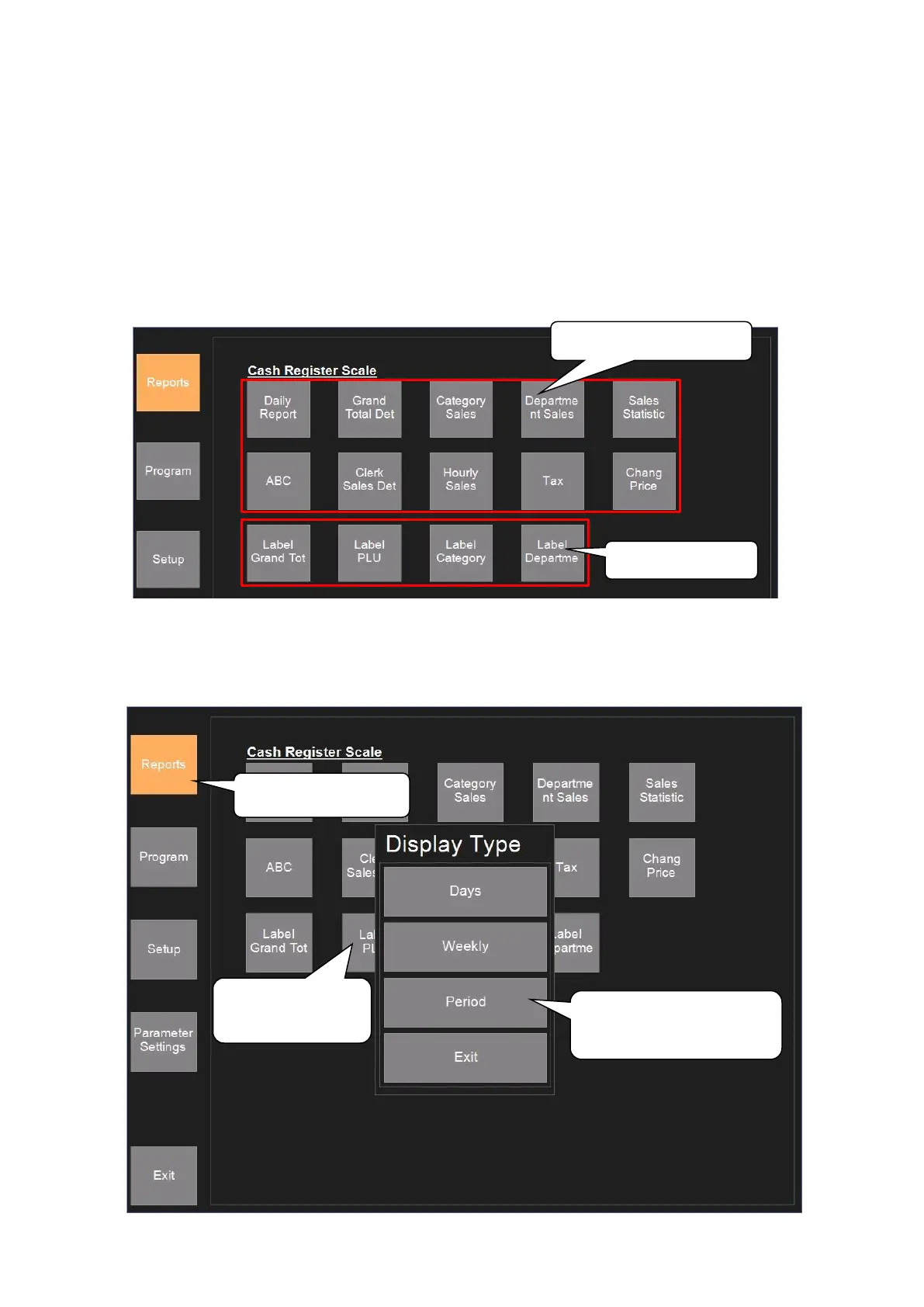
Click ‘Settings’—‘Report’ to enter into Report interface as following picture shows, which ‘Daily
Report’, ‘Grand Total Det’, ‘Category Sales’, ‘Department Sales’, ‘Sales Statistic’, ‘ABC’, ‘Clerk Sales
Det’, ‘Hourly Sales’, ‘Tax’, ‘Chang Price’, ‘Label Grand Total’, ‘Label Department’ and ‘Label PLU’ can
be printed. The steps of printing these reports are the same, so here is going to describe the steps of ‘Label
PLU’, and others can take it as reference.
Click ‘Settings’—‘Report’—‘Label PLU’, input the date of sales, the category, product code and the
cashier of the items, the report can be searched, printed view, and printed. You can also export the data
from scale to PC, you can send email either.
3. Choose ‘Days’,
‘Weekly’, or ‘Period’



 To Next Page