USER MANUAL 750000992/16
4-7
MTS
e
Editing
To delete a character in a text:
• Position the cursor on the character
• Press the <Del Char.> key
Repeatedly pressing this key deletes the proceeding characters.
To insert characters in the text:
• Position the cursor on the character proceeding the point you want to enter
text.
• Position the cursor on the character you want to insert.
• Press the <Valid. Char.> key
• Repeat the above steps to insert the following characters.
Leaving the Edit menu
• Press the <Exit> key or any hard key.
Note If a file name is being edited only valid DOS characters are accepted.
Use of the external keyboard
The external keyboard (option 5000/keyb) facilitates data entry for set up, file
naming and comments, and for remarks in the table of results.
Keyboard connection
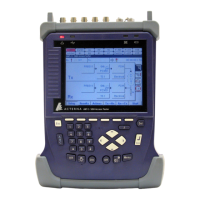
• Connect the keyboard to the Centronics connector of the MTS
e
.
• Using the
SET UP / System Setup keys, access the Interface I/O setup menu.
• On line Centronics, choose the option Keyboard.
Note The keyboard must be connected to the MTS
e
before selection in the
menu.
If the keyboard is used, it is not possible to use an external printer.
Equivalence between external keyboard and
MTS
e
keyboard
Althrough the external keyboard is mainly intended to stand in for the MTS
e
editing menu, it can replace all the MTS
e
keys except the ON/OFF key.
• Softkeys at the right side of the screen are replaced by the function keys
F1 to
F6.
• Hard keys below the screen are equivalent at
Ctrl followed by the first
character of the key (except for the Setup key equivalent to Ctrl U).
• The arrow keys have the same function on the external keyboard and on the
MTS
e
(except for the comment edition in the File menu).
Artisan Technology Group - Quality Instrumentation ... Guaranteed | (888) 88-SOURCE | www.artisantg.com



 To Next Page
 Loading...