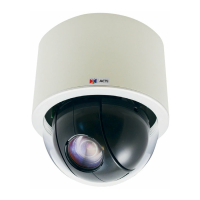
By IP Utility
a. Download IP Utility
from our website
(www.acti.com).
b. Run IP Utility to start
searching for network
devices.
c. Click the IP address of
the Camera.
On Network with DHCP Server / Router (Automatic IP)
1. Connect the device and the PC within the same network segment. Once
connected, an IP address will be assigned to the Camera.
2. Find the Camera via Windows Explorer or IP Utility.
3. The Web Congurator appears with the IP address of the Camera on
the URL bar. Login to access the Camera.
Note: For full functionality, it is recommended to use Microsoft Internet Explorer
®
.
When using non-IE browsers, free 3
rd
party software plug-ins may be required.
Refer to the device Firmware Manual for more information.
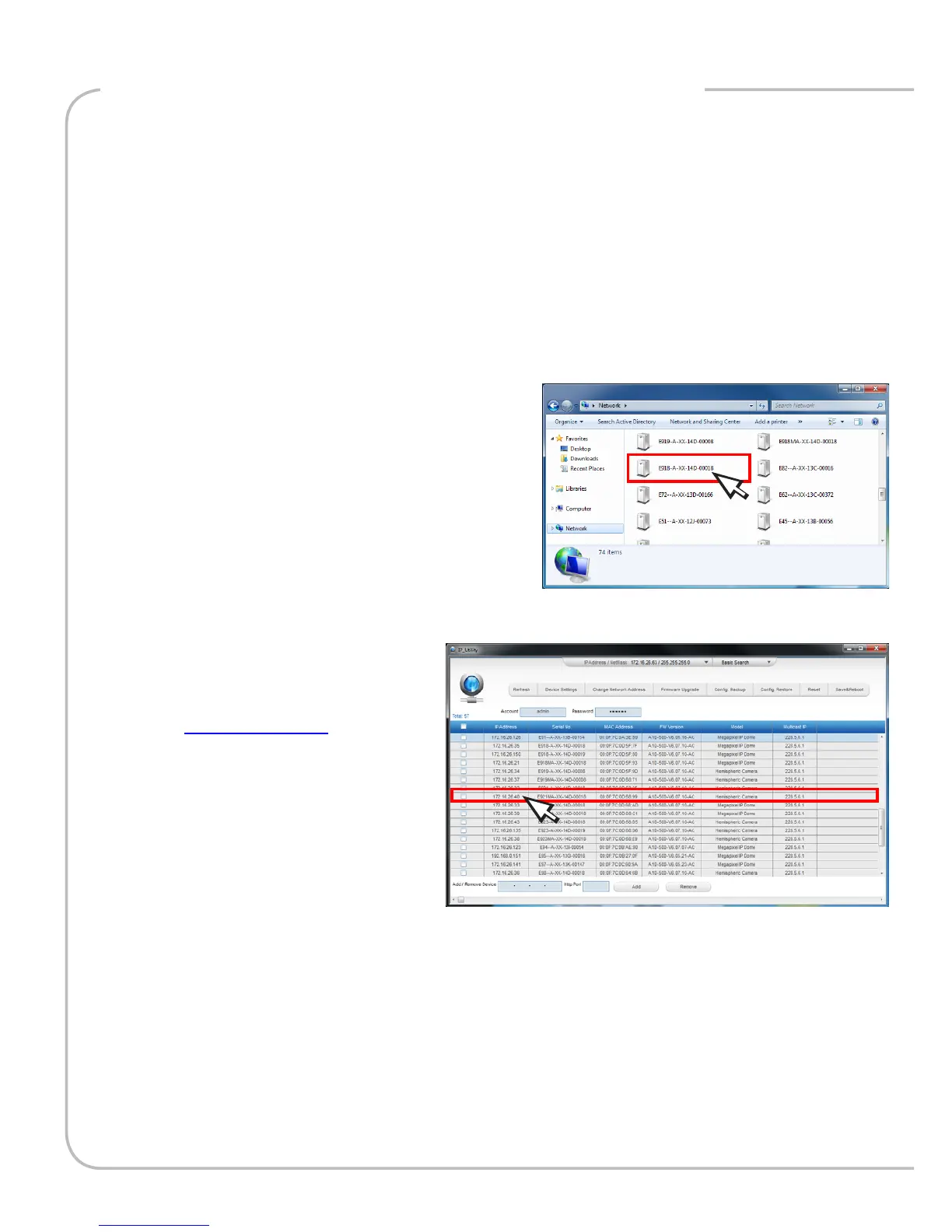
By Windows Explorer
a. Go to Start > My Computer >
Network.
b. Double-click on the device name.
Step 4: Access the Device


 To Next Page