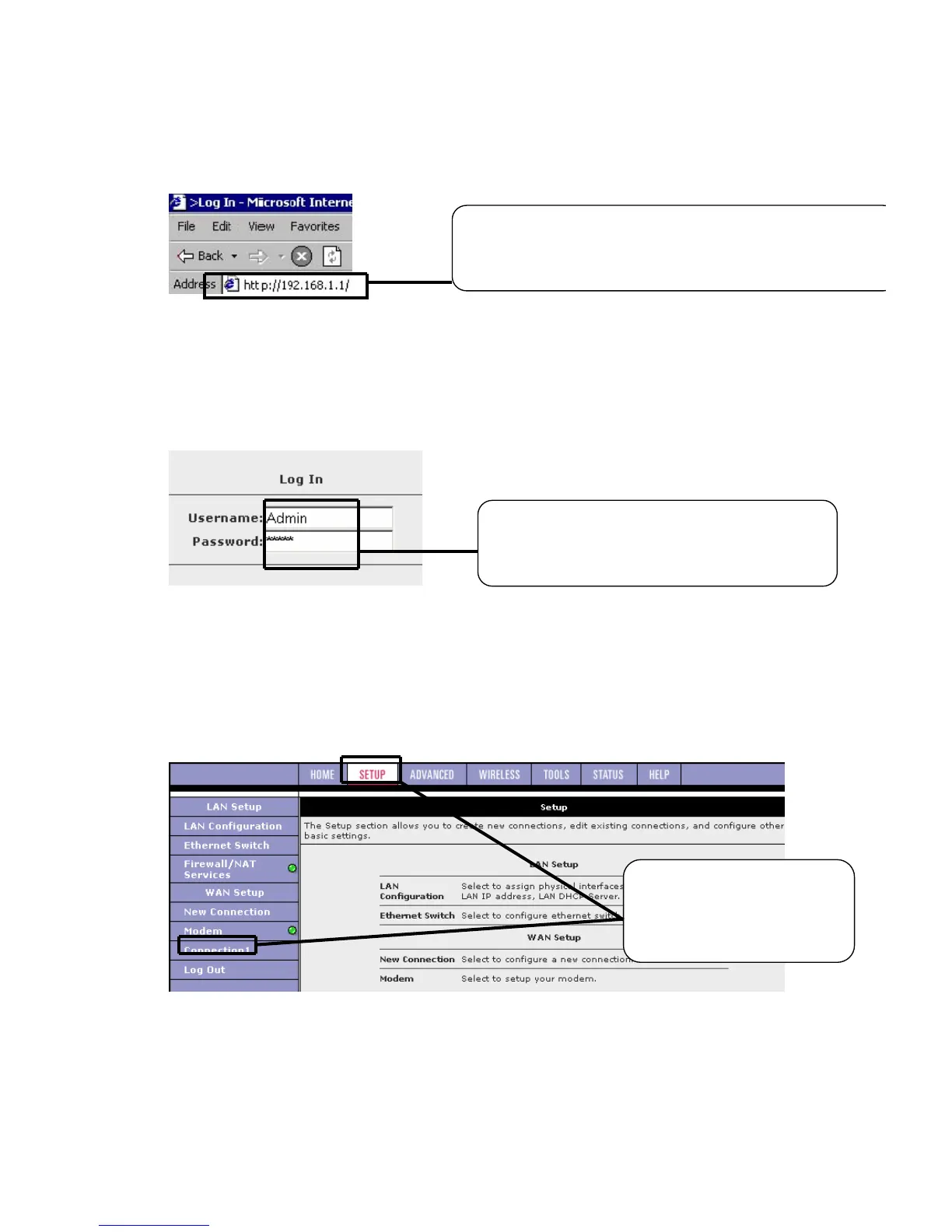
2 The login dialog window will appear. This device’s default user name is
Admin (case sensitive) and password is Admin (case sensitive).
3 This first screen that appears is Home screen. The basic layout of the Home
page consists of a page selection list across the top of the browser window.
The footer displays gateway status, connection information, and other
useful information.
Open your web browser and type the address
192.168.1.1 into the URL address field and then press
Enter or Return key. The login screen will appear.
(case sensitive) for user
name and Admin (case sensitive) for
password and then press Log in button.
with a basic configuration,
select Setup. And then
click on Connection 1.



 To Next Page