Owner’s Guide
13
and rerunning a current version of the so ware, which will include the latest front-end
drivers.
The Front-end Self-test
Once the front-end is properly connected to the PowerLab, and the proper so ware is
installed on the computer, a quick check can be performed on the front-end. To perform
the self-test:
• Turn on the PowerLab and check that it is working properly, as described in the
owner’s guide that was supplied with it.
• Once the PowerLab is ready, start LabChart, LabTutor, LabStation or Lt.
• While the program is starting, watch the Status indicator on the front-end’s front
panel. During initialization, you should see the indicator flash briefly and then
remain lit.
If the indicator lights correctly, the front-end has been found by the PowerLab and is
working properly. If the indicator doesn’t light, check your cable connections and repeat
the start-up procedure.
So ware Behavior
When a front-end is connected to a PowerLab and the ADInstruments so ware is
successfully installed, the Input Amplifier… menu command from the Channel
Function pop-up menu in LabChart should be replaced by the <Front-end>... menu
command.
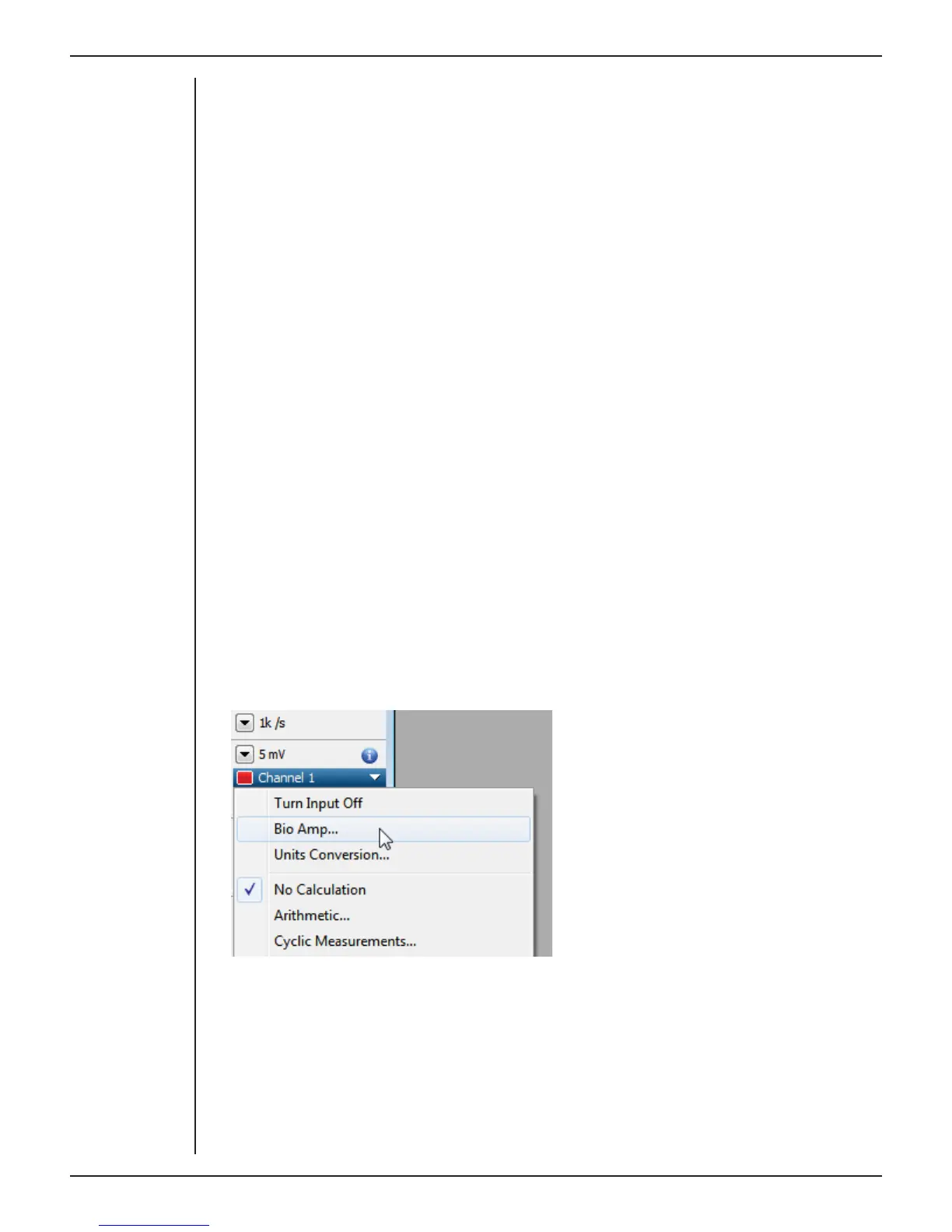
For example, with a Bio Amp front-end connected, Bio Amp… should appear in the
Channel function pop-up menu.
If the application fails to find a front-end attached to a channel, the normal Input
Amplifier… command or button remains. If you were expecting a connected front-end,
you should close the program, turn everything o , check the connections, restart the
PowerLab and then relaunch LabChart, LabTutor or the Kuraloud Desktop App.
Figure 2–3
Channel Function
pop-up menu in
LabChart with the
Bio Amp front-end
connected



 To Next Page