123
ADOBE FRAMEMAKER 7.0
Classroom in a Book
•
When you import by reference, the document doesn’t contain any image; instead, it
contains only a pointer to the stored graphic file on the disk. This can greatly reduce the
size of a file. (If you import by copying on both the Left and Right master pages, the
document contains the same image twice, increasing the file size.)
•
When you import by reference, the graphic in the document will be updated automat-
ically whenever the stored graphics file is changed. (If you import by copying and then
change the graphic file, you need to reimport the graphic to update the image stored in
the document.)
In this lesson, you’ll import the graphic by reference.
1
If necessary, scroll up until you see the top of the Left master page.
2
Click in the page margin to make sure that nothing is selected on the page and that
there’s no insertion point.
3
Choose File > Import > File.
4
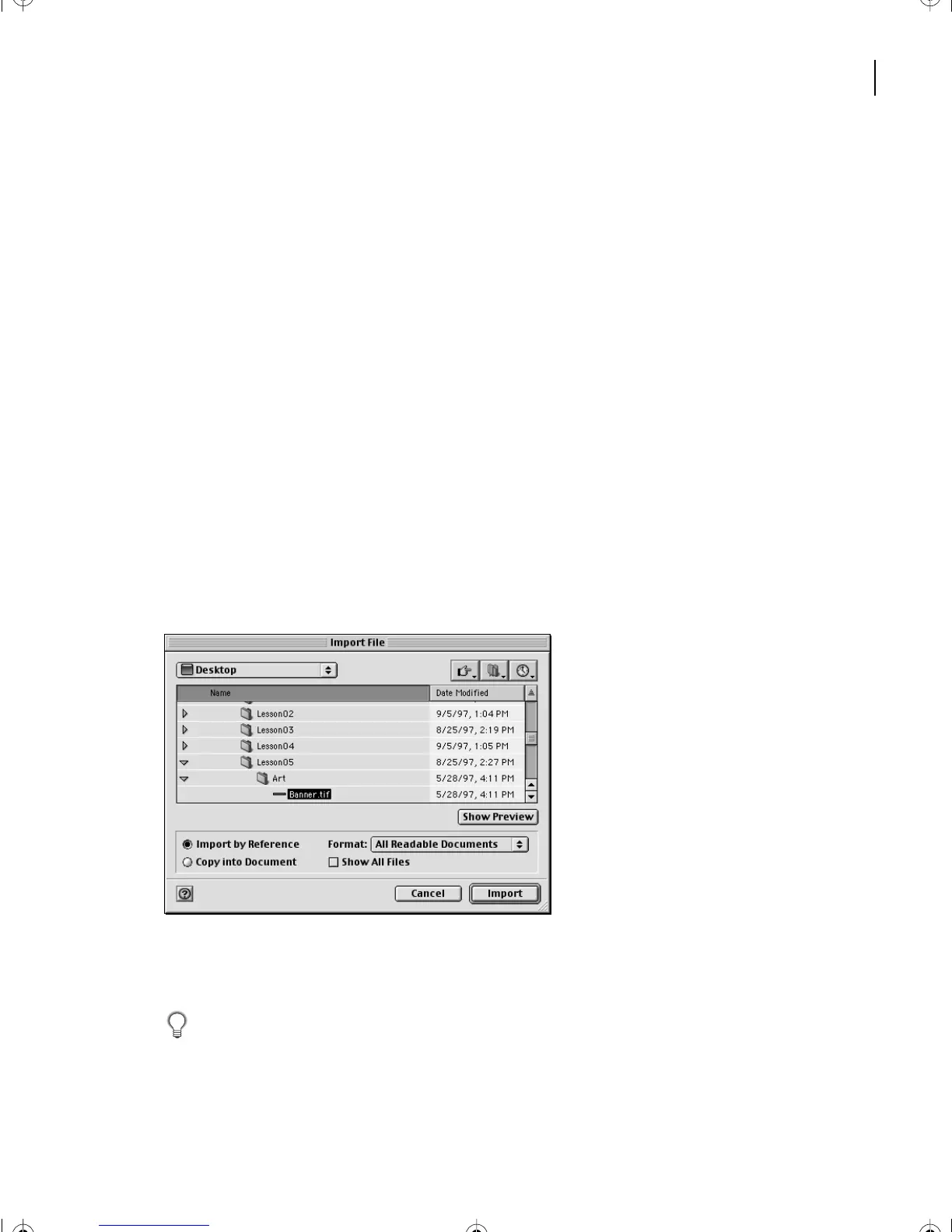
Open the Art folder in the Lesson05 folder.
5
Select Import by Reference, then select Banner.tif in the scroll list.
6
Click Import. The Imported Graphic Scaling dialog box appears.
7
Select 72 dpi (dots per inch) to set the scaling for the graphic, and click Set.
The best printed results are obtained if you choose a dpi value that divides evenly (or with
a small remainder) into the resolution of your printer. The best screen representations are
achieved with a dpi value that divides evenly into your monitor’s screen resolution.
L05.fm Page 123 Saturday, July 6, 2002 11:45 AM



 To Next Page