LESSON 5
124
Graphics
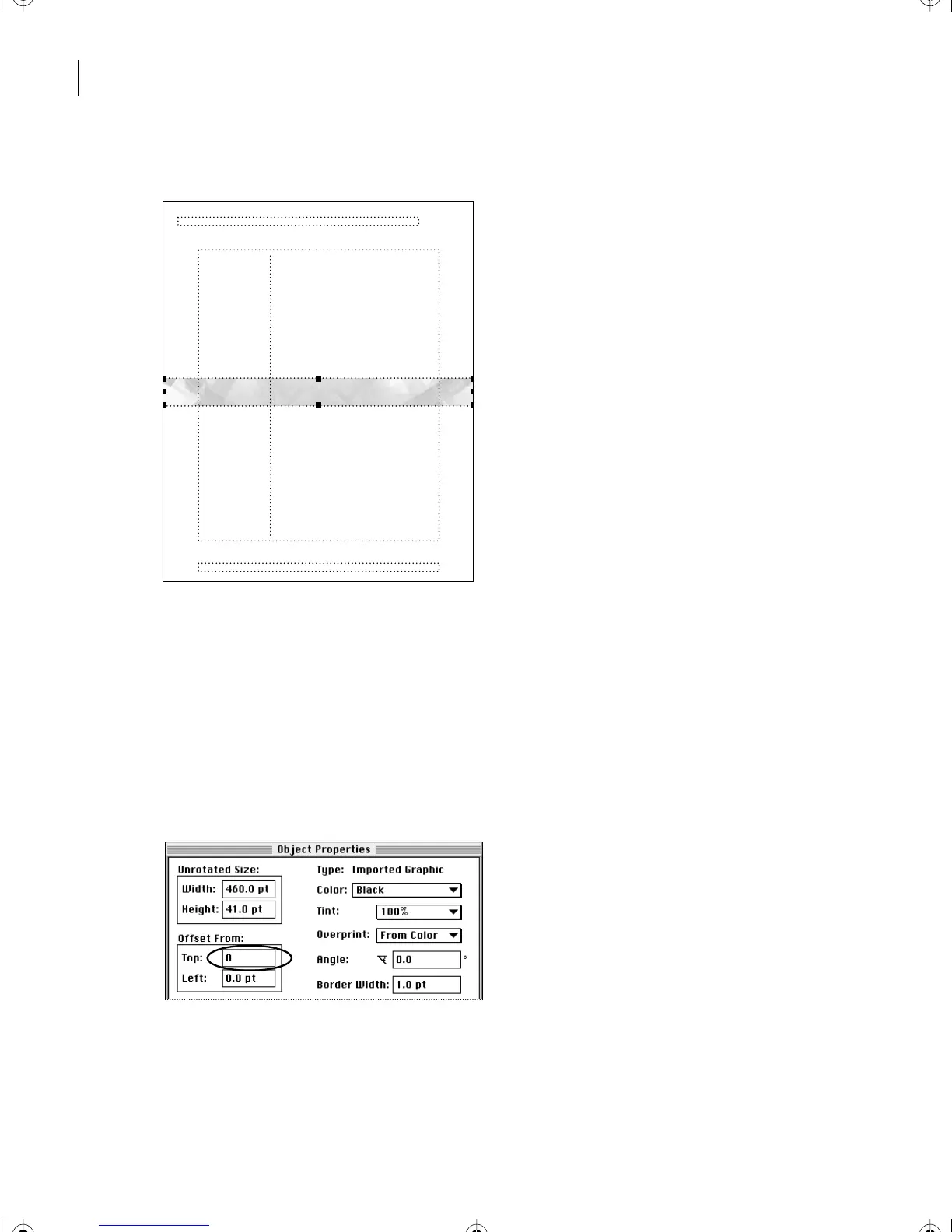
The graphic is centered on the page.
Note
: If the graphic is cropped by a text frame, appears in an anchored frame, or doesn’t
appear at all, you probably had an insertion point when you chose File > Import > File.
Choose Edit > Undo, click outside the text frames, and try again.
Next, you’ll reposition the graphic at the top of the page.
8
With the graphic still selected, choose Graphics > Object Properties.
9
In the Offset From area, change the Top offset to 0 (zero) and click Set. The graphic
moves to the top of the page.
10
Save the document.
Planning for Commercial Printing: The publishing process
#
L05.fm Page 124 Saturday, July 6, 2002 11:45 AM



 To Next Page