LESSON 5
128
Graphics
Last, you’ll group the imported graphic and the rectangle, so you can manipulate them as
a single object.
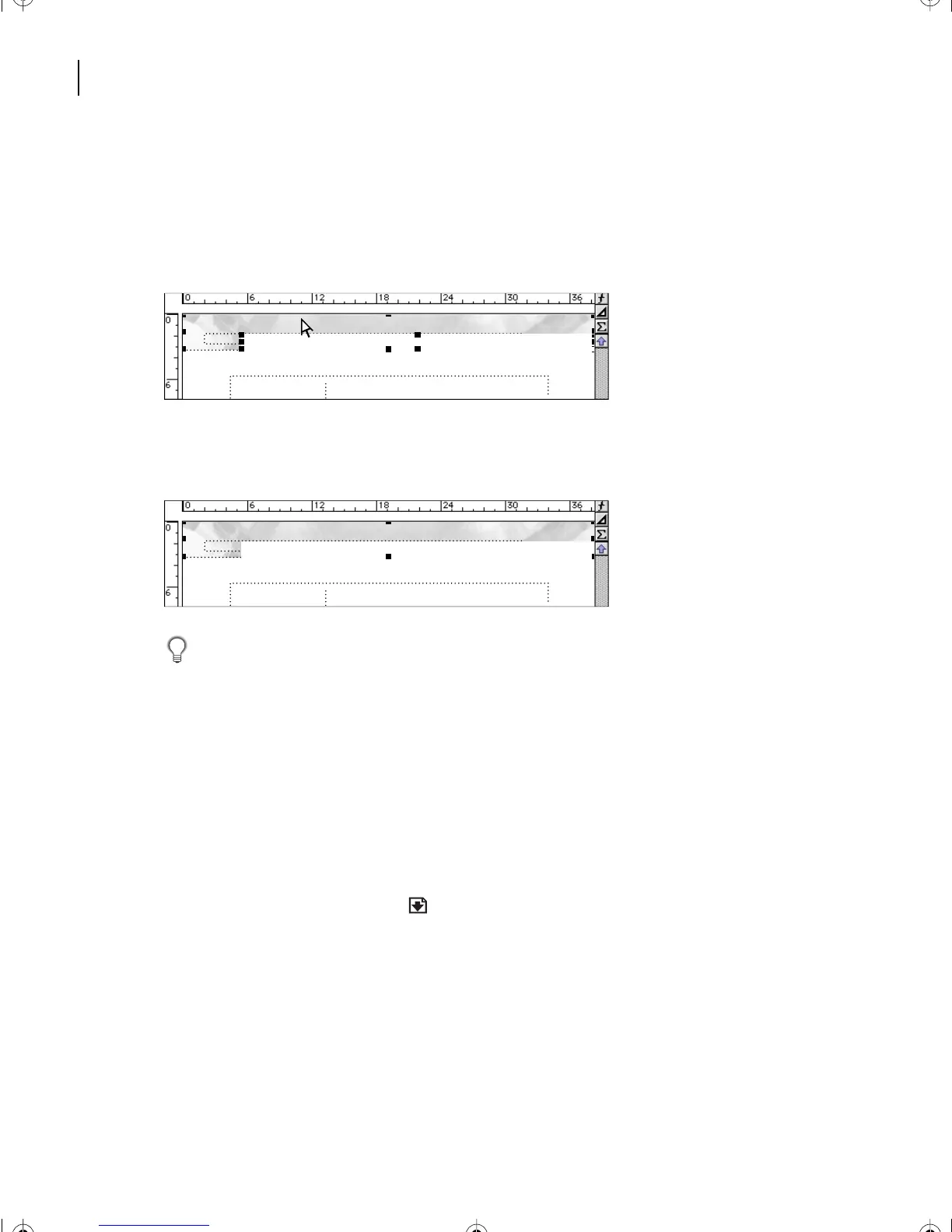
10 With the rectangle still selected, Shift-click the imported graphic to add it to the
selection. Handles now appear around both the rectangle and the imported graphic.
11 Choose Graphics > Group. One set of handles now appears around the grouped set
of objects.
It’s a good habit to group graphic objects that you want to treat as a single object. This
ensures that moving and copying will be consistent.
12 Save the document.
Copying the graphics
Yo u’ll use the same graphic at the top of every page, so you’ll copy the grouped graphics
to the Right master page. However, you’ll flip the graphic for a symmetrical look.
1 With the grouped objects still selected, choose Edit > Copy.
2 Click the Next Page button ( ) in the status bar to display the Right master page.
Don’t click anywhere on the page, because if you click inside a text frame, the graphic will
be pasted inside the frame instead of at the top of the page.
#
#
L05.fm Page 128 Saturday, July 6, 2002 11:45 AM



 To Next Page