LESSON 5
130
Graphics
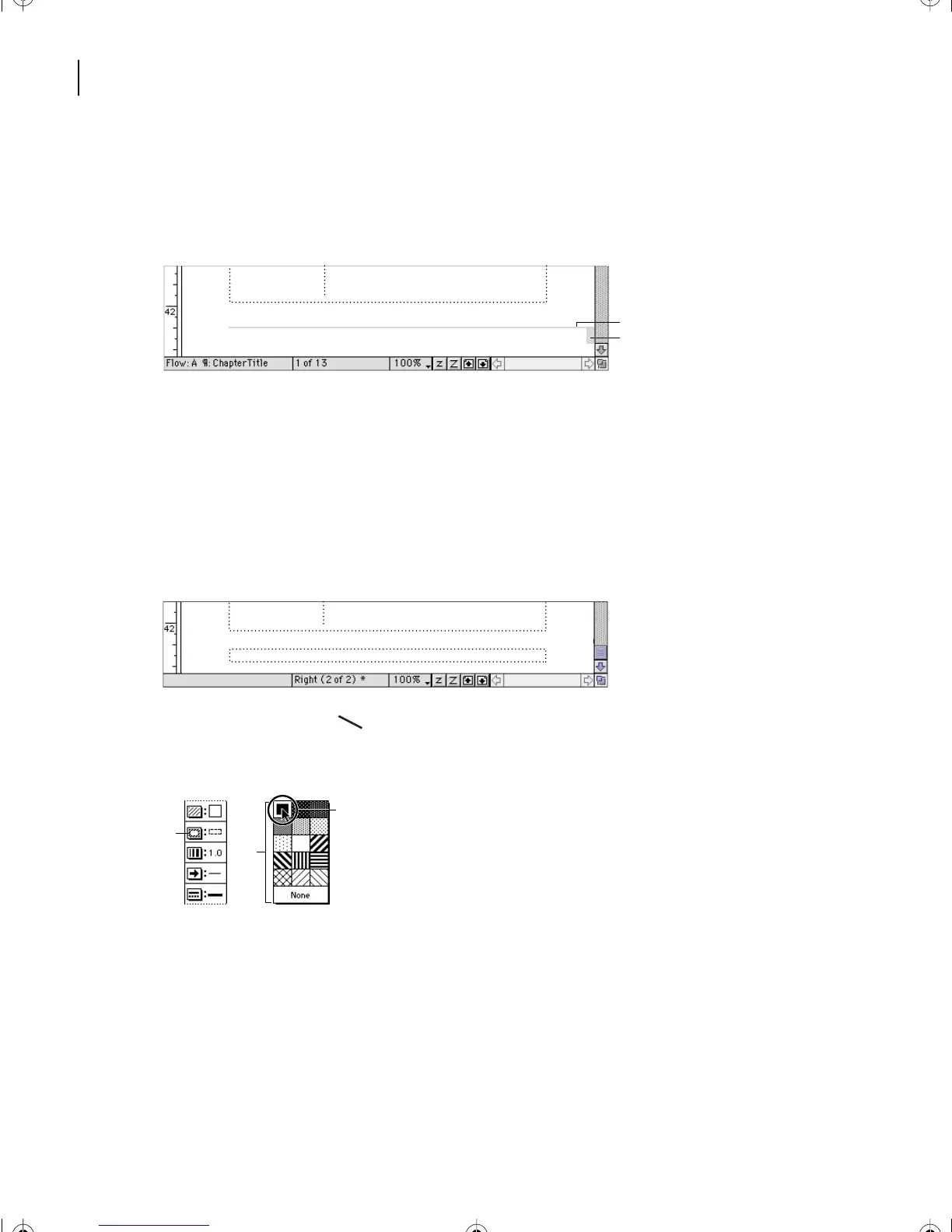
Drawing lines and rectangles
The last part of the page design involves creating a line and a rectangle that will appear at
the bottom of each page.
A. Line B. Rectangle
Because the Snap grid is on and is set to 6 points, when you draw an object, it will “jump”
in size in 6-point increments. For finer control, you’ll turn off the Snap command now.
1 Choose Graphics > Snap to turn off Snap.
Now you’ll draw the line.
2 If necessary, scroll down until you can see the footer on the Right master page.
3 Click the line tool ( ) on the Tools palette.
4 Choose Solid from the Pen pop-up menu.
A. Pen pop-up menu button B. Pen pop-up menu C. Selected fill
Planning for Commercial Printing: Planning and evaluation
need to select a prepress service provider to image
color separations, scan continuous-tone art, and trap
A
B
Running H/F 1: Running H/F 2
A
B
C
L05.fm Page 130 Saturday, July 6, 2002 11:45 AM



 To Next Page