161
ADOBE FRAMEMAKER 7.0
Classroom in a Book
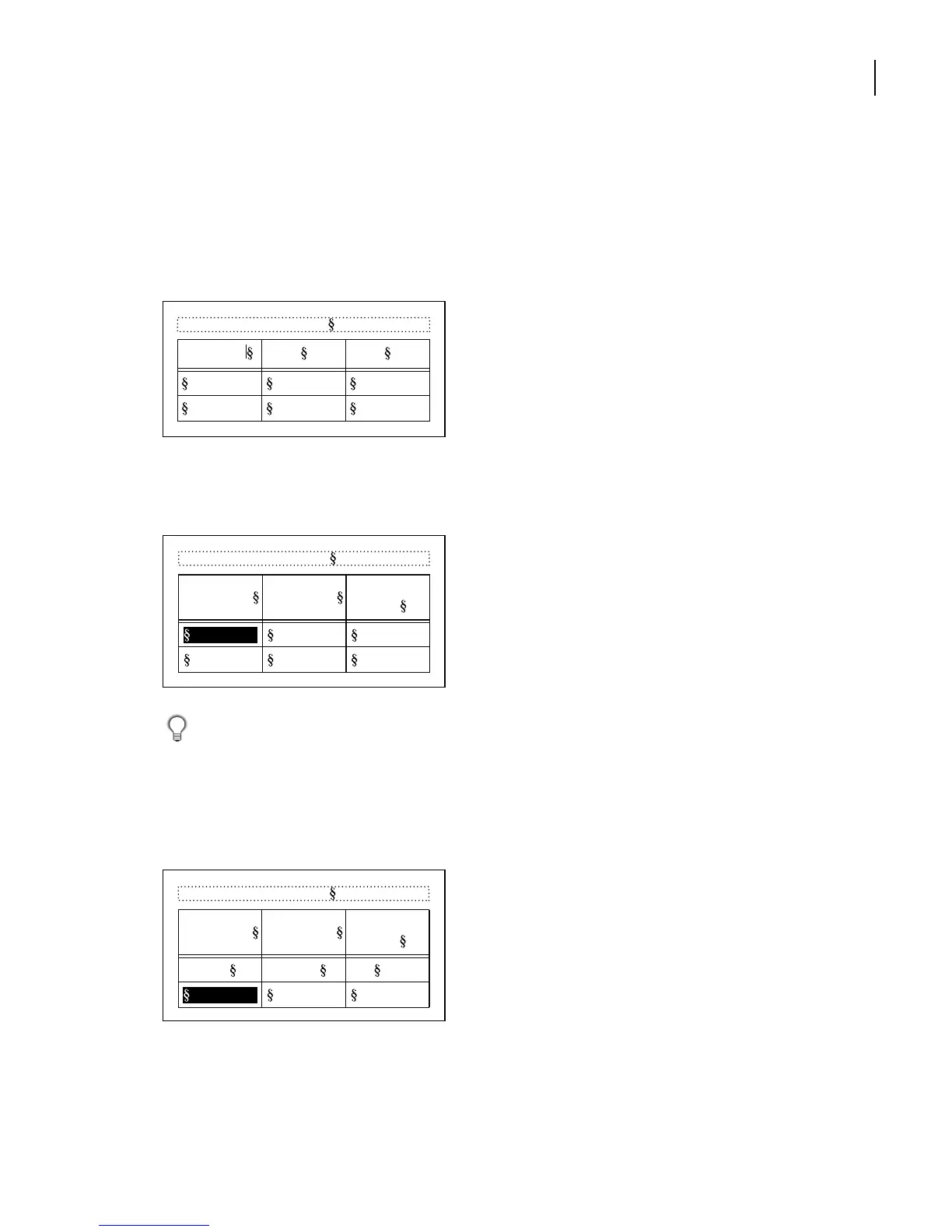
Filling in the table
Now you’ll fill in the heading row and the body rows. You won’t need a title for this table,
so you’ll remove it later.
1
Click in the first heading cell and type
Image Size
.
2
Press Tab, type
Publication
, press Tab again, type
Line Screen (lpi)
, and press Tab one
more time.
To move back one cell, press Shift+Tab.
The heading row is complete, and the first body cell is highlighted.
3
Type
5 x 5 in.
, press Tab, type
Art book
, press Tab, type
175
, and press Tab again to
complete the first body row.
4
Press Tab to skip the first cell in the second row.
Table 1:
Image Size
Table 1:
Image Size Publication
Line Screen
(lpi)
Table 1:
Image Size Publication
Line Screen
(lpi)
5 x 5 in. Art book 175



 To Next Page