LESSON 7
162
Tables
To move ahead or back one row in the same column, do one of the following: press
Control+Alt+Tab or Control+Alt+Shift+Tab (Windows); press Control+Tab or
Control+Tab+Shift (Mac OS); press Meta+n or Meta+p (UNIX).
5
Type
Newspaper
, press Tab, and type
80
to complete the second body row.
Adding rows and columns
The table needs another row for the recommended values for magazines and another
column for the resolution. First you’ll add a row.
1
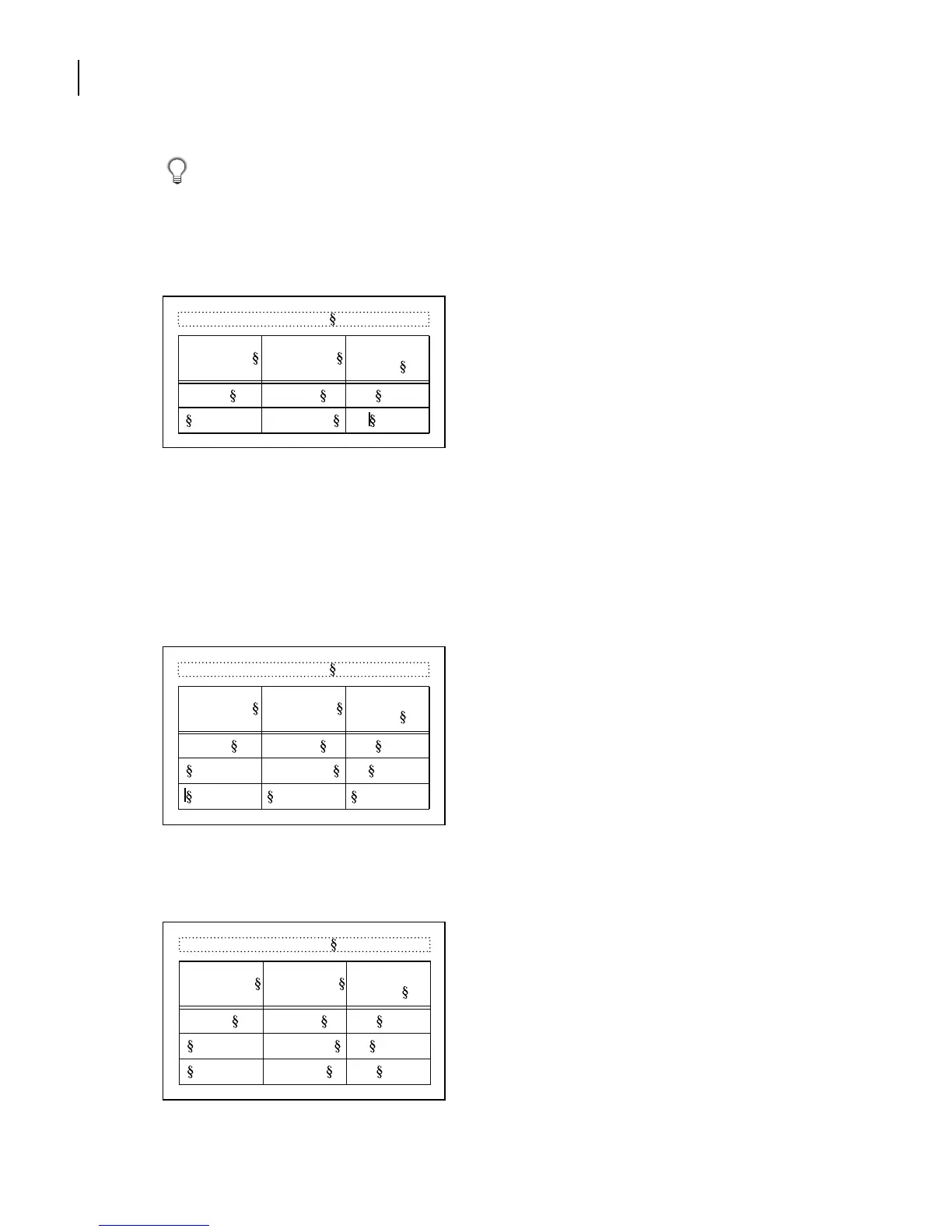
With the insertion point in the last row of the table, press Control+Return. An empty
row is inserted below the insertion point.
2
Press Tab to skip to the second cell in the new row.
3
Type
Magazine
, press Tab, and type
133
.
Table 1:
Image Size Publication
Line Screen
(lpi)
5 x 5 in. Art book 175
Newspaper 80
Table 1:
Image Size Publication
Line Screen
(lpi)
5 x 5 in. Art book 175
Newspaper 80
Table 1:
Image Size Publication
Line Screen
(lpi)
5 x 5 in. Art book 175
Newspaper 80
Magazine 133



 To Next Page